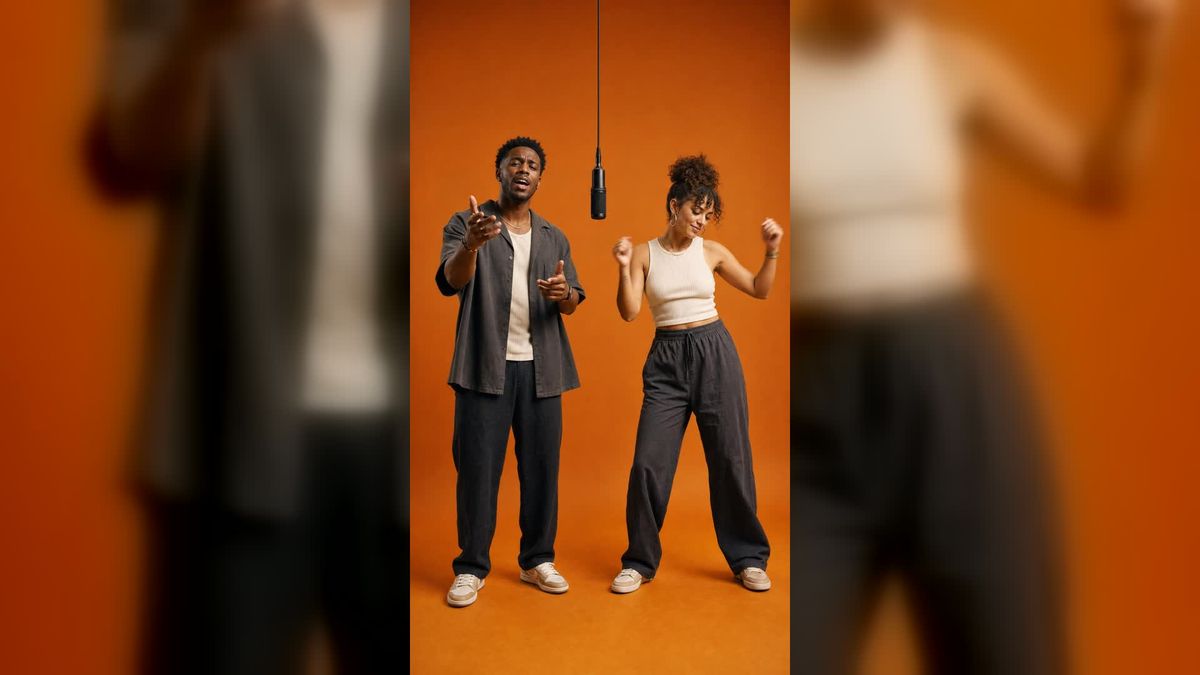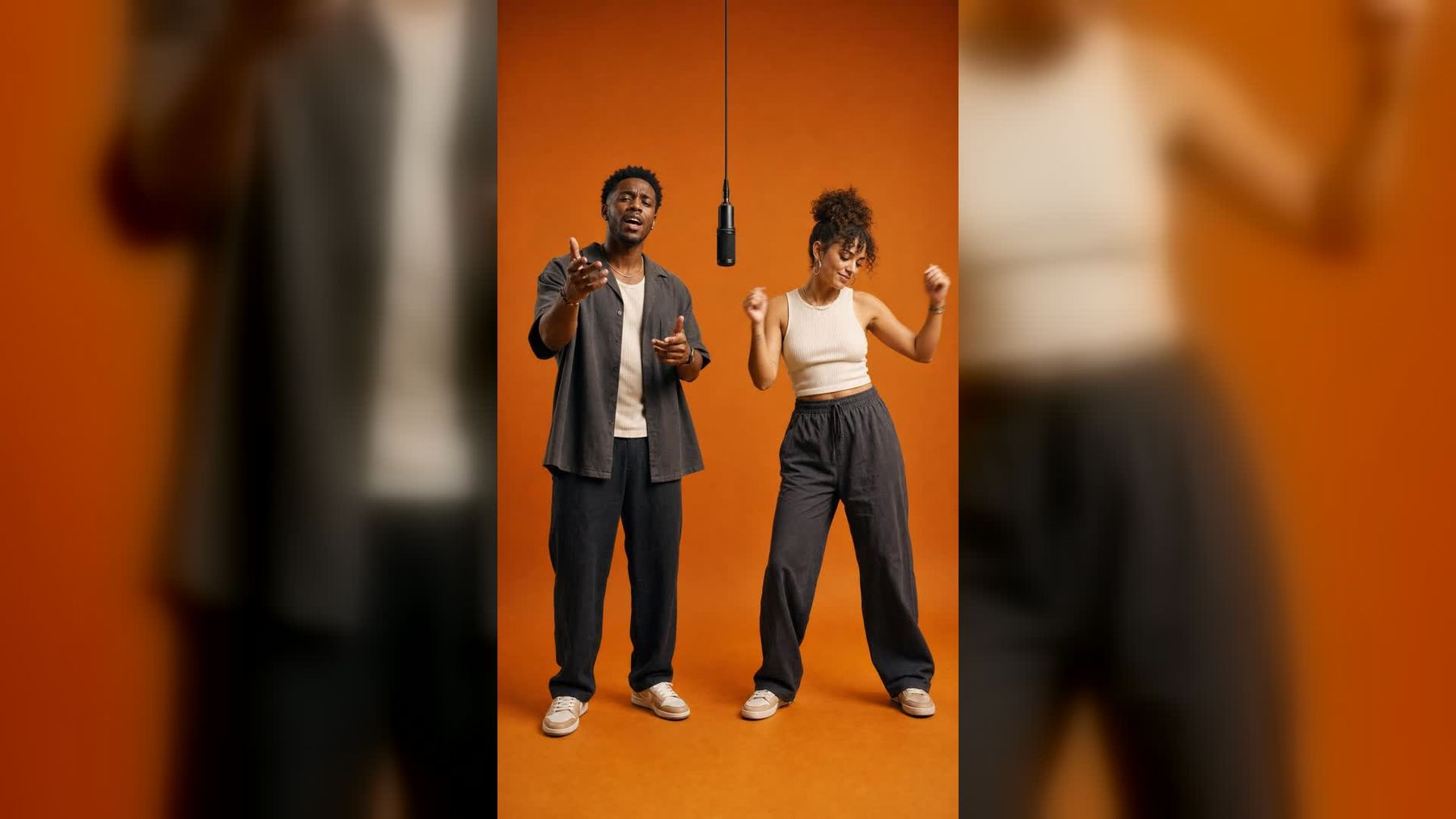
The Hotel Lobby AI trend turns two photos into a video of the subjects performing in a bright orange studio. One takes the left position at a hanging microphone, the other performs on the right, and the original movement, camera work, timing, and soundtrack remain.
If you have seen the clip on TikTok or Instagram, you may know it as the Hotel Lobby AI video, the Migos Hotel Lobby AI trend, or simply “that orange booth AI video.” The source is not a hotel lobby at all. It is Quavo and Takeoff performing “HOTEL LOBBY (Unc & Phew)” for A COLORS SHOW.
You can make your own version with the dedicated Hotel Lobby AI video generator on imageat. The process uses one reference image for each person, so you do not need to write a long prompt or rebuild the scene yourself.
What is the Hotel Lobby AI trend?
The Hotel Lobby AI trend is a two-person character-swap video. AI replaces Quavo and Takeoff in a fixed performance clip while keeping the parts that make the video recognizable:
- The flat orange COLORS booth
- The hanging microphone
- The two-performer layout
- The choreography and gestures
- The original camera angles and movement
- The timing and synchronized soundtrack
Your two uploads control who appears in the left and right roles. The template controls the performance around them. That is why different versions can feature friends, couples, fictional characters, athletes, pets, or other creative pairings while still looking like the same trend.
It is also why this effect is easier to make than a video generated from a blank prompt. You are not asking an AI model to invent a full music performance. You are giving it two identities to place into an existing structure.
Where did the Migos Hotel Lobby AI video come from?
People often search for “Migos Hotel Lobby AI,” but the original performance featured Quavo and Takeoff as Unc & Phew. Their 2022 A COLORS SHOW performance of “HOTEL LOBBY” shows the pair trading verses in a minimal orange studio with one suspended microphone.
The clear two-person setup made the clip a natural fit for AI remakes. The format spread across TikTok and Instagram in September 2026, with creators swapping in friends, fictional characters, and other unexpected pairs while preserving the recognizable performance.
The name can be confusing. “Hotel Lobby” refers to the song, not the location. The orange room comes from A COLORS SHOW, not a real hotel.
How to make a Hotel Lobby AI video with imageat
1. Open the Hotel Lobby AI generator
Go to the Hotel Lobby AI trend page. Watch the example before uploading anything. Notice which performer appears on the left, which appears on the right, and where the microphone sits.
The generator is designed for this specific effect. You do not need to find the original clip, write a motion prompt, synchronize audio, or edit the performers into the orange booth by hand.
2. Prepare two clear reference photos
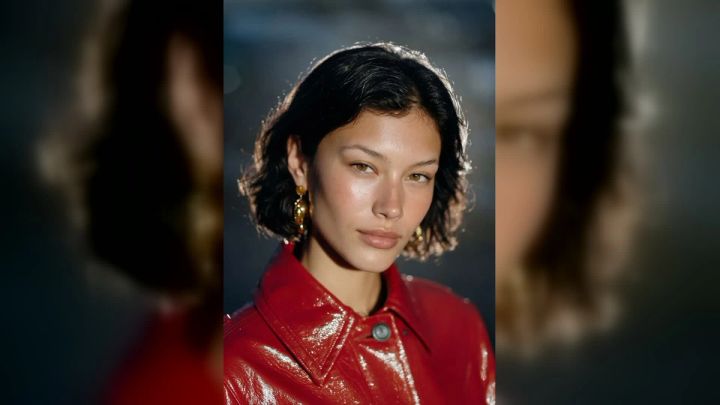
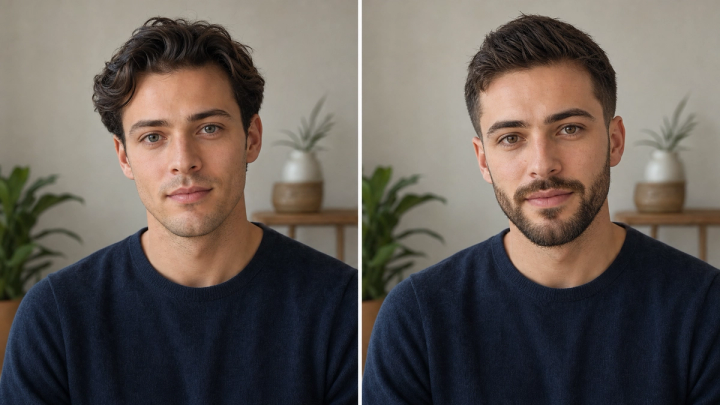
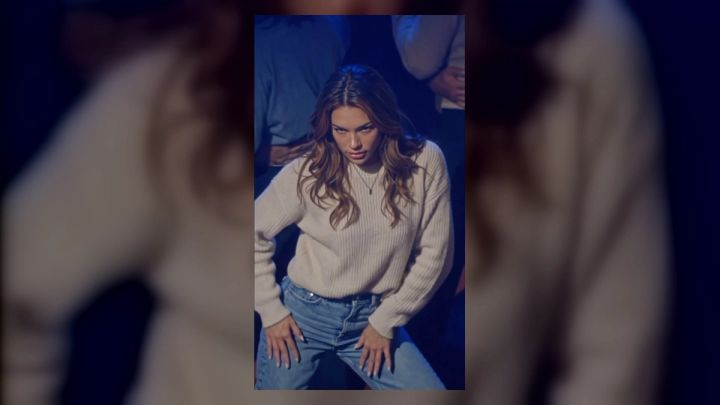
You need two uploads: one image for each person. Use images that you own or have permission to use.
For a simple attempt, choose clear, well-lit references with one subject in each file. For the strongest likeness, imageat recommends that each file show the same person from three useful views: a front portrait, a front full-body view, and a back full-body view. These views can be arranged together in one character sheet per person.
Keep the face visible. Avoid sunglasses, masks, heavy beauty filters, motion blur, cropped shoes, and other people in the frame. Use the same hairstyle and outfit across the views. A plain background also helps the subject remain easy to read.
3. Put each person in the correct role
Upload order controls the role assignment:
- The first image becomes the performer on the left at the microphone.
- The second image becomes the performer on the right.
Check this order before generating. If the result places your subjects in the wrong positions, swap the two uploads and try again.
Distinct outfits can also help. If both people have similar hair, colors, and silhouettes, the model has fewer visual clues for keeping their identities separate.
4. Choose the video length and resolution
The live imageat tool offers 15-second and 30-second versions in a 16:9 landscape format. You can choose 480p for a lower-cost test or 720p for a sharper result.
A practical workflow is to test the two photos and role order at the lower resolution, then generate the final version at 720p after you know the inputs work well. The available settings and credit costs are shown on the generator before you start.
5. Generate and review the result
Start the generation and wait for the video to finish. The tool keeps the source choreography, camera movement, timing, microphone, orange environment, and synchronized soundtrack while replacing the two performers.
Watch the complete result before downloading it. Check both faces, hair, outfits, hands, shoes, and microphone interaction. Look for moments where the identities blend or switch. If one person changes too much, improve that reference image rather than adding a complicated prompt.
6. Download the clean master
Download the 16:9 version before adding captions or converting it for another platform. A clean landscape master gives you more room to make a thumbnail, add a short intro, or place the clip inside a vertical 9:16 canvas.
For TikTok or Reels, avoid a tight center crop that removes the performer on either side. Keeping the full landscape clip with designed space above and below is often better than cutting one person out.
Is Hotel Lobby AI free?
“Hotel lobby AI free” is a common search, but generating this effect on imageat currently uses credits. The tool shows the required amount before you generate, and the total changes with duration and resolution. At the time of this update, the page displayed 480p and 720p choices, with longer or higher-resolution outputs using more credits.
You can open the generator and preview the workflow without writing a prompt. Log in to see your available credit balance and the current generation cost. Because pricing and promotional credits can change, check the live page rather than relying on an old tutorial or social post that says the effect is free.
Testing with a shorter 480p version can reduce wasted credits if you are unsure about photo quality or upload order. Move to 720p only after the two identities look right.
How to get a better result
Use these checks before pressing Generate:
- Use one person per upload. Group photos make role assignment less clear.
- Choose sharp faces. The eyes, hairline, and face shape should be easy to see.
- Show the full outfit. Full-body views help with clothing, build, legs, and shoes.
- Keep front and back views consistent. Do not mix different hairstyles or jackets.
- Avoid covered features. Masks, large glasses, hands over the face, and deep shadows can weaken the likeness.
- Separate similar-looking subjects. Different outfit colors or silhouettes can reduce identity blending.
- Test the role order. The first upload is the left performer; the second is the right performer.
- Review the whole clip. A strong opening frame does not guarantee that every later frame is stable.
You do not need a detailed text prompt for this template. Better source photos usually improve the result more than extra instructions.
Ideas for your own Hotel Lobby AI video
Try a friend or sibling duo, a couple, two consenting creators, original fictional characters, approved mascots, teammates, or two fashion looks. Use only subjects and assets you have permission to use. Do not present the edit as a genuine performance or endorsement, and follow each platform’s rules for synthetic media and music.
Hotel Lobby AI trend FAQ
Is the Hotel Lobby AI video actually filmed in a hotel?
No. “Hotel Lobby” is the song title. The recognizable orange booth is the set used for Quavo and Takeoff’s A COLORS SHOW performance.
Do I need Quavo and Takeoff photos?
No. They are the performers in the source video, but your version uses two photos of the people or authorized characters you want to place into the scene.
Do I need a prompt?
No long prompt is required on the dedicated imageat generator. Upload two references, confirm their order, choose the duration and resolution, and generate the video.
Can I make the Hotel Lobby AI trend with one photo?
The effect is designed for two performers, so use one reference image for each role. If you want the same person in both positions, prepare two suitable references and make sure you have permission to use them.
What format does imageat create?
The current tool creates a 16:9 landscape video. It offers 15-second or 30-second lengths and 480p or 720p resolution.
Does the Hotel Lobby AI video include sound?
Yes. The imageat template preserves the synchronized soundtrack from the source performance along with its timing and movement.
Make your Hotel Lobby AI trend video
The Hotel Lobby AI trend is popular because the idea is instantly clear: two new faces enter Quavo and Takeoff’s orange COLORS performance while the familiar scene, motion, and music remain intact. Start with two clean, authorized photos, assign the left and right roles, test your settings, and review both performers before posting.
Create the Hotel Lobby AI video with imageat, then download the landscape master and prepare it for TikTok, Reels, or your next collaborative edit.