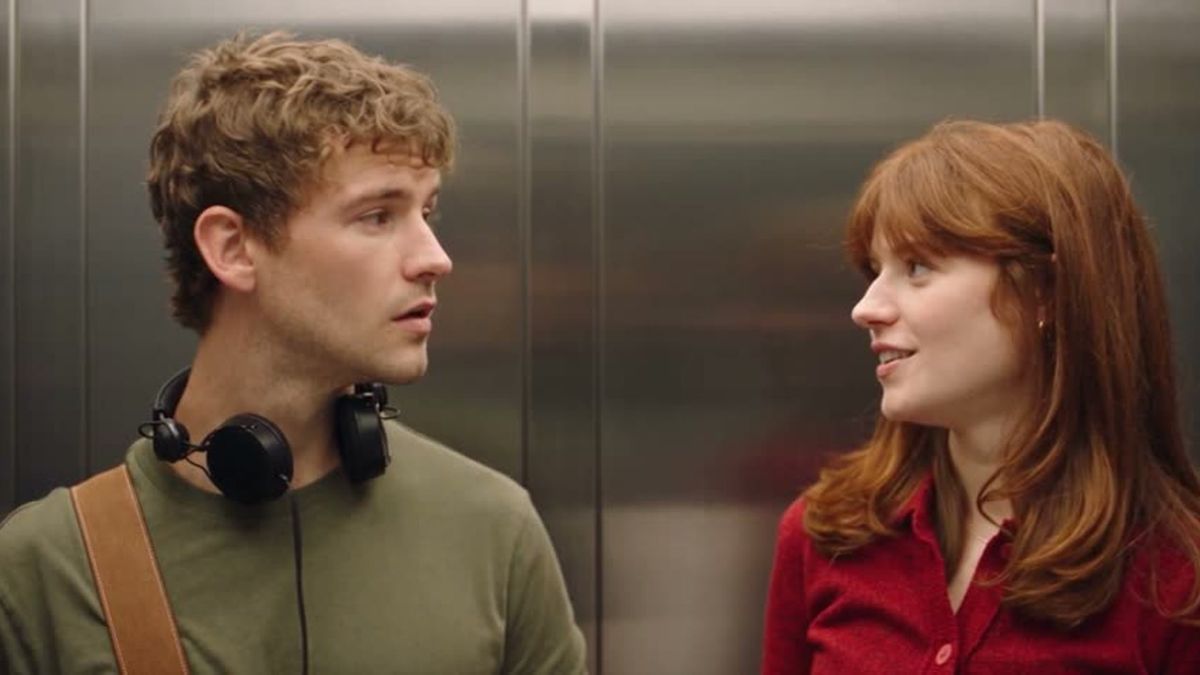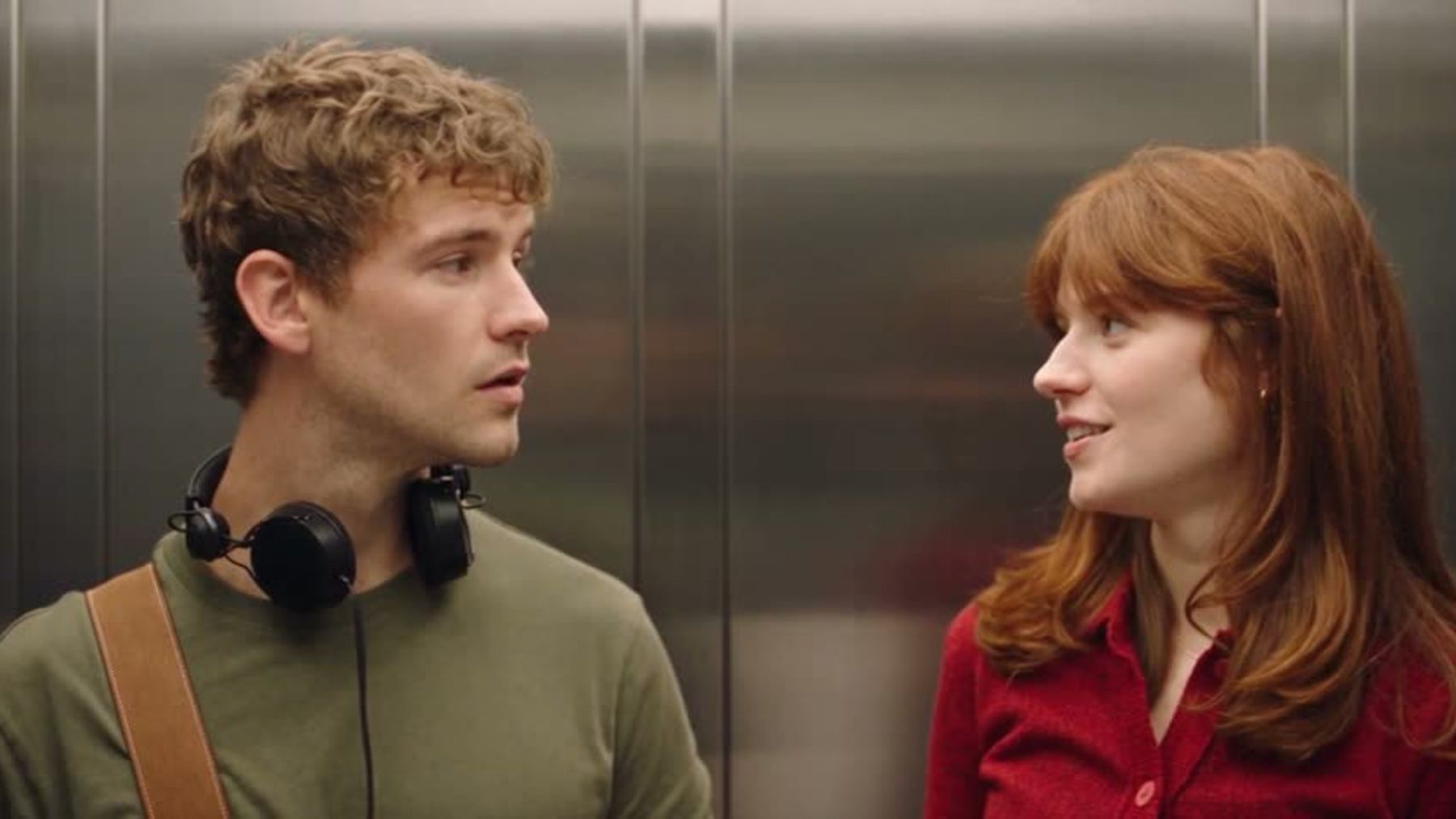
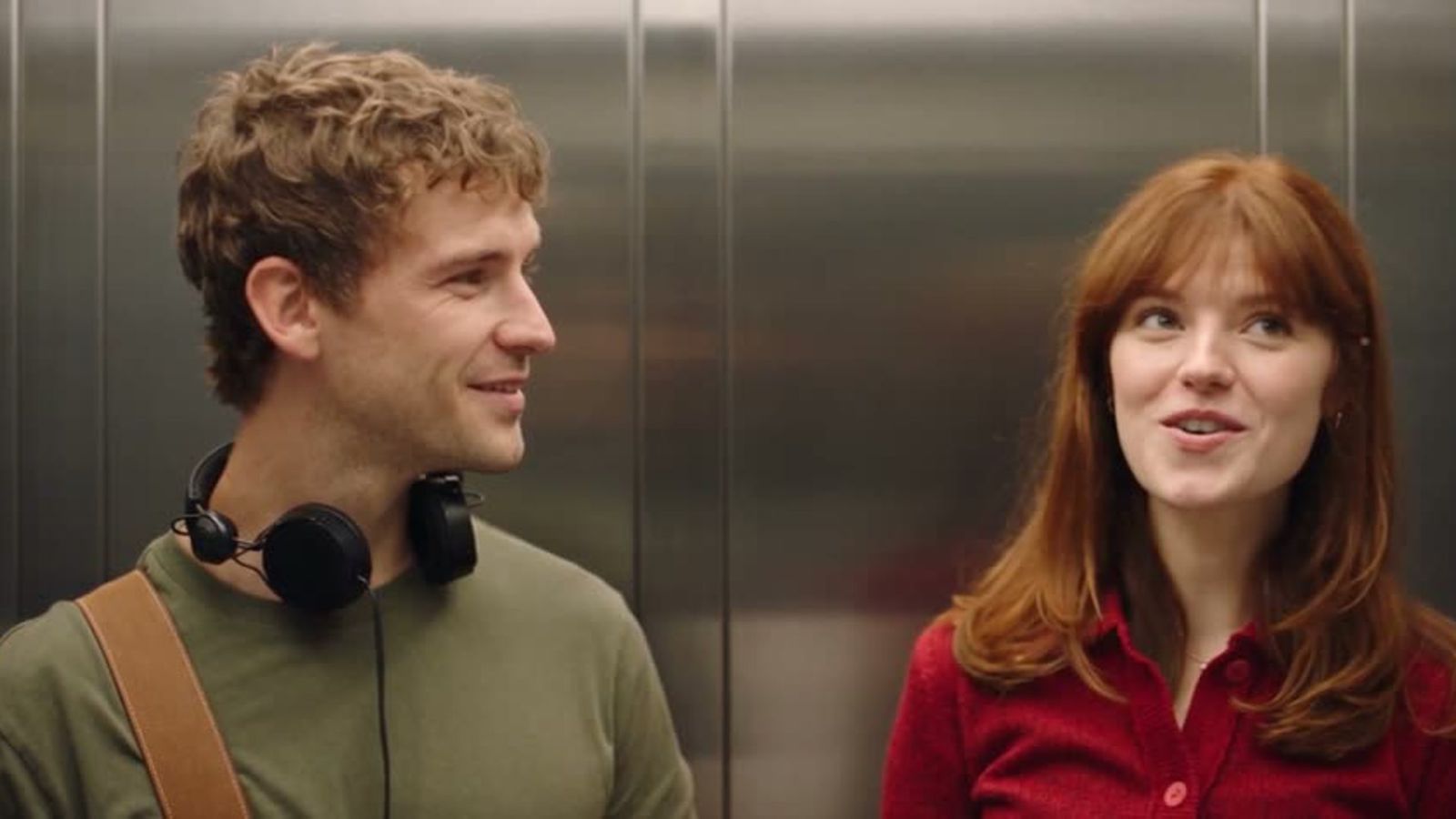
The “I Love the Smiths” elevator scene trend recreates the brief encounter from (500) Days of Summer in which a shared taste in music turns an ordinary elevator ride into an unexpectedly personal moment. With the I Love the Smiths elevator scene template, two people can step into the scene using one photo for each role.
The appeal is not just nostalgia. The clip has a complete story in a few seconds: silence, recognition, surprise, and the possibility of a connection. That compact emotional arc makes it easy to understand even before viewers know the movie reference.
Where does the elevator scene come from?
The scene comes from the 2009 film (500) Days of Summer. One character notices the music playing through another character’s headphones and recognizes The Smiths. The song associated with the moment is “There Is a Light That Never Goes Out.”
That exchange matters because it changes how the characters see one another. A private preference becomes a point of connection, while the confined elevator gives the moment nowhere to hide. The scene is quiet rather than spectacular, which is precisely why it is memorable.
Online edits often refer to it as the “I Love the Smiths” scene, the elevator scene, or the lift scene. The trend version preserves the recognizable setup while letting two different people occupy the roles.
Why did the scene become a social trend?
Several qualities make the elevator scene easy to reinterpret.
It tells a story immediately
Two people enter the frame with no explanation. One hears something familiar, starts a conversation, and surprises the other person. Viewers can follow the emotional shift without a long caption or setup.
Music taste works as a character shortcut
A shared artist can signal compatibility, nostalgia, or an inside joke. Creators can use the scene sincerely for couples and friends, or play it ironically when the two people have completely different personalities.
The reaction is the payoff
The most useful beat is not a long line of dialogue. It is the change in expression when one person realizes the other understands the reference. That makes photo choice and facial clarity especially important in a personalized version.
The format fits short-form platforms
The imageat version runs about 24 seconds in a 16:9 frame. It is long enough to establish both people and the exchange, but short enough to use as a compact post, edit, or story-driven clip.
How the imageat template works
The template uses two photos and assigns each one to a fixed role:
- Photo 1 replaces the person on the left, who is wearing headphones.
- Photo 2 replaces the person on the right, who notices the music.
- Choose 480p for a lower-credit draft or 720p for a sharper result.
- Review the credit cost displayed on the Generate button.
- Generate, preview, and download the finished video.
The output follows the reference scene’s timing, cuts, elevator setting, gestures, and source audio. It is a ready-made template, so there is no prompt to write. For a different concept built from your own starting image, use image-to-video AI instead.
Choose photos that survive close-ups
A good input photo does more than show a recognizable face. It gives the model clear information to carry through multiple cuts and expressions.
Use one clearly visible adult per image
Group photos create ambiguity about which person should be used. Crop each image so one adult is the unmistakable subject.
Keep the face unobstructed
Avoid sunglasses, masks, heavy shadows, hair covering the eyes, or a hand crossing the face. A front-facing or gentle three-quarter angle usually provides clearer identity information than an extreme profile.
Include the hairstyle and outfit you want to keep
The personalized video can carry over visible hair, clothing, skin tone, and body shape. A waist-up or full-body image provides more wardrobe context than a tight face crop.
Match image quality between both people
If one photo is crisp and evenly lit while the other is blurry or heavily filtered, the final pair may feel inconsistent. Similar lighting and resolution help the two roles belong in the same scene.
Keep the role order intentional
Photo 1 always maps to the left role; Photo 2 maps to the right role. Decide the casting before uploading rather than trying to fix the order after generation.
Ideas for using the trend
The original setup is specific, but the social meaning can change depending on who you cast.
A couple’s shared-song story
Use photos of two consenting adults and explain in the caption which artist, album, or concert became your real-life point of connection. The scene provides the setup; your caption supplies the personal detail.
Best friends with opposite music taste
Cast the more enthusiastic friend in the right-hand role and the skeptical friend on the left. The contrast turns the romantic recognition beat into a light joke.
Then-and-now pairing
Use current photos and pair the video with a caption about the first song, film, or fandom you bonded over. Avoid using childhood photos in the template; the page asks for clearly visible adults.
A fictional meet-cute
Create two original fictional adults, then use the scene as a tiny character introduction. If you want to continue their story beyond the elevator, the broader AI video generator offers a more flexible workflow.
A reaction-style post
Treat the clip as the first part of a sequence, then cut to your own reaction, rating, or behind-the-scenes explanation. You can trim or combine footage with the AI video editor.
What to check before posting
Watch the entire output rather than approving it from a single frame.
- Identity: Do both people remain recognizable across close-ups and the final shot?
- Role consistency: Does each person stay in the assigned left or right role?
- Hair and clothing: Are colors, collars, straps, and hairstyles stable between cuts?
- Face details: Check the eyes, teeth, jawline, and profile during speech.
- Timing: Make sure the reactions still land naturally with the scene.
- Audio: Preview the final file with sound before uploading it anywhere.
If a result contains visible identity drift, try clearer source photos before repeating the same inputs. A better source often helps more than post-processing.
Credits, consent, and audio rights
Generation uses imageat credits; it is not presented as a free generation. The current template displays separate costs for 480p and 720p, and the exact amount appears before generation. Because pricing can change, use the number shown on the Generate button as the final reference.
Only upload photos you own or have permission to use. Do not use the template to impersonate celebrities, public figures, or people who have not agreed to appear.
The page describes the template as an independent fan-style recreation and not as an official collaboration with the film, its cast, studio, or The Smiths. It also does not grant rights to third-party film footage, dialogue, or music. Before posting commercially or on a platform with automated rights checks, confirm that your intended use and audio comply with the relevant rules.
Template workflow vs. a custom recreation
The template is the fastest route when you want the recognizable elevator structure, fixed roles, source timing, and existing audio. It removes the need to write a prompt or rebuild the edit.
A custom workflow is better when you want an original elevator, different dialogue, another camera angle, vertical framing, or music you control. Start with the AI video generator, or animate a prepared image through image-to-video AI. Browse imageat trends when you want another ready-made format rather than a blank canvas.
Frequently asked questions
What movie is the “I Love the Smiths” elevator scene from?
It is from (500) Days of Summer, released in 2009. The scene is commonly remembered as the moment when a shared interest in The Smiths starts a conversation in an elevator.
Which Smiths song is connected to the scene?
The song associated with the elevator moment is “There Is a Light That Never Goes Out.” This article intentionally avoids reproducing the dialogue or song lyrics.
How many photos does the template need?
It needs exactly two photos, each showing one clearly visible adult. Photo 1 maps to the left role, and Photo 2 maps to the right role.
Do I need to write a prompt?
No. The trend page uses a fixed scene template. Upload the two photos, choose the resolution, review the displayed credit cost, and generate.
How long is the generated video?
The page describes the output as approximately 24 seconds in a 16:9 landscape frame with two personalized roles and source audio.
Is the template official?
No. The trend page states that it is an independent, fan-style recreation and is not affiliated with or endorsed by the film, its studio, cast, or The Smiths.
Can I use celebrity photos?
No. Use photos you own or have permission to use, and do not use the template to impersonate celebrities or other real people without consent.
Create your elevator scene
Choose two clear, permission-approved photos, decide who belongs in each role, and create the I Love the Smiths elevator scene with imageat. Start with a lower-resolution draft if you want to check the casting, then select the sharper option only when the source photos and role order are right.