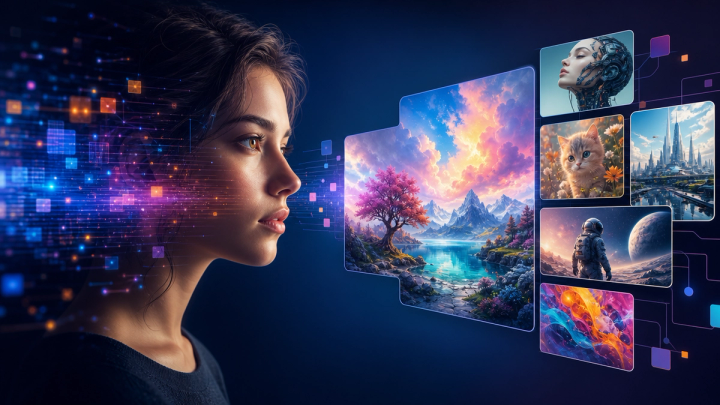
GPT Image 2.6 is OpenAI’s latest image generation and editing family, built around two models: Flare for fast iteration and Sunburst for detailed visual work. The release adds animated GIF output, SVG export, markup-guided edits, a new complexity control, faster generation, and stronger consistency across revisions.
You can use GPT Image 2.6 in imageat’s AI generation workspace, then continue the creative workflow with image and video tools in one place.
GPT Image 2.6 at a glance
- Two model choices: GPT Image 2.6 Flare and GPT Image 2.6 Sunburst
- Faster generation: OpenAI says the new family generates images 50% faster than the previous release
- Fastest option: Flare can produce a low-quality image in as little as six seconds, according to OpenAI
- Animated output: direct animated GIF support through the Image API
- Vector output: SVG export for web, app, and print workflows
- More precise editing: markup-guided edits let you point to the area that should change
- Planning control: low, medium, and high complexity levels
- Generation and editing: both models accept text and image input and support image generation and image-edit endpoints
Flare vs Sunburst: which GPT Image 2.6 model should you use?
The two versions share the same core GPT Image 2.6 capabilities, but they are optimized for different parts of a creative workflow.
GPT Image 2.6 Flare
Flare is the speed-focused model. It is the practical choice when you want to test several directions, revise a composition quickly, or produce many early concepts before selecting a final design.
OpenAI says Flare can generate an image in as little as six seconds when quality is set to low. It also improves layout quality for posters, product imagery, and other professional visual formats.
Choose Flare for:
- rapid prompt exploration
- quick background, color, or object changes
- social concepts and campaign variations
- draft posters and product layouts
- high-volume creative ideation
GPT Image 2.6 Sunburst
Sunburst is the detail-focused option. It is designed for work where visual precision, edit consistency, and fidelity matter more than the fastest possible response.
OpenAI specifically positions Sunburst for higher-quality generation and stronger consistency across edits when quality is set to medium or high.
Choose Sunburst for:
- polished campaign visuals
- complex scenes with several constraints
- product images that need careful detail
- character or brand consistency across revisions
- final assets where layout and fidelity need more attention
A useful workflow is to explore directions with Flare, then recreate or refine the selected concept with Sunburst.
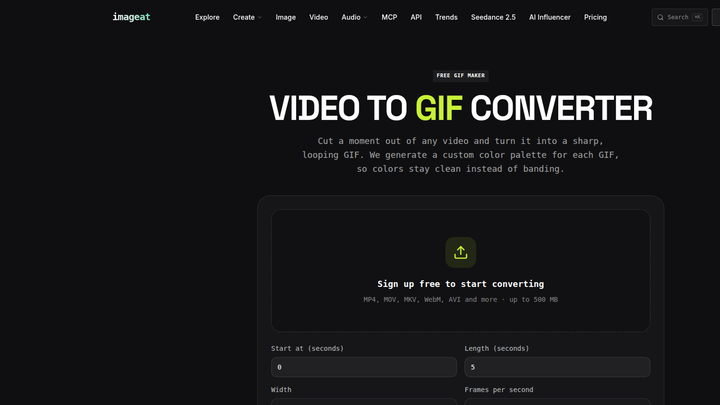
Animated GIF generation
One of the biggest GPT Image 2.6 changes is animated GIF output. This makes the model useful for short looping visuals that sit between a static image and a full video production.
Potential uses include:
- animated brand mascots
- reaction GIFs and memes
- looping product visuals
- lightweight social posts
- motion studies and animated storyboards
- character movement tests before video production
GIF output does not turn GPT Image 2.6 into a conventional long-form video model. OpenAI’s model documentation lists image output and does not support the separate video endpoint. Think of the feature as compact animated image output. For longer clips, camera movement, audio, or full image-to-video production, continue in imageat’s AI video workspace or use the image-to-video workflow.
SVG export for editable design assets
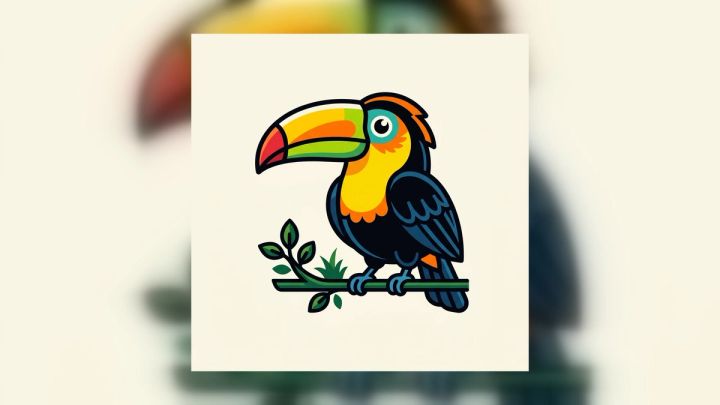
GPT Image 2.6 can export SVG files. Because SVG is a vector format, it can be resized without the same pixelation limits as a raster image. That makes the feature useful for graphics that need to move from generation into websites, applications, presentations, or print.
Good SVG use cases include:
- simple icons and interface graphics
- logos and marks that still need human review
- diagrams and flat illustrations
- web graphics that must scale across screen sizes
- print-ready shapes and design elements
AI-generated vectors should still be inspected before production. Check paths, spacing, small details, text outlines, accessibility, and brand accuracy. If you need to convert or prepare a vector asset, imageat also provides an SVG converter.
Markup-guided image editing
Markup-guided editing lets you indicate the exact region that should change instead of describing its location only in text. The workflow can be much clearer for requests such as “replace this object,” “change only this label,” or “remove the item inside this marked area.”
This is especially valuable when the rest of the image should remain stable. OpenAI also highlights improved consistency for characters, products, and brand details across edits.
A reliable editing request should define:
- the marked area to modify
- the exact replacement or correction
- the details that must remain unchanged
- the desired lighting, perspective, texture, and style
- any text or brand elements that require exact review
You can continue broader retouching and revisions in imageat’s AI photo editor.
Complexity and quality are different controls
GPT Image 2.6 introduces a complexity parameter with three levels: low, medium, and high. OpenAI describes complexity as the amount of planning the model performs before rendering.
- Low complexity: focused edits, simple scenes, fast iterations
- Medium complexity: balanced choice for layouts with several requirements
- High complexity: dense compositions, text-heavy designs, or scenes with complicated relationships between objects
If complexity is omitted, OpenAI says both Flare and Sunburst default to high. Increasing complexity can increase latency and may introduce unwanted changes, so high is not automatically best for every job.
Complexity is also separate from image quality:
- Complexity affects planning and constraint handling
- Quality affects rendering detail and fidelity
For a small background edit, low complexity with the required quality level can be more efficient than asking the model to rethink the whole scene. For a poster with multiple products, characters, labels, and layout rules, medium or high complexity may follow the brief more reliably.
OpenAI says changing complexity does not add a separate complexity fee, although the selected model, image inputs, output tokens, and other generation settings still affect total cost.
Faster iteration without skipping review
OpenAI says GPT Image 2.6 generates images 50% faster than before. Faster output matters because image work is usually iterative: generate, inspect, revise, compare, and export.
The practical benefit is not just a shorter wait for one image. It can mean more useful comparisons in the same creative session. A team can test layout options with Flare, select the strongest direction, refine details with Sunburst, and then move the asset into an editing or video workflow.
Speed does not remove the need for quality control. Always review:
- faces, hands, and anatomy
- logos and product geometry
- small or readable text
- repeated background objects
- visual consistency across revisions
- copyright, likeness, and brand-use requirements
- the first and final frame of a looping GIF
A practical GPT Image 2.6 workflow in imageat
1. Start with the intended deliverable
Decide whether the output is a static image, an editable vector, a looping GIF, or the starting frame for a video. This changes how you should write the prompt and review the result.
2. Choose speed or final-detail priority
Use Flare when you need fast exploration. Use Sunburst when the selected direction needs more precision or stronger consistency through multiple edits.
3. Write the prompt in layers
A useful prompt structure is:
- subject and action
- composition and camera
- environment and lighting
- materials, color, and visual style
- required text or layout
- details that must not appear
- intended output format
Prompt starter:
Create a clean studio product composition for [product], viewed from [camera angle], with [lighting], [background], and [brand colors]. Keep the product geometry and label placement consistent. Leave clear negative space for [use]. Output as [static image / SVG / looping GIF].
4. Make focused edits
When an image is close, do not rewrite every detail. Mark the problem area, describe only the intended change, and list the elements that must remain fixed.
5. Continue into motion when needed
For a short repeating reaction or mascot action, GIF output may be enough. For longer motion, audio, camera direction, or a cinematic result, move the selected image into imageat’s AI video generator.
API availability and pricing context
OpenAI lists both gpt-image-2.6-flare and gpt-image-2.6-sunburst for image generation and image editing. They accept text and image inputs and return image output. OpenAI’s model pages show standard API pricing of $5 per 1 million text input tokens, $8 per 1 million image input tokens, $2 per 1 million cached image input tokens, and $30 per 1 million image output tokens.
Those are OpenAI’s direct token rates, not imageat credit prices. imageat usage is billed through imageat’s own current credit and API pricing. Check the displayed cost before generation and use the imageat API pricing page for current platform rates. Developers can also review the imageat API documentation.
Best use cases for GPT Image 2.6
GPT Image 2.6 is especially relevant for:
- product and advertising visuals
- posters and campaign layouts
- brand mascots and character variations
- image editing with localized corrections
- scalable vector graphics
- animated GIFs and social reactions
- storyboards and pre-visualization
- source images for later video generation
For product-focused workflows, you can also explore imageat’s AI product photo generator. For broader text-to-image work, see the AI image generator.
Limitations and production checks
GPT Image 2.6 improves speed, control, and consistency, but it should not be treated as a guarantee of perfect output.
- Exact text may still need proofreading and correction.
- Brand marks and product details need close comparison with approved references.
- Complex GIF loops may show jumps between the final and first frames.
- SVG output may contain inefficient paths or shapes that require cleanup.
- High complexity can be slower and can change more of the scene than intended.
- Character consistency is improved, not absolute.
- Static image generation and GIF output are not replacements for full video generation.
Use generated assets as part of a reviewable creative workflow, especially for public campaigns, packaging, regulated products, or recognizable people.
Frequently asked questions
What is GPT Image 2.6?
GPT Image 2.6 is OpenAI’s image generation and editing family with two variants: Flare for fast iteration and Sunburst for more detailed visual work.
Is GPT Image 2.6 faster than the previous version?
OpenAI says Images 2.6 generates images 50% faster than before. It says Flare can return low-quality generations in as little as six seconds.
What is the difference between Flare and Sunburst?
Flare prioritizes speed and rapid iteration. Sunburst prioritizes detail, precision, and stronger consistency across edits, especially at medium or high quality.
Can GPT Image 2.6 create animated GIFs?
Yes. OpenAI documents animated GIF output through the Image API for both GPT Image 2.6 models. GIF output is best suited to short loops rather than long-form video.
Can GPT Image 2.6 export SVG files?
Yes. SVG output is supported, making the model useful for scalable graphics that can continue into web, application, or print design workflows.
What does the complexity setting do?
Complexity controls how much planning the model performs before rendering. Low is suited to focused edits, while medium or high may work better for dense layouts and prompts with many relationships or constraints. It is separate from image quality.
Can GPT Image 2.6 edit an existing image?
Yes. Both Flare and Sunburst support image input and the image-edit endpoint. Markup-guided edits can identify the exact area that should change.
Is GPT Image 2.6 a video model?
No. Its documented output modality is image, and OpenAI lists the video endpoint as unsupported. Animated GIFs are supported, but longer clips should use a dedicated video workflow.
Try GPT Image 2.6 in imageat
Open the imageat generation workspace to create and edit with GPT Image 2.6. Start with Flare for rapid concepts, switch to Sunburst when you need additional detail, and continue into AI video generation when the idea needs more than a short loop.