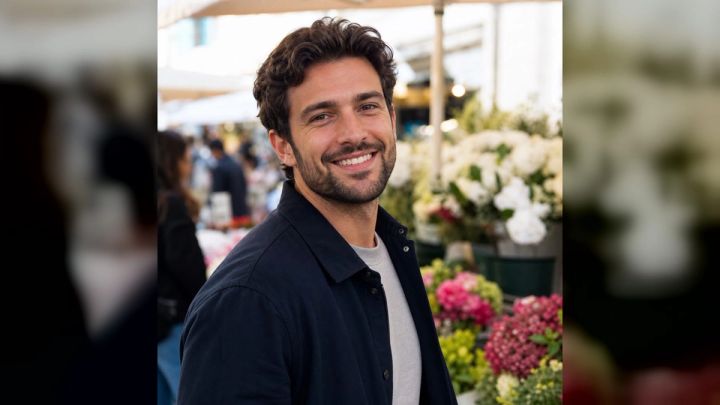
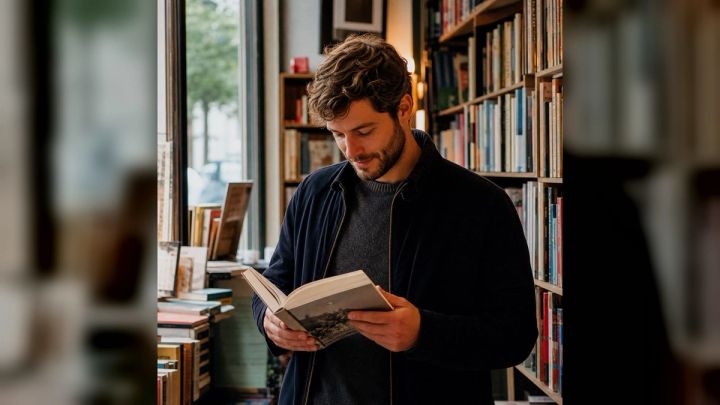
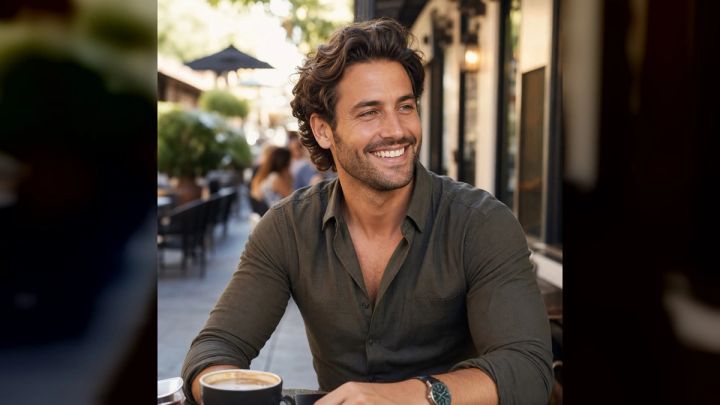
A good profile portrait does not need a dramatic location or heavy styling. Often, the most effective image is built from soft light, a clean background, natural skin texture, and an expression that feels like you. That restrained look is the appeal behind contemporary Korean-style profile photography.
The imageat Korean Profile Photo Generator is designed for this specific transformation. You upload one clear portrait, choose one of three ready-made visual directions, and generate a polished 4:5 result without writing a prompt. This guide explains what the current pack offers, how to choose a source image, and how to review and prepare the result for a profile, portfolio, or social post.
What is a Korean profile photo AI generator?
A Korean profile photo AI generator turns an existing portrait into an image inspired by contemporary Korean studio photography. Rather than inventing a completely different person, a photo-based workflow uses the subject’s visible facial structure, skin tone, hair, and other recognizable features as its reference.
The phrase describes a photographic aesthetic, not an ethnicity filter. The goal is not to make someone “look Korean.” It is to borrow visual traits associated with the studio style: diffused light, restrained color, uncluttered framing, polished but believable grooming, and an editorial finish that does not overpower the subject.
That makes the pack different from a broad AI headshot generator. A general headshot tool can serve many professional directions. The Korean profile photo pack is narrower: it provides three curated interpretations of a soft, modern portrait aesthetic and handles the creative brief for you.
What the current imageat pack includes
The live pack currently follows a simple three-step process: upload a clear portrait, choose a ready-made style, then generate and download the image.
Its current details include:
- one clear portrait as the source image;
- a portrait-oriented 4:5 result;
- identity-preserving transformation;
- no required prompt writing;
- a high-resolution download;
- three curated visual directions;
- uploads that are not automatically published to the community gallery.
The three available directions are Pastel studio, Clean close-up, and Soft editorial. Each changes the setting, composition, and mood while aiming to retain the recognizable subject. Generation uses credits, so check the live feature and imageat pricing for current terms before planning multiple versions.
Choose a source photo that supports a natural result
A subtle portrait style exposes source-image problems more readily than a highly stylized transformation. Use a photo that gives the generator clear visual information.
Start with one visible person
Choose a solo portrait. Group shots, overlapping faces, and people in the background create ambiguity about the intended subject. A head-and-shoulders or waist-up photo is usually easier to interpret than a distant full-body frame.
Keep the face sharp and unobstructed
The eyes, face shape, hairline, and mouth should be clear at normal screen size. Avoid motion blur, pixelated screenshots, sunglasses, hands across the face, and hair covering both eyes. If glasses or facial hair are important to the likeness, make sure their edges are easy to see.
Prefer a front-facing or gentle three-quarter angle
A moderate turn can feel natural, but an extreme profile hides half of the facial information. Start with a front-facing image or a slight three-quarter angle, especially for the close-up direction.
Use even light
Soft window light or open shade is a strong source. Harsh overhead light can create deep eye shadows, while bright backlighting may reduce the face to a silhouette. Avoid colored party lighting unless that color cast is intentionally part of the person’s appearance.
Use the original file when possible
A downloaded social-media thumbnail may already have been resized and compressed. Upload the original camera file or highest-quality copy you have permission to use. Do not upload a stranger’s portrait, and take extra care with consent and public sharing when the subject is a child.
How to create a Korean-style profile photo from a selfie
The current pack does not require you to compose a text prompt.
- Open the Korean Profile Photo Generator.
- Upload one clear portrait that you own or have permission to use.
- Compare Pastel studio, Clean close-up, and Soft editorial.
- Select the direction that matches the image’s intended use.
- Generate the 4:5 result.
- Inspect the face, hair, clothing, hands, and background at full size.
- Download the strongest version and keep an untouched original before making crops.
Choose the destination before choosing the style. A tightly framed account avatar needs different composition from an editorial image used on an about page.
How to choose among the three styles
Pastel studio
Pastel studio is the most restrained direction. The current pack describes it as a clean, natural result with flattering light. It suits profile pages, creator introductions, speaker bios, and social posts where the person should remain the obvious focal point.
Use a source with a calm expression, simple clothing, and a visible hair silhouette. When reviewing the output, check that the pale background does not reduce contrast around light clothing or hair.
Clean close-up
Clean close-up is the more polished editorial option. Because the face occupies more of the frame, small details matter: eye alignment, teeth, earrings, glasses, hair edges, and skin texture.
This direction can work for an avatar or portfolio profile where a confident, direct image is useful. Preview a copy at a small size before publishing. A close crop can look excellent full-screen but feel cramped inside a circular profile mask.
Soft editorial
Soft editorial uses more candid, lifestyle-oriented framing. It can suit an about page, newsletter introduction, personal portfolio, or relaxed social profile. The setting should add context without distracting from the subject.
Review background furniture, shelves, windows, plants, and other objects. Look for repeated shapes, warped edges, or objects that appear to merge with clothing. A believable setting should support the portrait rather than become the first thing viewers notice.
Three practical creative briefs
You do not need to paste these into the pack. Use them as planning briefs for choosing a source and evaluating the output.
Friendly professional profile
- Purpose: an about-page or speaker-bio portrait.
- Source: sharp waist-up photo, direct eye contact, neutral top, soft window light.
- Direction: Pastel studio.
- Review: facial likeness, clean jacket or shirt edges, enough contrast, and comfortable space around the head.
Simple social avatar
- Purpose: a recognizable profile picture at a small size.
- Source: front-facing head-and-shoulders portrait with the full hairstyle visible.
- Direction: Clean close-up.
- Review: eyes, glasses, teeth, hairline, and how the image survives a square or circular crop.
Personal editorial portrait
- Purpose: a creator introduction, portfolio page, or newsletter header.
- Source: relaxed expression, natural posture, uncluttered clothing.
- Direction: Soft editorial.
- Review: believable setting, coherent hands, clean object edges, and separation between the subject and background.
If you want to create a wholly fictional person rather than transform your portrait, use an AI avatar generator or an AI selfie generator that matches that broader goal.
How to review an AI profile portrait

Do not judge the image only from a thumbnail. Zoom in and make a deliberate quality pass.
Identity and expression
Compare the result with the source. Check face shape, skin tone, hairstyle, facial hair, glasses, and expression. A transformed portrait will not be pixel-for-pixel identical, but the combination of important cues should remain recognizable.
Eyes, teeth, and skin
Look for mismatched pupils, uneven catchlights, overly smooth skin, repeated teeth, or abrupt texture changes. Natural-looking skin has variation; a completely plastic surface is not necessarily a better result.
Hair and accessories
Inspect the hairline, wisps around the face, earrings, necklace chains, and glasses arms. These thin structures are easy places for visual discontinuities to appear.
Clothing and hands
Check seams, lapels, collars, buttons, fingers, and the points where hands touch clothing or furniture. The understated style depends on believable detail, so a malformed cuff or merged finger can be more distracting than it would be in fantasy art.
Background and implied text
Look at frames, books, signs, screens, and decorative objects. Generated text-like marks are not reliable writing. Never use an AI portrait as an ID photo, staff credential, passport image, or other document. Add names, job titles, and contact information later as normal editable text.
Prepare the 4:5 result for different platforms
The pack’s 4:5 format is useful for portrait posts, portfolio cards, and mobile layouts. Save the downloaded file, then make purpose-specific copies.
Square or circular profile image
Crop a duplicate to 1:1 and center the face. Leave room above the hair and beside the shoulders because a circular mask will remove the corners. Preview it around 96 pixels wide to confirm that the expression still reads clearly.
Website bio or speaker card
Keep the original 4:5 ratio when the template allows it. Match the crop and visual weight of neighboring staff portraits. If every other photo has the subject’s eyes at the same height, consistency is more important than showing extra background.
Transparent cutout
If a design calls for the subject on a new background, use imageat’s background remover on a copy. Inspect fine hair, glasses, and shoulder edges after removal. A studio background may already be cleaner and more natural than a cutout, so remove it only when the layout requires it.
Larger output
An image upscaler can increase image dimensions for a larger layout. Upscaling cannot repair incorrect eyes, fingers, jewelry, or text-like artifacts. Regenerate first if the underlying image is wrong.
Additional editing
Use the AI photo editor for broader visual adjustments. Keep edits controlled and compare each version with the approved portrait so repeated changes do not gradually weaken the likeness.
Common mistakes to avoid
Treating the style as an ethnicity transformation
Korean-style profile photography refers here to lighting, framing, color, and studio presentation. Describe the look in those visual terms. Do not use the tool to stereotype facial features or imply a different identity.
Uploading a beauty-filtered screenshot
Heavy filters can reshape the face before generation begins, while screenshots discard useful detail. Start with a clean, high-resolution portrait whenever possible.
Choosing the most dramatic style instead of the right crop
A successful profile image serves its placement. Pick the direction that leaves appropriate room for the final crop and keeps the face readable.
Publishing the first output without review
Inspect at full resolution, then preview at the actual display size. Regenerate when an important identity cue or object is wrong rather than hoping viewers will not notice.
Adding text inside the generated image
Keep names, titles, captions, and calls to action outside the picture. Editable HTML text remains accurate, accessible, searchable, and easy to update.
Explore other guided concepts on imageat photo packs when you need a different setting or visual purpose.
Frequently asked questions
Does the Korean profile photo generator require a prompt?
No. The current imageat pack provides three ready-made directions: Pastel studio, Clean close-up, and Soft editorial.
What type of photo should I upload?
Use one sharp portrait with a clearly visible face, even light, and minimal obstruction. A front-facing or gentle three-quarter angle is a dependable starting point.
Will the result still look like me?
The workflow is designed to preserve recognizable facial features while changing styling, light, setting, and composition. Results can vary, so compare every output with the source and regenerate if important cues are wrong.
What size does the pack create?
The live page currently presents a high-resolution 4:5 result. Crop a duplicate for square or circular profile placements rather than overwriting the original.
Are uploads automatically public?
The live feature states that uploads are used to create the requested result and are not automatically published to the community gallery.
Can I use the result on social media?
The feature says downloaded results can be used on profiles and social channels, subject to imageat’s terms and the rules of the destination platform. Use only source portraits you have permission to transform.
Create a profile portrait with a clear purpose
The strongest AI profile photo is not necessarily the most elaborate one. It is the image that feels recognizable, fits its placement, and holds up under close review. Begin with a clean source, choose a direction based on the final crop, and inspect the result before sharing it.
Try the imageat Korean Profile Photo Generator, compare all three current styles, and keep the version that feels polished without losing the person behind the portrait.