To turn a video into a high-quality GIF, trim it, reduce its frame rate and dimensions, then use FFmpeg’s palettegen and paletteuse filters with dithering. That workflow preserves the colors your clip actually needs while avoiding the huge files and obvious color bands produced by a basic one-step conversion.
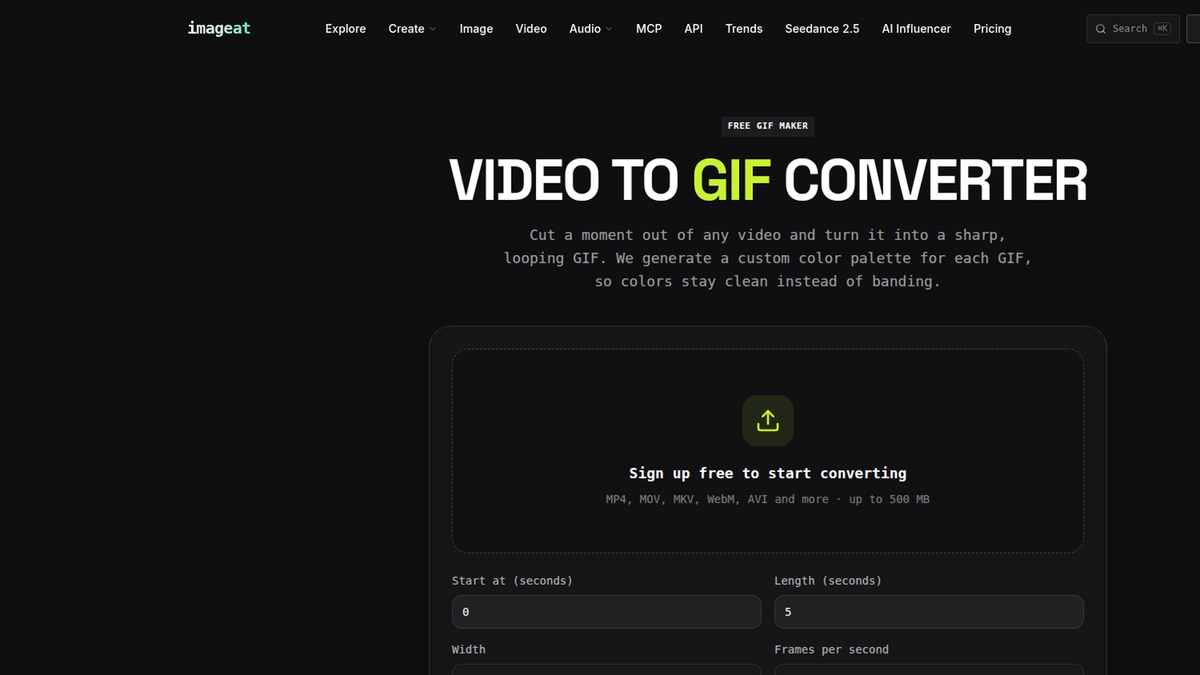
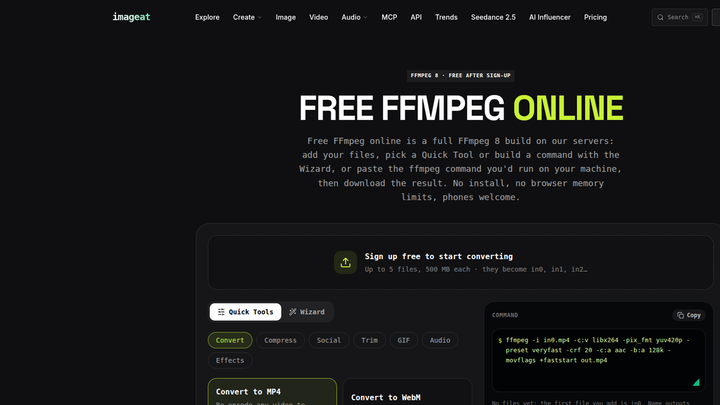
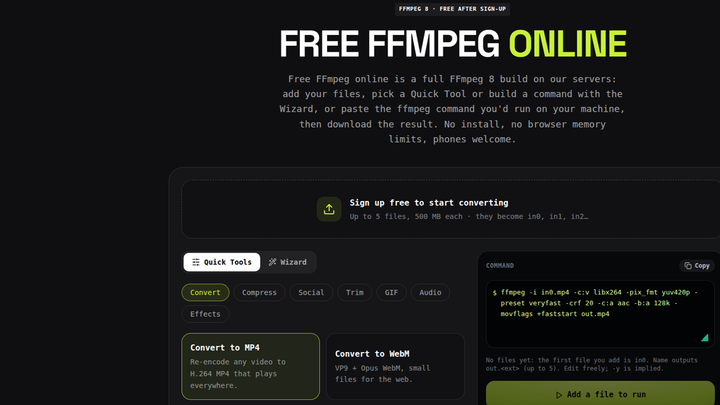
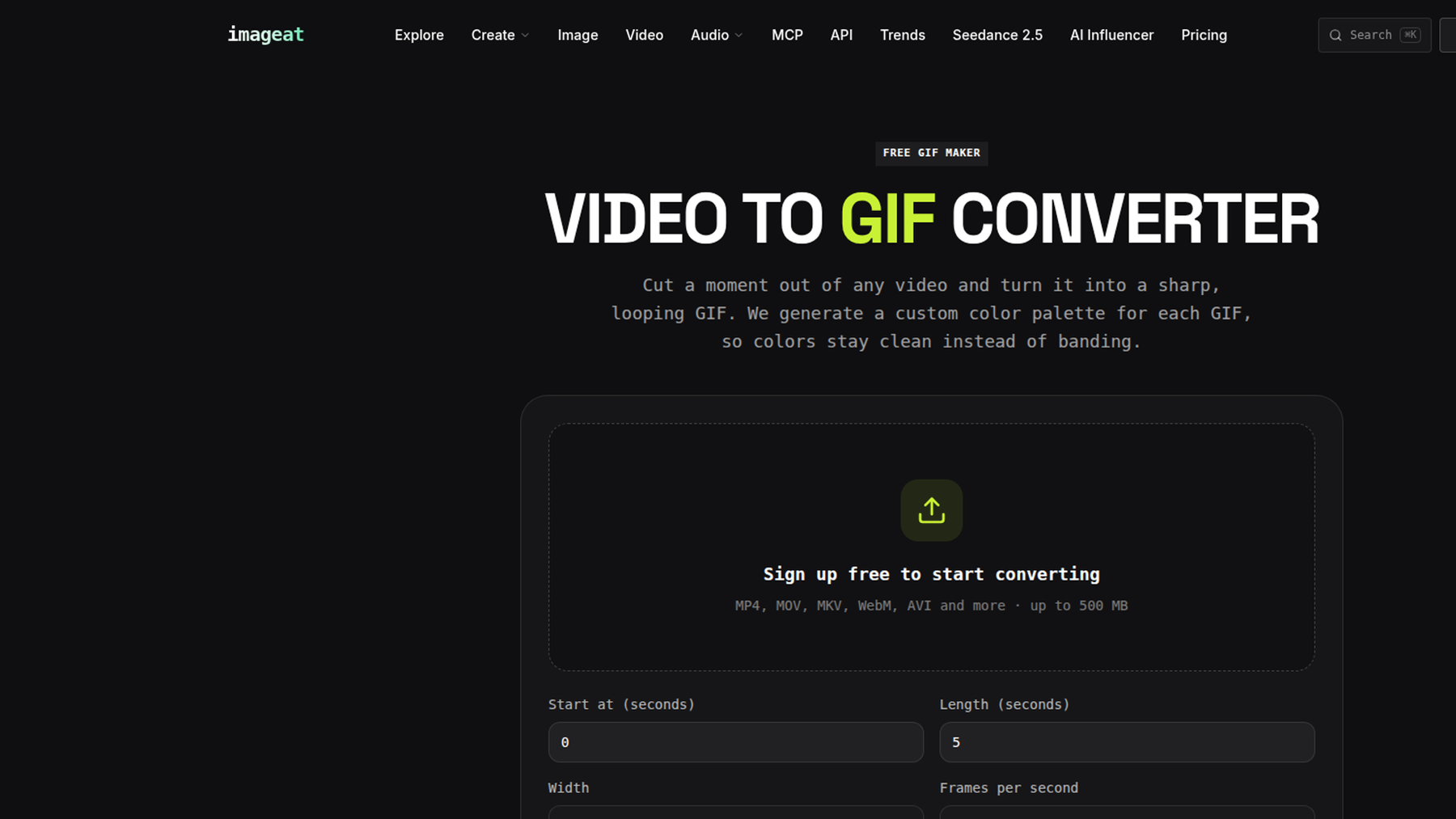
If you do not want to run a local command, the imageat MP4 to GIF tool is free after sign-up. For command-level control in a browser, use imageat’s online FFmpeg tool.
The best MP4-to-GIF command
Use this command when you want a strong general-purpose balance of detail, smooth motion, and file size:
bash
ffmpeg -ss 00:00:02 -t 5 -i in0.mp4 -filter_complex "fps=12,scale=720:-1:flags=lanczos,split[v1][v2];[v1]palettegen=max_colors=256:stats_mode=diff[p];[v2][p]paletteuse=dither=sierra2_4a:diff_mode=rectangle" -loop 0 out.gif
It starts two seconds into in0.mp4, converts five seconds, outputs 12 frames per second, scales the width to 720 pixels, and calculates the height automatically. The GIF loops forever because -loop 0 is set.
Change -ss 00:00:02 to the desired start time and -t 5 to the desired duration. For a smaller result, try fps=10 or scale=540:-1. For more detail, use a larger width, but expect file size to increase.
Why a direct video-to-GIF conversion often looks bad
GIF can display no more than 256 colors in a frame’s active palette. Video routinely contains far more colors, including subtle gradients, shadows, skin tones, and compression noise. If those colors are reduced carelessly, smooth areas break into visible strips called banding.
A command such as the following is valid, but it asks FFmpeg to convert frames without first building a palette tailored to the clip:
bash
ffmpeg -i in0.mp4 -vf "fps=12,scale=720:-1:flags=lanczos" -loop 0 out.gif
This quick version can be acceptable for simple graphics with flat colors. It is usually not the best high quality GIF FFmpeg workflow for gradients, filmed footage, screen recordings with shadows, or animated interface elements.
The other common problem in a video to GIF workflow is retaining too much source data. A 30 or 60 FPS video at full resolution contains many pixels and frames. GIF compression is much less efficient than modern video compression, so copying the source frame rate and dimensions can produce an impractically large animation without a proportionate visual improvement.
How palettegen and paletteuse improve quality
FFmpeg’s two palette filters divide the job into analysis and rendering.
palettegen finds the useful colors
palettegen examines the input frames and creates a palette that represents the clip. In the recommended command, max_colors=256 allows the maximum GIF palette size. stats_mode=diff gives more attention to pixels that change between frames, which often suits short animations and screen captures.
A generated palette does not restore colors that GIF cannot represent. It makes the limited color budget more relevant to this particular clip.
paletteuse maps each frame to that palette
paletteuse applies the generated colors to the animation. Its dither=sierra2_4a setting distributes color-conversion error across nearby pixels. The resulting fine pattern makes limited colors appear like smoother intermediate tones, reducing obvious bands without requiring additional palette entries.
diff_mode=rectangle limits processing to the changing region when possible. This can help GIF compression when much of the frame remains static. It is not guaranteed to make every file smaller; footage with camera movement or full-frame noise may change almost everywhere.
The single command above performs both stages through a split filter graph. If you prefer separate, inspectable steps, use these commands:
bash
ffmpeg -ss 00:00:02 -t 5 -i in0.mp4 -vf "fps=12,scale=720:-1:flags=lanczos,palettegen=max_colors=256:stats_mode=diff" -frames:v 1 -update 1 -y palette.png
ffmpeg -ss 00:00:02 -t 5 -i in0.mp4 -i palette.png -lavfi "fps=12,scale=720:-1:flags=lanczos[x];[x][1:v]paletteuse=dither=sierra2_4a:diff_mode=rectangle" -loop 0 out.gif
The two-pass form is useful when you want to view the palette or test several dithering settings against the same source and dimensions.
Balance FPS, width, duration, and file size
The most effective way to reduce GIF size is to remove content the viewer does not need. Trim pauses first. Then choose the lowest frame rate that still communicates the motion, followed by the smallest display width that remains clear at its intended placement.
Frame rate controls how many images are stored. Around 10–15 FPS is often suitable for demonstrations, reactions, and interface motion. Fast physical movement may need more frames, while slow cursor movement may need fewer. Judge the result rather than treating one value as universal.
Width controls the pixel count in every frame. Because height scales with width, a seemingly modest width increase can add many pixels across the animation. Keep -1 for height so FFmpeg preserves the source aspect ratio and chooses a compatible integer height.
The ranges below are rough estimates, not file-size guarantees. They show relative size for the same 3–6 second source, and actual results depend heavily on motion, noise, gradients, crop, aspect ratio, and source compression.
| Settings | Estimated relative size | Practical use |
|---|---|---|
| 480 px, 8–10 FPS | about 0.25×–0.55× | Small embeds and simple motion |
| 640 px, 10–12 FPS | about 0.45×–0.85× | Tutorials and interface clips |
| 720 px, 12–15 FPS | about 0.70×–1.30× | General high-detail sharing |
| 960 px, 15–20 FPS | about 1.20×–2.50× | Detail-critical motion where size is secondary |
Here, 1× means the same clip encoded at 720 pixels and 12 FPS with the recommended palette settings. The ranges overlap because content can matter more than either setting.
A practical conversion workflow
1. Trim before converting
Find the shortest segment that delivers the point. The -ss and -t options in the recommended command seek to a start point and limit output duration. Removing one unnecessary second eliminates every frame and pixel that second would contain.
2. Start at 12 FPS and 720 pixels
These are sensible test settings, not mandatory targets. Review motion at the actual display size. If text is too soft, increase width. If movement feels uneven, increase FPS by small increments. If neither is a problem, try reducing one setting.
3. Use a clip-specific palette
Keep palettegen and paletteuse for footage with gradients or varied colors. Compare the result against the quick direct command only when the source is extremely simple.
4. Inspect both quality and output size
Check faces, shadows, gradients, small text, and large areas of nearly uniform color. Those regions reveal banding and noisy dithering quickly. Also watch for a visible jump between the last and first frame; trimming on similar poses or states creates a cleaner loop.
5. Reduce noise at the source
Film grain, sensor noise, and video compression artifacts cause pixels to change even when the scene appears still. GIF then spends data reproducing those changes. A cleaner source, a tighter crop, or a less detailed background can improve both visual consistency and compression more effectively than aggressive color reduction.
When animated WebP is better than GIF
Use animated WebP when your destination supports it and you need photographic color, gradients, transparency, or better compression efficiency. GIF remains useful for broad compatibility and workflows that explicitly require a .gif file, but its palette limit is a poor fit for complex footage.
Create an animated WebP from the same input with:
bash
ffmpeg -ss 00:00:02 -t 5 -i in0.mp4 -vf "fps=15,scale=720:-1:flags=lanczos" -c:v libwebp -lossless 0 -compression_level 6 -q:v 75 -loop 0 -an out.webp
This command uses lossy WebP at quality 75, strips audio, and loops continuously. Raise -q:v for more quality or lower it for a smaller file. Do not assume WebP is always smaller for every animation; test the real output in the browsers, content system, or messaging environment where it will be used.
Common mistakes to avoid
- Keeping the original frame rate: Extra frames can increase size while looking nearly identical in a short looping animation.
- Exporting at source resolution: Match the intended display width instead of preserving pixels that will be downscaled later.
- Skipping the palette: A generic conversion often produces harsher bands or less accurate colors.
- Using maximum quality as the only goal: A GIF that is too large to load promptly is not useful. Optimize for the viewing context.
- Expecting GIF to preserve audio: GIF has no audio track. Use video when sound matters.
- Treating dithering as lossless color: Dithering disguises palette limits; it does not remove them and may add visible texture.
FAQs
How do I convert MP4 to GIF without losing quality?
Some loss is unavoidable because GIF has a limited palette and no modern video compression. Minimize visible loss by trimming the clip, choosing an appropriate width and FPS, generating a source-specific palette, and applying it with dithering.
What FPS should I use for a GIF?
Start around 12 FPS for a short web animation, then preview it. Slow instructional motion may work at 8–10 FPS, while faster movement may need 15 FPS or more. Duration, motion, and display size determine the right value.
Why does my GIF have color banding?
The source contains more color shades than GIF can represent. Use palettegen, paletteuse, and a dithering mode such as sierra2_4a. If the source depends on smooth photographic gradients, animated WebP or video may be a better format.
How can I make a GIF smaller without making it blurry?
Trim its duration and lower FPS before reducing dimensions. Cropping unused areas and using footage with less noise can also help. If fine text must remain sharp, protect width and reduce less important frames instead.
Is animated WebP always better than GIF?
No. WebP generally handles complex color and compression more effectively, but compatibility and upload requirements may demand GIF. Produce both when possible and test them in the final destination.
Can a GIF include sound?
No. The format does not support audio. Export MP4 or another video format if the clip needs narration, music, or effects.
Ready to convert your clip? Try the free imageat MP4 to GIF tool after sign-up.