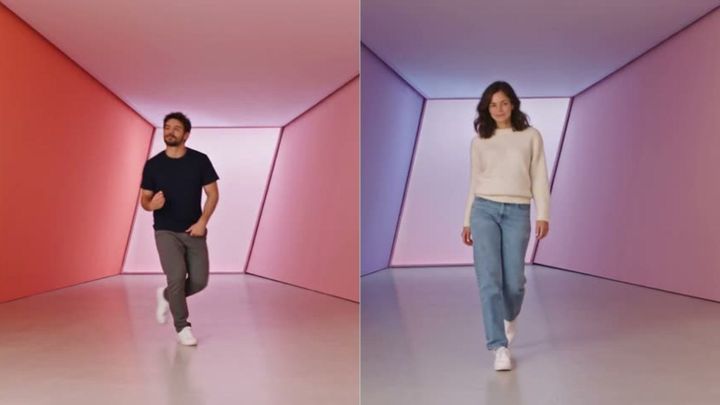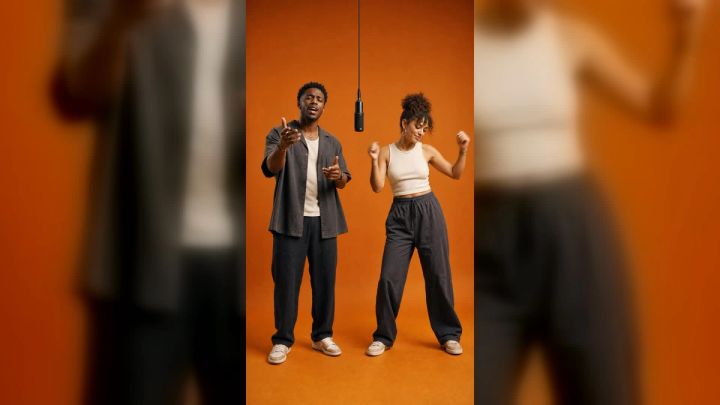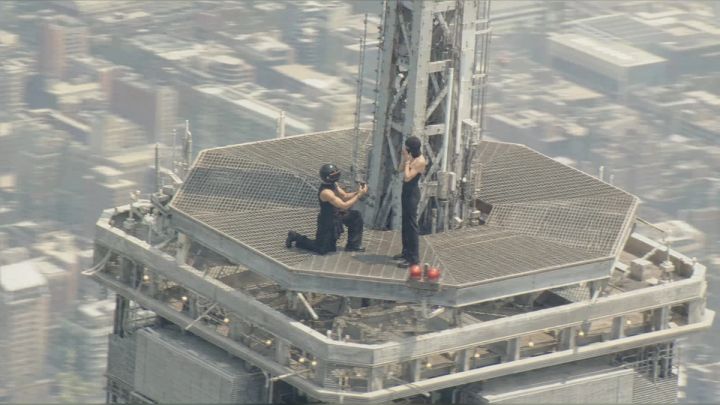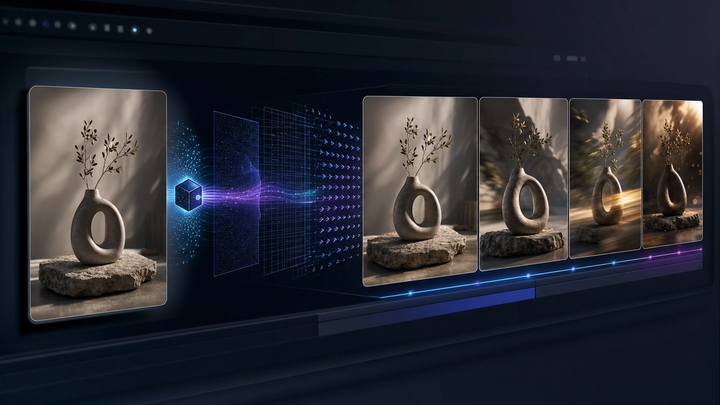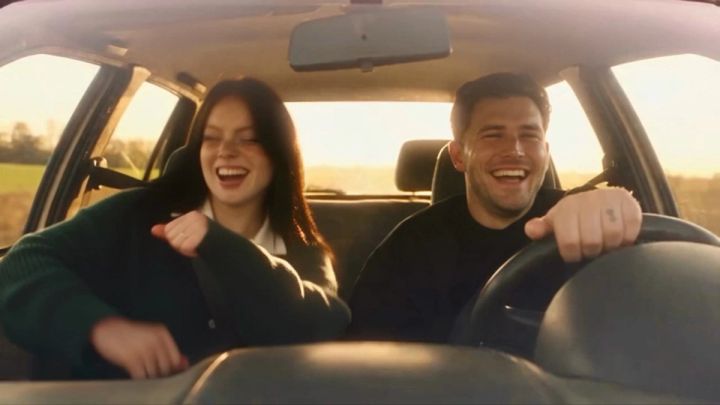
Turning two photos into a video is more useful than making a slideshow with a crossfade. The two images can define separate characters, a before-and-after change, the beginning and end of a journey, or two viewpoints inside one short story. The key is to decide what each photo controls before you choose motion, camera work, or effects.
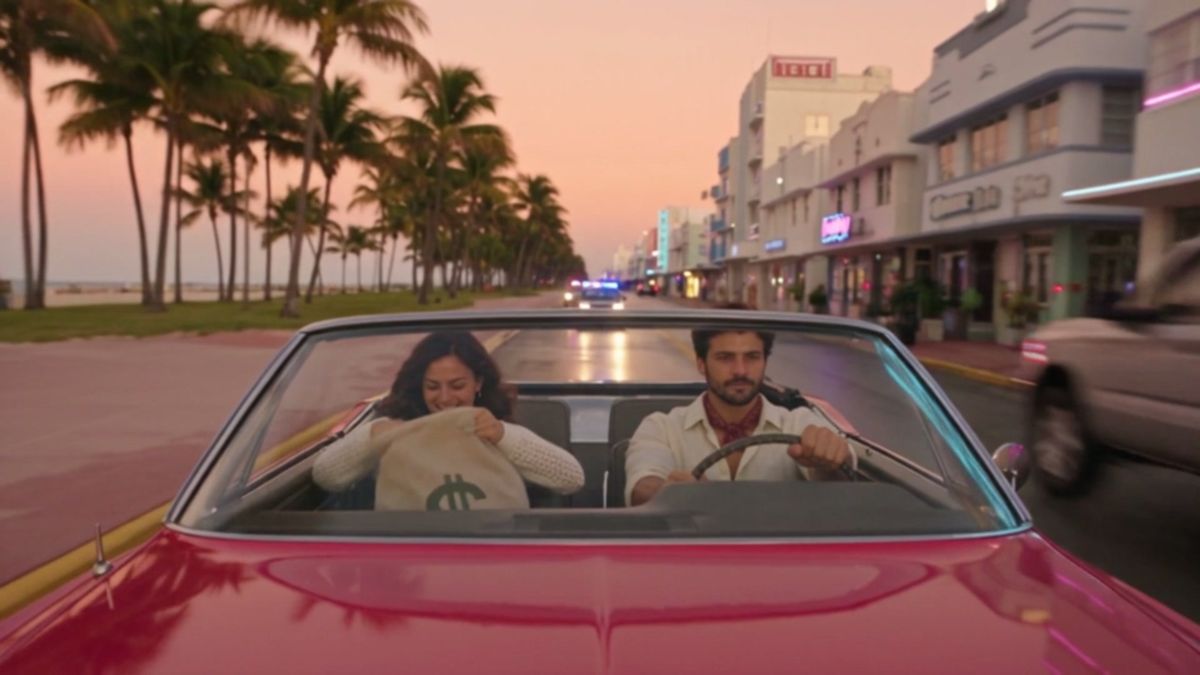
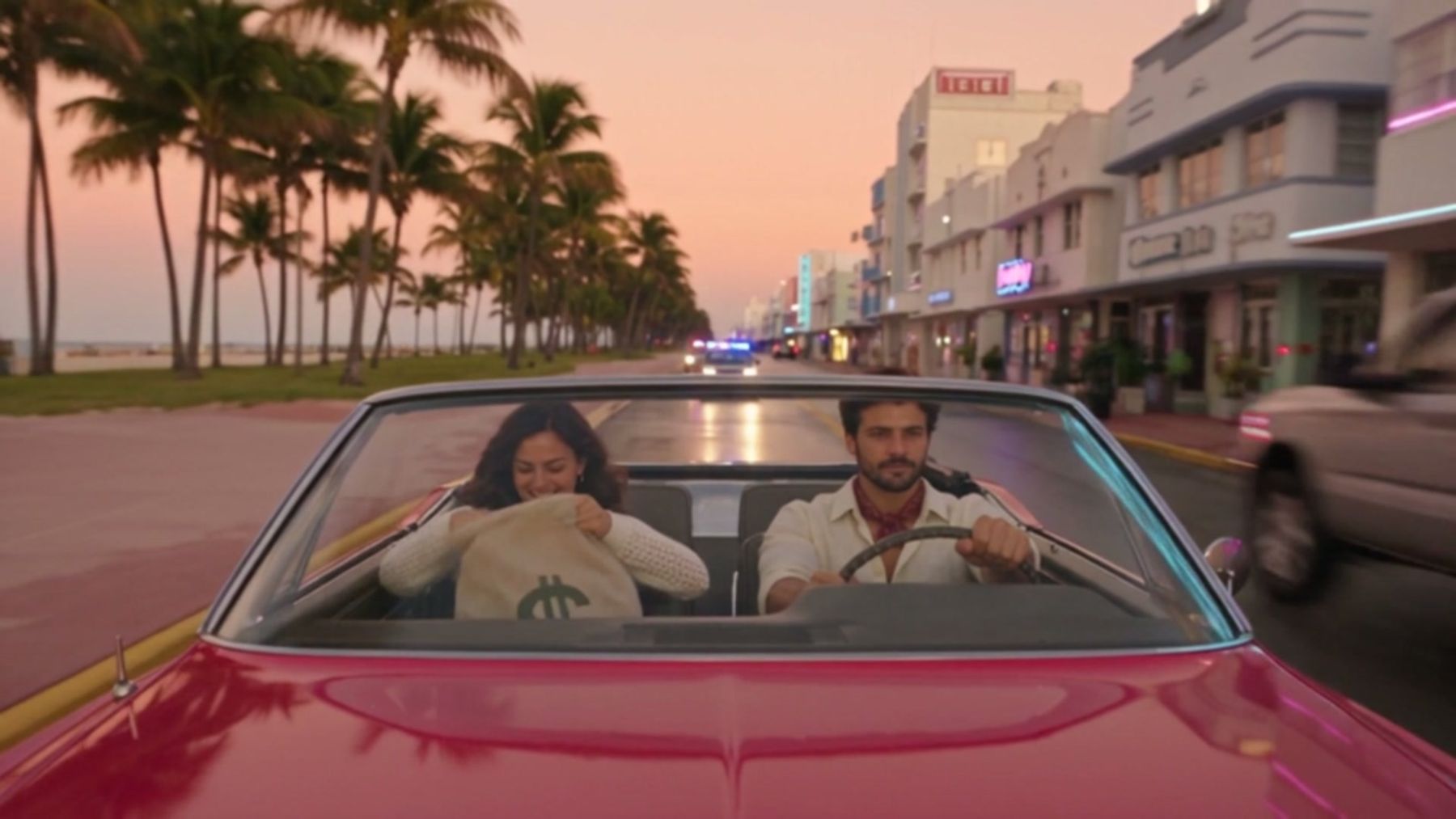
For a ready-made two-character example, the Vice City Getaway Duo trend on imageat uses one adult photo for each lead and places both fictionalized characters into a 15-second, widescreen game-style sequence. This guide takes the broader informational angle: how to prepare two images, choose a story structure, write useful motion instructions, and review the result whether you use a fixed template, a custom AI workflow, or a manual editor.
What does “turn two photos into a video” mean?
The phrase covers several different workflows. Choosing the right one prevents you from expecting a tool to do something it was not designed to do.
- Two-image slideshow: image one appears, a transition plays, then image two appears. The photos themselves do not move.
- Before-and-after animation: the first image establishes the starting state and the second defines the destination. The system generates a transition between them.
- Two-character video: each photo supplies a different person or character who appears in the same scene.
- Start-and-end-frame generation: the first photo is the opening frame and the second is the desired final frame.
- Reference-based video: one image guides identity or subject design while the other guides style, environment, clothing, or composition.
Read the input labels on the page you are using. “Photo 1” and “Photo 2” may mean two people, not first and last frames. A second upload may also be optional or may control the supporting cast rather than the ending.
Prepare the two photos before generating
Good motion begins with compatible source material. An AI model can redraw a subject, but it cannot reliably resolve every contradiction between two unrelated images.
Use clear, permitted images
Upload photos you own or have permission to use. If a recognizable person appears, get their agreement for both the upload and the planned publication. Avoid celebrity photos, deceptive impersonation, and images of people who do not know how their likeness will be used.
For identity-led video, choose sharp photos with visible faces and even light. Heavy blur, tiny faces, sunglasses, masks, hands over the face, and severe backlighting remove evidence the model needs.
Match the framing to the role of each image
If the two photos represent separate people, similar framing helps. Two waist-up portraits usually combine more predictably than one close selfie and one distant group photo. If the images represent the start and end of a transformation, keep the subject at a similar size and position.
You do not need identical poses, but large differences create extra work. A seated profile and a standing front-facing portrait ask the system to change camera, anatomy, pose, and environment at once.
Remove accidental distractions
Crop out unrelated people when the workflow expects one person per upload. Check mirrors, posters, screens, name badges, license plates, and private information in the background. A model may reproduce or distort these details.
If you need a clean subject cutout for a manual composite, use remove background before editing. Do not remove the background automatically when the environment is part of the story, however; a travel scene or room transformation may need that context.
Decide which details must remain consistent
Write a short continuity list before generating:
- face and hairstyle
- glasses or head covering
- clothing colors
- important accessory
- relative height between two people
- vehicle or prop
- time of day
- camera direction
Keep the list short. The more details you insist on changing and preserving simultaneously, the harder the generation becomes.
9 story ideas for a video made from two photos
These concepts work with different tool types. Some require two people; others use the photos as start and end states.
1. Two-character cinematic scene
Use one portrait for each character and place them into one fictional scene: friends arriving at a festival, detectives entering a neon street, travelers setting off in a convertible, or rivals meeting at a starting line.
Define roles rather than writing a long plot. For example: “Photo 1 drives; Photo 2 studies the map; both remain in the same car.” Clear role assignment reduces character swapping.
The imageat Vice City Getaway Duo is a fixed version of this structure. It assigns two uploaded adults to built-in game-style roles and supplies the scene order, camera, outfits, vehicle, music, and effects. Because it is a fictional crime-game sequence, use consenting adult photos, keep the framing obviously stylized, and do not imply that a real event occurred.
2. Before-and-after room transformation
Use the first image for the current room and the second for a redesigned version. A useful motion plan might begin with a locked wide shot, move through a brief light sweep, and reveal the finished space without changing the room geometry.
Keep doors, windows, and major walls aligned. If the second photo was taken from a different corner, treat it as a mood reference rather than a literal final frame.
3. Outfit change with a matched pose
Photograph the same person twice in different outfits while keeping camera height, focal length, body position, and lighting stable. Use a hand swipe, turn, jacket toss, or foreground wipe to hide the transition.
This can be filmed and edited manually. AI is most useful when you want synthetic motion between stills, but it should not be presented as proof of how a real garment fits or moves.
4. Day-to-night city transition
Use one daytime city photo and one evening image from a similar viewpoint. Animate the light changing, windows turning on, traffic trails appearing, and the sky deepening gradually.
Avoid demanding a completely different skyline in the final seconds. Preserve structural anchors such as the road, horizon, and dominant building, then let color and atmosphere carry the transition.
5. Childhood-to-present memory sequence
Use an older photo and a current portrait to build a gentle time-passing concept. Rather than forcing a literal face morph, connect the images through an object, posture, location, or camera move. A childhood bicycle can roll past the lens and reveal the adult beside a modern bike; an old doorway can dissolve into the same location today.
Treat family images as sensitive personal data. Get permission from the people shown and consider keeping the result private.
6. Product sketch to finished object
The first image can be a clean concept sketch and the second a product photo. Animate construction stages: guide lines, material blocks, surface finish, lighting, then the completed item.
Do not invent performance claims. A generated assembly sequence is visual storytelling, not evidence that the product was manufactured that way or passed a technical test.
7. Travel departure and arrival
Use the first photo at the departure point and the second at the destination. A map line, passing window reflection, clouds, train-door wipe, or match cut can connect them.
Keep the journey concise. A five- to ten-second transition usually needs one visual idea, not an airport, airplane cabin, aerial shot, taxi ride, and hotel reveal all at once.
8. Illustration to live-action-inspired scene
Use one illustration as the design reference and one photo as the environmental or compositional reference. Specify which image controls character design and which controls camera or setting.
Avoid asking for an exact imitation of a living artist’s style. Describe visible qualities instead: flat color blocks, inked contours, muted paper texture, theatrical lighting, or hand-painted backgrounds.
9. Split-screen conversation
Place one person on each side of the frame, then animate subtle reactions rather than a complex action scene. This works for a fictional call, interview layout, debate concept, or duet.
Match eye lines: the left subject should look slightly right and the right subject slightly left. Keep camera height and color temperature compatible. If you add dialogue later, use the lip sync tool only with voices and likenesses you are authorized to use.
How to write instructions for a two-photo video
A strong prompt describes relationships and sequence. Decorative adjectives come last.
State what each image controls
Start with an explicit mapping:
- “Photo 1 is the driver; Photo 2 is the passenger.”
- “Image 1 is the opening room; Image 2 is the final room.”
- “Image 1 controls the character; Image 2 controls the environment.”
If the interface already assigns those roles, follow its labels instead of contradicting them in the prompt.
Write action in chronological order
Describe three beats at most for a short clip:
- opening composition
- one main action or transition
- final composition
A concise starter could be: “Locked wide shot of the two friends beside the car. They exchange a look, get in, and drive toward the sunset. Keep both faces distinct and the camera outside the vehicle.” Finish the wardrobe, location, lens, pace, and ending yourself.
Separate camera motion from subject motion
“Camera tracks backward as the two characters walk forward” is clearer than “dynamic cinematic movement.” Name only one main camera behavior per shot: locked, pan, tilt, dolly in, track, orbit, or handheld follow.
If the subject is moving quickly, simplify the camera. Fast action plus an orbit, zoom, dramatic lighting change, and location transformation can make identity and geometry unstable.
Add continuity constraints
Useful constraints are concrete:
- keep Photo 1 on the left
- preserve the red jacket
- no duplicate people
- maintain the same car
- keep the road direction consistent
- end on both characters in frame
Negative instructions cannot guarantee a result, but they communicate priorities.
Fixed template, custom AI generation, or manual editing?
Choose based on control, not novelty.
Use a fixed template for a specific known result
A template supplies the scene, duration, aspect ratio, role assignment, camera, and often audio. It is fast because many creative decisions are already made. The trade-off is limited customization.
The current Vice City Getaway Duo page documents a 15-second, 16:9 game-style video from exactly two adult photos. It currently lists 480p and 720p choices, with 72 credits for 480p and 132 credits for 720p. Those are page values at the time of writing, not permanent prices; review the Generate button before starting. The page says failed generations are refunded.
Its example uses AI-generated fictional people. The template is independently described as fan-style and not affiliated with a game publisher or studio. It includes raised weapons but no shots, injuries, or blood. That distinction matters when choosing where and how to share it.
Use custom AI generation for original scenes
Choose an image-to-video workflow when you want to define motion around a source image rather than accept a fixed sequence. For broader text-and-image model choices, the AI video generator gives you more room to choose an original setting, camera plan, and action.
Model generation uses paid credits unless the current product page explicitly says otherwise. Check the displayed settings and price before running. Do not describe a paid cloud model as free or local.
Use manual editing when the photos must remain exact
A manual video editor is the better choice for a slideshow, pan-and-zoom sequence, split screen, typography-led montage, or exact before-and-after comparison. Manual editing keeps the original pixels instead of asking a model to reinterpret them.
It also gives you precise control over duration, crops, transitions, captions, and music. The limitation is that it does not invent realistic body movement between still images unless you add generated clips or motion graphics.
A practical two-photo workflow
Step 1: Define one sentence of intent
Write the outcome without style words: “Two friends drive away together,” “the old room becomes the finished room,” or “the childhood portrait connects to the present-day portrait.”
Step 2: Assign the images
Label each file with its role. Avoid filenames such as IMG_0042 and final-final-2. Use names like driver-photo.jpg, passenger-photo.jpg, room-before.jpg, and room-after.jpg.
Step 3: Crop and clean
Match orientation, remove accidental bystanders, and make the important subject large enough to read. Keep an untouched copy of each source.
Step 4: Choose the output format
Use 9:16 for a full-screen vertical Short, Reel, or TikTok; 16:9 for widescreen playback; and 1:1 or 4:5 for feed-first layouts. Do not generate widescreen and then assume the characters will survive an aggressive vertical crop.
Step 5: Generate a lower-cost test when available
If the page offers resolution choices, use the lower-cost option to evaluate identity, roles, action order, and composition. Move to a higher resolution only after the structure works. A sharper version does not fix swapped characters or a weak story.
Step 6: Review frame by frame
Watch at normal speed, then scrub through the difficult moments. Check faces, hands, teeth, glasses, jewelry, clothing, props, vehicle geometry, reflections, and background text.
Step 7: Edit and publish responsibly
Trim weak opening or ending frames, replace unlicensed audio, and add context if viewers could mistake the synthetic event for reality. Review imageat’s responsible-use guidance before posting identity-based media.
Common problems and how to fix them
The two people swap roles
Make the assignment explicit and maintain a stable left-right relationship. Use photos with clearly different clothing or hair. If a fixed template documents role logic, follow it rather than trying to reverse it in a prompt.
The faces merge
Avoid group photos as identity inputs when the tool expects one person per photo. Crop each source to one clear subject. Reduce occlusion and do not ask the characters to cross in front of each other immediately.
The transition feels like a random morph
Add a visual bridge: a door closes, a vehicle passes, the camera pans behind an object, a hand covers the lens, or the light briefly fills the frame. The bridge gives the cut a reason.
The output ignores the second image
Confirm that the selected mode actually supports two inputs and read what the second field controls. Some tools accept several references but do not treat them as a final frame or second character.
Identity is stable but motion looks stiff
Simplify the action. Ask for walking, turning, looking, or sitting before requesting a chase, dance routine, crowd interaction, and complex camera move in one clip. You can assemble several short shots later.
The result contains distorted text
Generated storefronts, signs, labels, and license plates often contain unreadable lettering. Keep text out of the generated scene when possible. Add real captions and titles afterward in an editor.
The audio creates a rights problem
A soundtrack embedded in a result is not automatic permission for every public, sponsored, or commercial use. Check the music rules of the destination platform and replace the track with authorized audio when necessary.
Final review checklist
Before downloading or sharing, ask:
- Does each photo control the intended person, state, or reference?
- Are the two identities distinct throughout the clip?
- Do faces, hands, clothing, and important props remain plausible?
- Does the story have one readable action rather than several competing ideas?
- Is the aspect ratio correct for the destination?
- Is any generated writing visibly broken or misleading?
- Do I have permission to use every uploaded likeness and source image?
- Is the music authorized for this use?
- Could a reasonable viewer mistake a fictional event for real footage?
- Have I disclosed or contextualized synthetic media where it matters?
Frequently asked questions
Can AI make a video from two photos?
Yes, but the two images can serve different roles. They may represent two people, a start and end state, a subject and style reference, or two slideshow frames. Check the specific tool’s input instructions before uploading.
How do I make two people appear in the same AI video?
Use a workflow that explicitly accepts separate character photos. Choose one clear adult per image, assign roles, keep each identity visually distinct, and avoid complex crossing action in the opening shot.
Can I use two photos as the first and last frame?
Only if the selected model or mode supports start-and-end frames. A second reference upload does not automatically become the final frame.
What is the best aspect ratio for a two-photo video?
Use 9:16 for vertical social video and 16:9 for widescreen. Choose before generating so important faces and action are composed safely inside the final frame.
Is turning two photos into a video free?
Manual editing can be done with free or local software, depending on the editor. Cloud AI generation commonly uses paid credits. On imageat, check the current Generate button because model, resolution, duration, and template can change the credit cost.
Should I animate the photos or make a slideshow?
Use a slideshow when the original images must remain exact. Use AI animation when synthetic movement or a fictional shared scene is the goal and you accept that the source images may be reinterpreted.
Can I upload photos of other people?
Only with appropriate permission. Do not impersonate people, misrepresent synthetic scenes as real events, or use someone’s likeness in a harmful or deceptive context.
Start with roles, then add motion
A successful two-photo video begins with a simple decision: what does each image control? Assign the two inputs, preserve a few essential details, choose one action, and use a camera move that supports rather than competes with the story.
For a fixed two-character game-style sequence, try the Vice City Getaway Duo trend with two consenting adults and review the current credit cost before generating. For an original concept, use a custom image-to-video workflow and build the scene in short, testable shots.