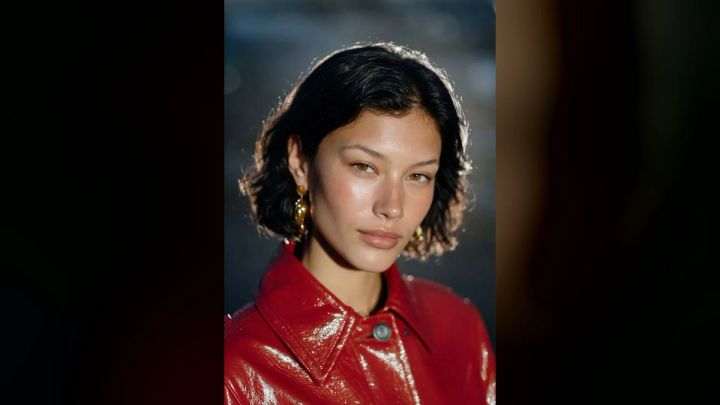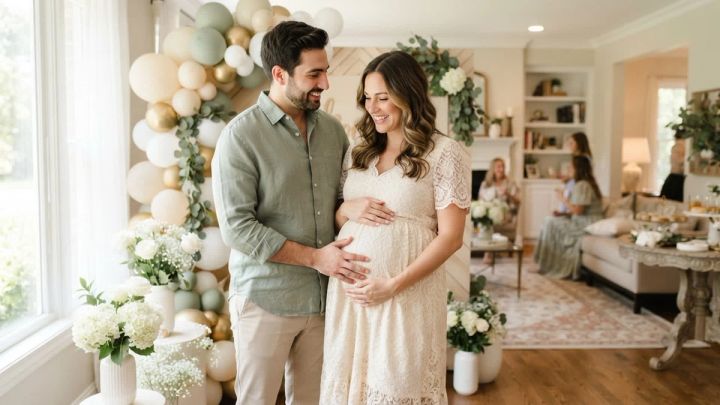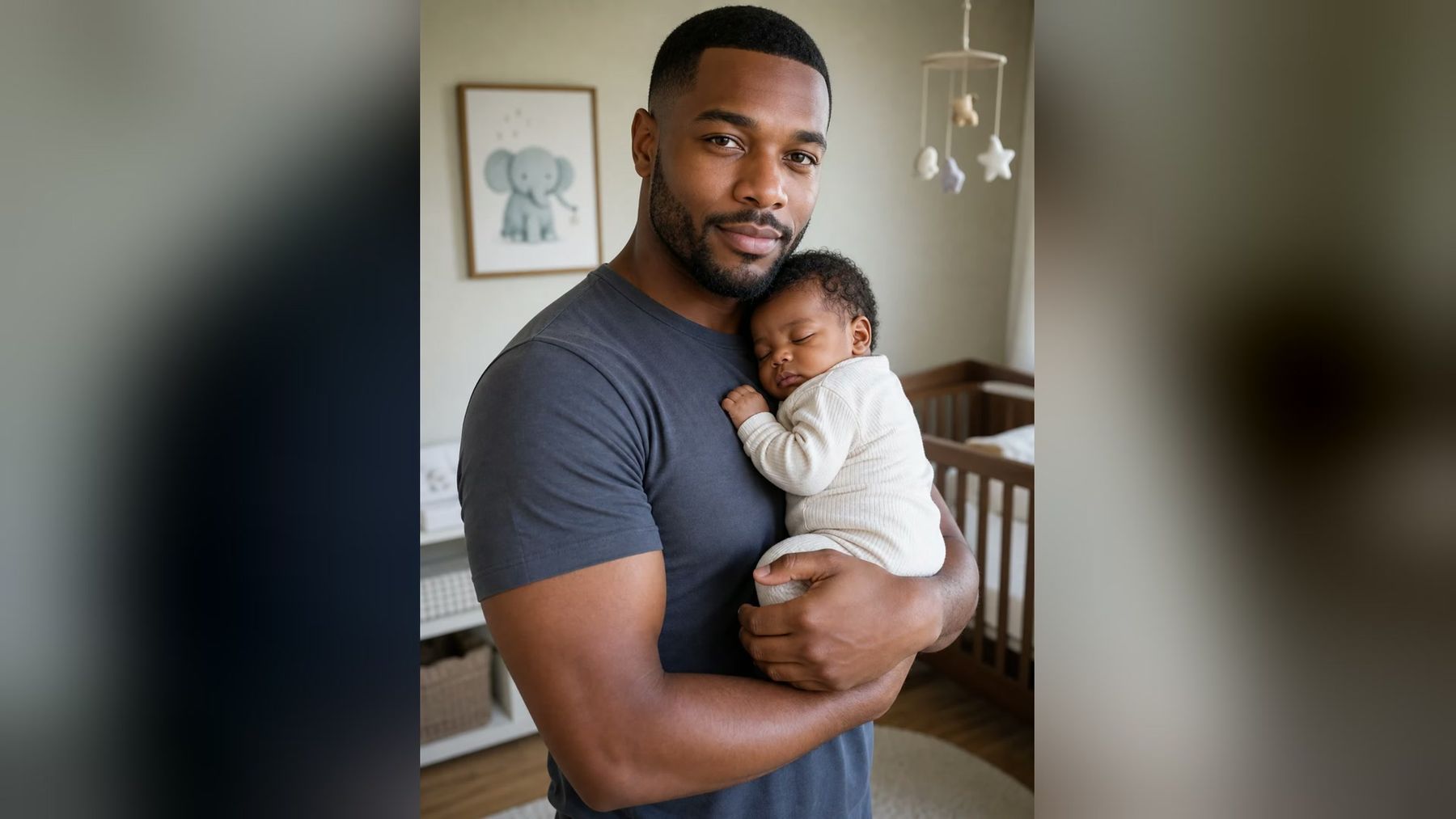
An AI baby generator can turn a portrait into an imaginative baby-themed image in seconds. It is a playful visual exercise—not a genetic forecast, medical tool, or reliable picture of a future child. If that is the experience you want, the imageat AI Baby Generator offers a simple workflow: upload one clear portrait, select one of three prepared looks, and generate a polished 4:5 image without writing a prompt.
This guide explains exactly what the feature does, how to choose a source photo, what each available style is good for, and how to judge the finished image. It also covers privacy, responsible sharing, and the most common questions behind searches such as “AI baby generator from a photo” and “what would my baby look like?”
What is an AI baby generator?
An AI baby generator creates a fictional baby portrait using visual information from an uploaded reference image. The result may echo broad traits such as complexion, hair, facial proportions, or overall mood, but it does not calculate inheritance. A convincing image is still an artistic AI interpretation.
That distinction matters. Genetics are influenced by many variables that cannot be inferred from a portrait. Even when a generated face appears plausible, it should be treated like a creative photo effect rather than a prediction.
The current imageat pack is designed around one clear portrait. It does not require a text prompt, and its landing page presents three ready-made directions: Cozy Nursery, Studio Portrait, and Garden Morning. Each generation costs 6 credits, and the output is composed in a portrait-friendly 4:5 format.
Why use a ready-made baby portrait pack?
A general image generator gives you more controls, but it also asks you to make more decisions. You need to describe age, clothing, lighting, camera angle, environment, and visual style while protecting the identity cues you care about. Small wording changes can produce a very different face.
A ready-made pack narrows those variables. It is useful when you want:
- A quick creative result without prompt engineering
- A consistent portrait layout for social sharing
- A choice between nursery, studio, and outdoor moods
- A high-resolution download rather than a screenshot
- An identity-aware effect based on a photo you choose
If you want to make broader edits after generating, the AI photo editor is a better next step than repeatedly changing the source image. You can also browse other focused ideas in the imageat photo packs.
How to create a fictional baby portrait from a photo
The workflow is short, but the input image has a major effect on the result.
1. Choose a clear source portrait
Use a sharp photo in which one adult face is easy to see. A front-facing or gently turned head works better than a strong profile. Keep the eyes visible and avoid hair, sunglasses, hands, or a phone covering important facial details.
A good source photo usually has:
- One visible face
- Even light across the forehead, eyes, cheeks, and jaw
- Natural skin texture without an aggressive beauty filter
- Enough resolution to see the eyes and hairline clearly
- A neutral or relaxed expression
- Minimal motion blur and compression
Avoid crowded group pictures. The pack expects one clear reference, so a group image can make the intended identity ambiguous. Very wide full-body photos are also less useful because the face occupies too few pixels.
If your best photo is small or soft, improve it first with the image upscaler. Upscaling cannot recover every missing detail, but it can provide a cleaner working file than a heavily compressed social-media thumbnail.
2. Upload a supported file
Open the AI Baby Generator and upload a JPG, PNG, or WebP image. The page states that uploads are used to create the requested result and are not automatically published to the community gallery.
Use a photo you own or have permission to use. Do not upload a stranger’s portrait, a child’s private photo without appropriate permission, or an image taken from somebody else’s account.
3. Pick one of the three styles
The current pack includes three visual directions. They change the environment and photographic mood while aiming to keep the result coherent and recognizable as an interpretation of the reference.
Cozy Nursery
Choose Cozy Nursery for a warm, intimate scene with soft interior light. This direction suits family-themed keepsakes, private messages, or a gentle lifestyle portrait. It tends to feel less formal than a studio image.
Studio Portrait
Choose Studio Portrait for a cleaner, more controlled result. The editorial presentation makes it useful when you want the face to be the main focus, with fewer environmental details competing for attention.
Garden Morning
Choose Garden Morning for a brighter lifestyle image with an outdoor mood. Natural-looking surroundings can make the result feel candid and cheerful, especially when you prefer a less staged aesthetic.
There is no universally best option. Generate the direction that matches how you plan to use the image. A nursery scene communicates warmth, a studio setup emphasizes portrait polish, and a garden scene feels casual.
4. Generate the image
Select Generate · 6 credits. The pack handles the prompt and composition for you, so you do not need to describe the scene manually. Wait for the result to finish before refreshing or leaving the page.
The generated image is an original fictional rendering. Do not judge it solely by whether it looks photorealistic. Also check whether the face, hands, clothing, lighting, and background agree with one another.
5. Review before downloading or sharing
Zoom in and inspect the image. Pay special attention to:
- Eye alignment and reflections
- Ear shape and placement
- Fingers, hands, and contact points
- Hair edges against the background
- Clothing seams and repeated textures
- Nursery objects, plants, or furniture with warped geometry
- Skin texture that appears unnaturally smooth or inconsistent
If something looks wrong, try another style or use a stronger reference photo. A clearer input often helps more than repeatedly generating from the same low-quality image.
How to get a more convincing result
Use simple, even lighting
Window light or soft outdoor shade preserves facial information without creating harsh shadows. Mixed lighting—for example, blue daylight on one side and orange room light on the other—can make the model interpret color and shape inconsistently.
Keep the face large in the frame
A head-and-shoulders portrait is a reliable default. The generator needs enough facial detail to work from, but it does not need a tightly cropped passport photo. Leave a little space around the hair and chin.
Start with an unfiltered image
Strong filters can enlarge eyes, narrow the nose, blur skin, or alter the jaw before generation begins. If the source already contains artificial changes, the output may exaggerate them. Use the most natural version of the portrait you have.
Match the source mood to the chosen style
A relaxed portrait pairs naturally with Cozy Nursery or Garden Morning. A centered, evenly lit headshot is a strong starting point for Studio Portrait. The pack can change the setting, but a compatible source reduces visual tension.
Compare styles instead of chasing one perfect image
The three options are meant to provide distinct directions. Rather than generating the same style many times, compare one nursery, one studio, and one garden result. You may discover that a different setting better supports the face and expression.
Three practical creative ideas
Because this pack uses prepared styles rather than free-form prompts, your creative choices come from the source photo, style, and final presentation.
A private “just for fun” reveal
Generate one image in each style and share the set privately with your partner or close family. Label it clearly as fictional AI artwork. The three-scene comparison makes the experience more interesting without presenting any single result as a prediction.
A playful family keepsake
Choose Cozy Nursery, download the best result, and place it in a private digital scrapbook alongside a short note about when you made it. Keeping context with the image prevents it from being mistaken for a real photograph later.
A visual storytelling exercise
Use Garden Morning as the first frame in an imaginary family story, or Studio Portrait as a character concept for a fictional project. For a different illustrated direction, try the photo to anime converter, which also uses one clear portrait and three prepared styles.
What the result can—and cannot—tell you
An AI-generated baby portrait can visualize a possibility in an entertaining way. It can combine familiar-looking features into a coherent image, create an emotional scene, and offer a conversation starter.
It cannot tell you what a future child will actually look like. It cannot infer a complete genetic profile from pixels, determine biological parentage, predict health, or replace medical and genetic advice. The feature page explicitly describes its outputs as fictional AI creations for entertainment.
Avoid wording such as “accurate prediction,” “genetic result,” or “our real future baby” when sharing. A simple disclosure—“fictional baby portrait made with AI”—is more honest and protects viewers from misunderstanding the image.
Privacy and responsible sharing
Portrait uploads are personal data, even when the image is already on social media. Use a photo you are comfortable processing, confirm that you have permission, and review the platform’s terms before creating or distributing a result.
The imageat landing page says uploaded photos are not automatically published to its community gallery. That is helpful, but you should still control what you share after downloading. Consider these practices:
- Share privately when the image involves family planning or personal relationships
- Do not use the result to mislead someone or impersonate a real family
- Do not attach sensitive medical or genetic claims
- Avoid posting another person’s portrait or generated likeness without consent
- Add a clear AI disclosure when the context could be confusing
- Keep original files and generated versions organized separately
If you want a different fictional portrait of yourself rather than a baby-themed image, the AI selfie generator provides lifestyle-focused alternatives.
AI baby generator vs. manual prompting
A dedicated pack is best for speed and consistency. You choose a photo and a style, then the workflow handles scene design. It is the easier option for users who do not want to write or debug prompts.
Manual prompting is better when you need a specific wardrobe, unusual art direction, exact setting, or complex group composition. It also requires more experimentation and more careful review. For most people searching for a straightforward AI baby generator from a photo, the focused pack removes unnecessary setup.
The trade-off is control. With the pack, you work within three curated directions. With a general generator, you can specify more details but may have to spend additional time maintaining facial consistency.
Final checklist
Before generating:
- Use one clear, authorized adult portrait
- Prefer front-facing, evenly lit facial detail
- Remove sunglasses and strong filters
- Choose Cozy Nursery, Studio Portrait, or Garden Morning based on the desired mood
- Remember that each generation costs 6 credits
Before sharing:
- Inspect the eyes, ears, hands, clothing, and background
- Download the high-resolution result instead of taking a screenshot
- Describe it as fictional AI artwork
- Do not make genetic, medical, or predictive claims
- Get consent before sharing somebody else’s likeness
When you are ready, create a fictional baby portrait with imageat. You can review available plans and credits on the pricing page.
Frequently asked questions
Can AI really predict what my baby will look like?
No. A generated baby portrait is an artistic interpretation based on visible information in a reference photo. It cannot model the full complexity of genetics and should not be treated as an accurate future prediction.
Does the imageat AI Baby Generator need two parent photos?
The current live workflow asks for one clear portrait and offers three ready-made styles. Follow the input shown on the feature page rather than assuming that search phrases such as “from parents” describe the actual upload requirement.
What image formats can I upload?
The live feature page accepts JPG, PNG, and WebP files.
Do I need to write a prompt?
No. Choose one of the prepared styles—Cozy Nursery, Studio Portrait, or Garden Morning—and the pack handles the creative direction.
How much does one generation cost?
The live page currently shows 6 credits per generation. Check the feature page before generating because product details can change.
What shape is the generated image?
The pack currently describes a polished 4:5 image, a portrait format suited to mobile viewing and social posts.
Are my uploads automatically public?
The feature page says uploads are used for the requested result and are not automatically published to the community gallery. You still control where you share the downloaded image.
Can I use the result on social media?
The feature FAQ says generated results can be downloaded and used on profiles and social channels, subject to imageat’s terms and the rules of the third-party platform. Disclose that the portrait is AI-generated when viewers could mistake it for a real baby photo.