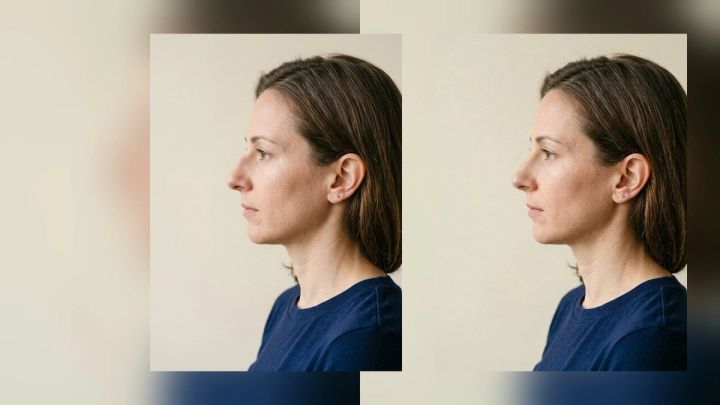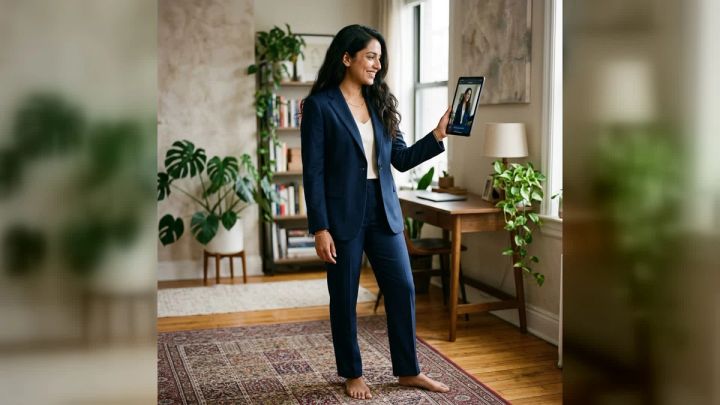
A body-transformation preview can make an abstract idea easier to picture, but it should never be mistaken for a forecast. Bodies change differently, health cannot be read from an image, and an AI-generated portrait cannot predict a future weight, shape, or medical outcome.
Used with those limits in mind, a visual concept can still be useful for creative exploration. The imageat AI Weight Loss Simulator turns one clear portrait into a fictional body-transformation image. You choose one of three ready-made directions, generate a polished 4:5 result, and download it without writing a prompt.
This guide explains the current workflow, how to choose a suitable source photo, how to review the result critically, and how to use the image as a respectful motivational or creative reference rather than a promise.
What is an AI weight loss simulator?
An AI weight loss simulator is an image-generation tool that creates a fictional variation of a person's appearance from a reference photo. It does not calculate what a person will look like at a particular weight. Instead, it interprets the source portrait and produces a new image built around a selected visual direction.
The distinction matters. A generated image may change clothing, posture, framing, lighting, muscle definition, proportions, or the setting. Some of those choices can create a stronger impression of transformation even when they have little to do with real physical change.
The imageat pack describes its output as a fictional visualization for motivation and entertainment. It is not medical advice, a body-composition measurement, or a prediction of health outcomes. Use it to explore a visual concept—not to set a target body, diagnose yourself, estimate a safe rate of change, or judge whether someone is healthy.
How the imageat body-transformation pack works
The current pack uses a guided three-step process:
- Upload one clear portrait in JPG, PNG, or WebP format.
- Choose Everyday Portrait, Fitness Outfit, or Progress Concept.
- Generate and download the result.
The feature creates a high-resolution 4:5 image and is designed to preserve recognizable facial features while changing styling, setting, lighting, and composition. No custom prompt is required. At the time of writing, the Generate control displays a cost of 6 credits; check the live button before starting because credit requirements can change.
The page also states that uploaded images are used to create the requested result and are not automatically published to the community gallery. You should still upload only a photo you own or have permission to edit.
Choose a source photo that supports a fair comparison
A useful source does not need professional studio lighting, but it should give the model clear visual information. The more the reference hides, distorts, or exaggerates the subject, the less meaningful the generated comparison becomes.
Use a current solo portrait
Choose a recent photo with one main person. A group image can create uncertainty about the intended subject, while an old portrait may no longer represent the person's current appearance. The face should be large enough to recognize immediately.
If identity preservation matters, ask a simple question before uploading: would people who know you identify you from this image without needing the caption?
Show enough of the body for your question
A tight headshot may be suitable for a face-focused variation, but it cannot provide much information for a full-body concept. For a broader transformation preview, use a waist-up or full-length photo with the body visible and not hidden behind furniture, another person, or a large object.
Keep hands, legs, and the outline of the torso reasonably clear. Complex poses and crossed limbs give a generator more opportunities to invent anatomy or clothing edges.
Prefer neutral posture and camera perspective
A straight-on or modest three-quarter view is easier to compare than an extreme high angle, low angle, or wide-angle close-up. Camera position changes apparent proportions. So do leaning toward the lens, twisting the torso, pushing the hips back, or holding the stomach in.
For the most honest visual baseline, stand naturally and keep the camera far enough away to avoid wide-angle distortion.
Use even light and a simple background
Soft daylight or diffuse indoor light helps preserve facial and clothing detail. Deep shadows can obscure the waist, arms, or jaw, while strong colored light can alter skin and fabric tones.
A simple background also makes the silhouette easier to inspect. If the source is too small or compressed, the image upscaler may help produce a cleaner working file, although it cannot recover every detail missing from the original.
Avoid beauty filters and prior reshaping
Do not begin with a photo that already narrows the face, stretches the legs, smooths the body, or changes proportions. The generator may preserve those distortions as part of the identity reference. Starting from a natural image gives you a more understandable baseline.
Step-by-step: create an AI body-transformation preview
1. Define a non-numerical purpose
Before generating, decide what you want the image to help you explore. Keep the question visual and open-ended. Useful examples include:
- Would a fitness-oriented portrait style suit my profile?
- Do I prefer an everyday or editorial presentation?
- What clothing and framing make a progress photo feel respectful?
- Which visual direction could support a private mood board?
Avoid asking the tool to show an exact goal weight, body-fat percentage, clothing size, or medical result. The image has no reliable basis for calculating any of them.
2. Open the simulator and upload your portrait
Go to the AI weight loss simulator, choose your file, and inspect the upload preview. Replace it before generating if the face is blurred, the body is mostly hidden, or the camera angle creates obvious distortion.
The supported source formats currently shown on the page are JPG, PNG, and WebP.
3. Choose one of the three directions
Select the scene that best matches your actual purpose:
- Everyday Portrait aims for a clean, natural result with flattering light.
- Fitness Outfit uses a more polished, visually impactful direction.
- Progress Concept is framed as a candid lifestyle option.
Because these are ready-made styles, no prompt writing is needed. Keeping the same source while testing styles gives you a more controlled comparison than changing the input each time.
4. Generate the 4:5 image
Confirm the displayed credit cost, then generate the result. The vertical 4:5 format is useful for portrait viewing and social posts, but remember that crop and composition affect perceived proportions.
Generative output can vary from run to run. A single result is one interpretation, not the correct answer.
5. Review identity and anatomy at full size
Zoom in before downloading or sharing. Check whether the face still looks like the person in the source, then inspect areas where generative edits often become inconsistent:
- shoulders, elbows, wrists, fingers, knees, and ankles;
- the boundary between clothing and skin;
- waistlines, belts, pockets, seams, and patterns;
- hair crossing the neck or shoulders;
- mirrors, furniture, door frames, and background lines;
- shadows that should follow the body and floor.
Discard a version with warped anatomy, implausible clothing, duplicated objects, or a weak likeness. A polished thumbnail can hide problems that become obvious at full resolution.
How to compare the original and generated image responsibly
Do not use the output as a scientific before-and-after image. It was generated, not measured. A fair review separates technical quality from the emotions created by styling.
Check what changed besides the body
List every major difference you can see. Did the result change the pose, outfit, focal length, crop, background, expression, hairstyle, or lighting? A fitness outfit and confident posture can make the image feel more transformed even if the body edit is modest.
This exercise helps prevent you from attributing the whole visual effect to weight loss.
Compare at the same size
Place the images side by side with matching display dimensions. Avoid comparing a dim phone snapshot with a bright, professionally styled generation at different sizes. If possible, crop both to a similar head-and-body framing.
Judge the image, not the person
Evaluate likeness, composition, edge quality, and whether the chosen style communicates the intended mood. Do not use the result to rank bodies as better or worse. A generated ideal can be unrealistic and may reflect biases in training data or styling conventions.
Keep private images private
Body-related imagery can feel sensitive later even if it seems harmless now. Store the result intentionally, review audience settings before posting, and obtain explicit consent before generating or sharing an image of someone else.
What the three visual directions are best for
Everyday Portrait
Choose Everyday Portrait when you want the least theatrical presentation. Its natural-light direction is useful for exploring a casual profile image or a private visual reference. Review whether the result preserves the subject's familiar expression and overall character rather than simply making the lighting more flattering.
Fitness Outfit
Fitness Outfit is the clearest match for an active-lifestyle concept. Use it to explore wardrobe and portrait styling—not to imply a training result, performance level, or health status. Athletic clothing, posture, and lighting can strongly influence how a body reads in a photograph.
If your real goal is a fitness-themed portrait rather than a transformation simulation, compare this option with the separate fitness photo generator. Choosing the tool that matches the intent keeps the output easier to explain.
Progress Concept
Progress Concept can support a personal mood board or a creative progress-photo idea. Keep it clearly labeled as AI-generated if you share it. It should not be presented as documentary evidence of a real timeline, product result, coaching outcome, or medical treatment.
Common mistakes to avoid
Treating the result as a prediction
The simulator cannot know genetics, body composition, fat distribution, muscle mass, medical history, or future behavior. It creates pixels, not a personalized physiological forecast.
Requesting an exact number
A photo cannot reliably tell the model what an exact weight or percentage would look like. Numeric precision in a prompt or caption would create false confidence even if the picture appears plausible.
Using an unfair source image
An extreme camera angle, compressed pose, heavy filter, or oversized clothing makes comparison difficult. Start with a neutral image rather than trying to maximize the contrast.
Ignoring broader visual changes
A new outfit, better light, stronger posture, and a cleaner setting may drive much of the result. Identify those factors separately; some may be useful portrait ideas that do not require changing your body.
Posting without context
If an AI image could be mistaken for a real before-and-after claim, label it clearly. This is especially important around advertising, coaching, supplements, clinical services, or testimonials.
Using the image as a substitute for professional care
Questions about nutrition, exercise safety, medication, eating disorders, or sustainable weight management belong with qualified professionals. If body-image content causes distress or encourages harmful behavior, stop using the tool and seek appropriate support.
Build a more controlled portrait workflow
After choosing a visual direction, use editing tools for technical cleanup rather than further body manipulation. The AI photo editor can support broader image-editing tasks, while the AI selfie generator offers separate portrait concepts when the aim is a new social image rather than a transformation preview.
You can also browse imageat photo packs to choose a feature based on a specific setting, profession, occasion, or aesthetic. Keeping each workflow tied to one clear purpose makes generated images easier to evaluate and describe honestly.
FAQ
Can AI show what I would look like if I lost weight?
AI can create a fictional visual interpretation from a photo, but it cannot predict your future appearance. Real changes vary by person and cannot be calculated reliably from one image.
Is the imageat AI weight loss simulator free?
The page states that signup is free and generation uses credits. The live interface currently shows 6 credits per generation. Check the Generate control and imageat pricing before starting because costs can change.
Do I need to write a prompt?
No. The current pack provides three ready-made choices: Everyday Portrait, Fitness Outfit, and Progress Concept.
What image format should I upload?
The feature currently accepts JPG, PNG, and WebP. Use a clear, recent solo portrait with natural proportions, even lighting, and enough body visibility for the intended comparison.
Will the result still look like me?
The workflow is designed to preserve recognizable facial features, but generative results can vary. Compare the face, body, clothing, and background with the source at full size and reject any version with a weak likeness or obvious artifacts.
Are uploaded photos automatically public?
No. The feature page states that uploads are used to create the requested result and are not automatically published to the community gallery.
Can I share the generated image on social media?
The feature page says downloaded results can be used on profiles and social channels, subject to imageat's terms and third-party platform rules. Label it as AI-generated when it could otherwise be mistaken for a real transformation or testimonial.
Is an AI body-transformation image medical advice?
No. It does not measure health, recommend a plan, or predict an outcome. Consult appropriately qualified professionals for health, nutrition, exercise, or body-image concerns.
Create a concept without confusing it for a forecast
The most responsible way to use an AI weight loss simulator is to keep its purpose narrow. Start with a clear and natural portrait, choose a visual direction, inspect the generated anatomy and identity carefully, and account for changes in pose, clothing, crop, and lighting.
Most importantly, treat the result as fictional creative media. If that framing fits your goal, create a body-transformation preview with imageat and keep the downloaded image clearly separated from real progress records, measurements, and professional guidance.