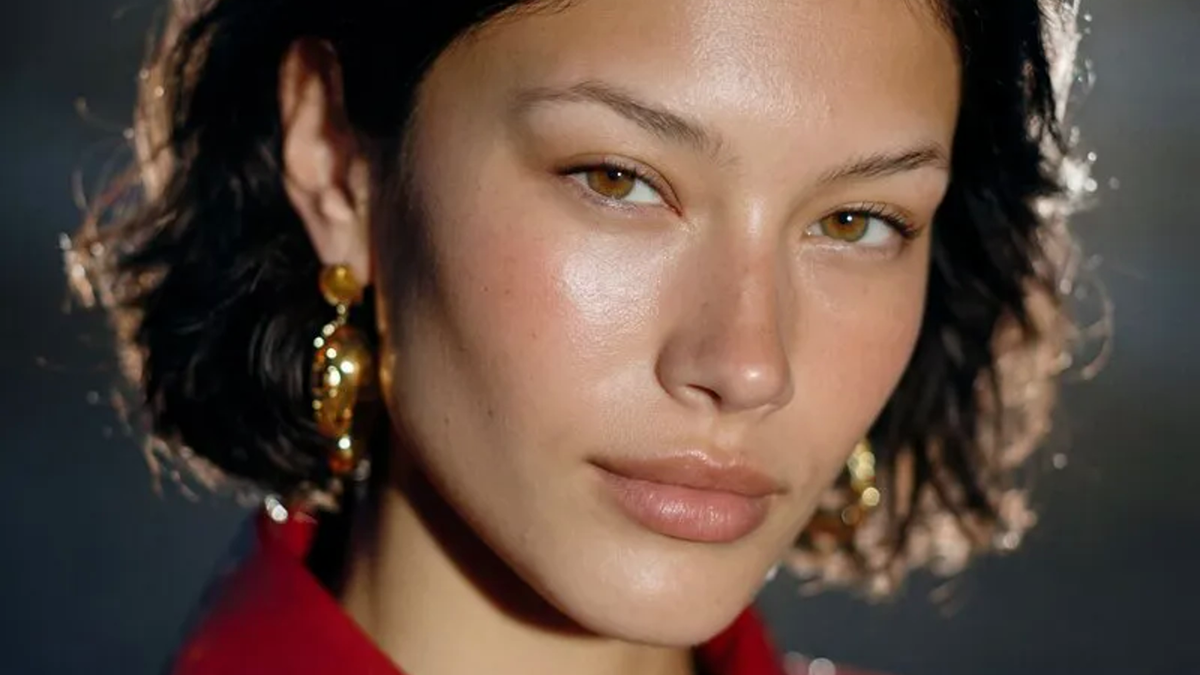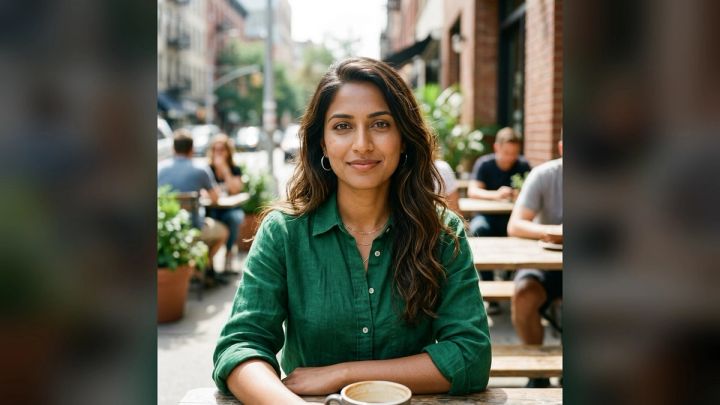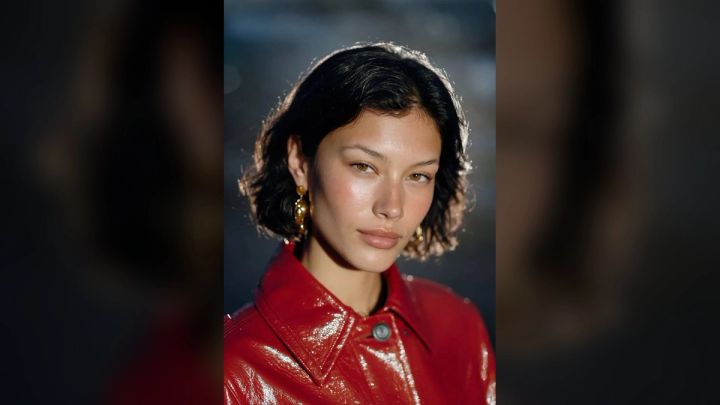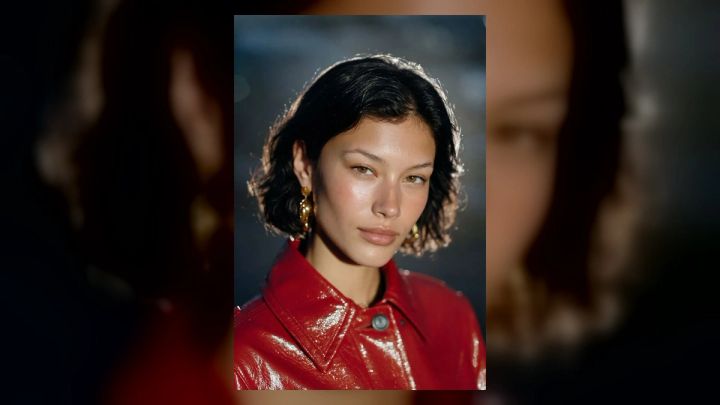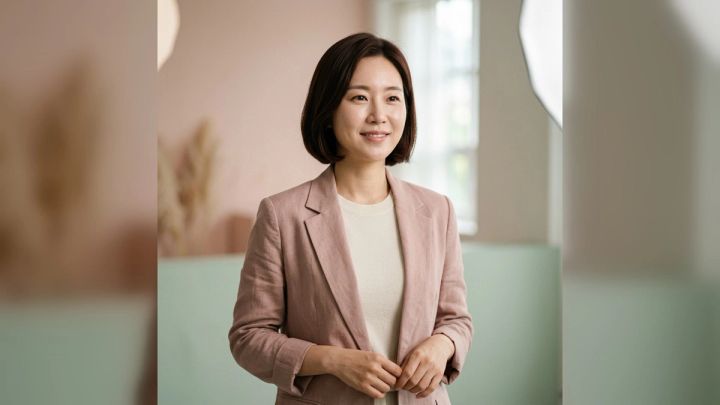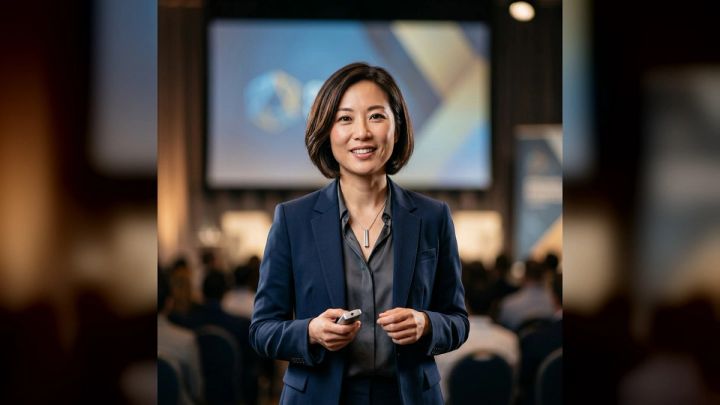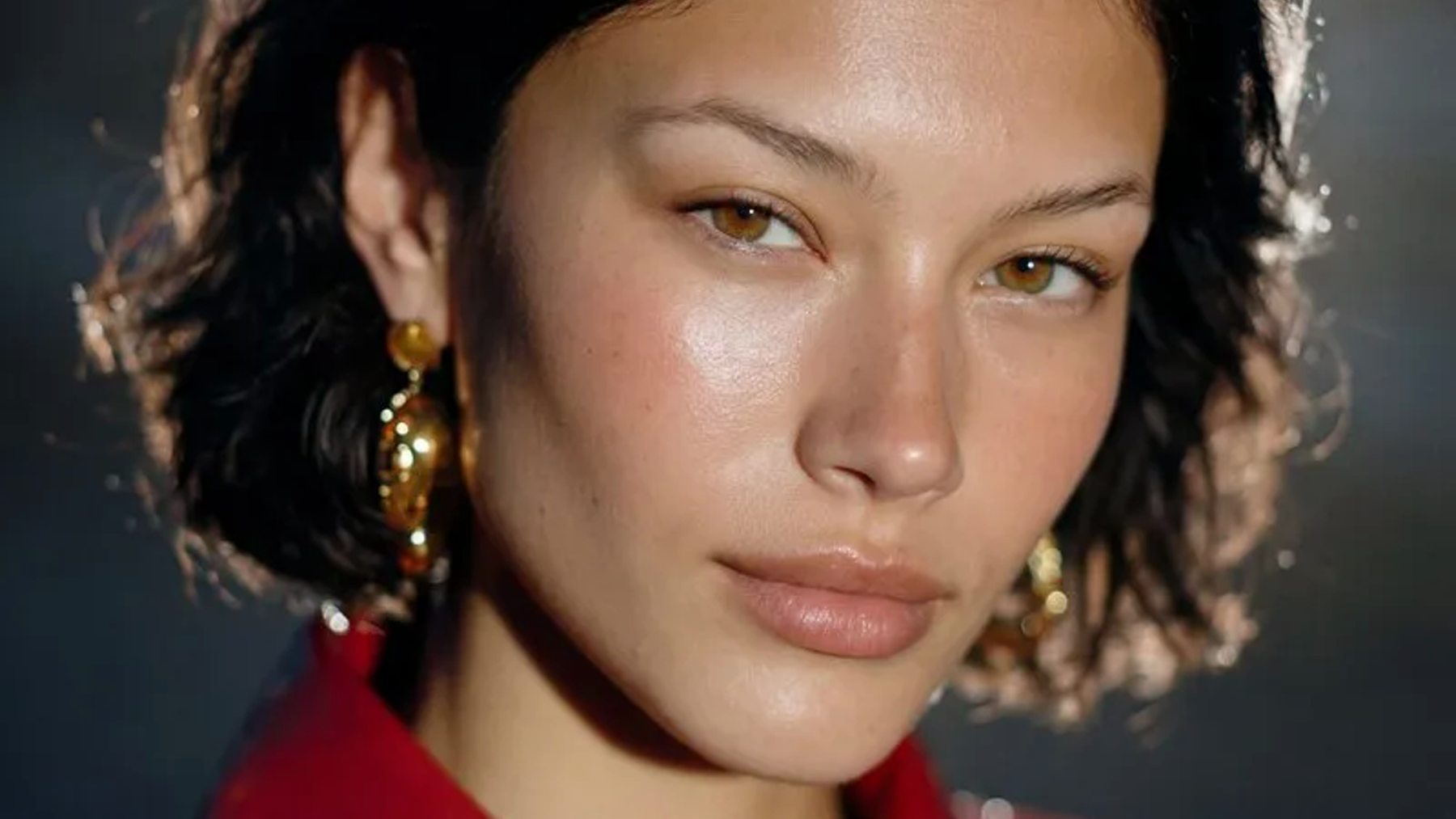
Turning a photo into a cartoon works best when the result still feels connected to the original person. A bold outline or bright color palette can make an image look illustrated, but recognizability comes from quieter details: face shape, eye spacing, hairstyle, expression, clothing, and the way the subject holds their head.
For a quick photo-based workflow, the imageat AI Cartoon Portrait Generator transforms one clear portrait into original cartoon-style artwork. The current pack creates a polished 4:5 image, provides ready-made looks, and does not require prompt writing. That makes it useful for testing a cartoon profile picture, character concept, gift idea, or social avatar without constructing an illustration brief from scratch.
This guide explains how to choose the right source image, explores 12 cartoon style directions, and shows how to review the result before you publish it.
The short version
To turn a photo into a convincing cartoon:
- Start with one sharp, well-lit portrait.
- Keep the face visible and avoid heavy filters.
- Choose a style that suits the final use.
- Generate the cartoon version.
- Check likeness, hair, clothing, hands, and background details.
- Crop and export for the platform where it will appear.
The most important step is the first one. A generator can simplify or reinterpret visible details, but it cannot reliably recover features hidden by sunglasses, motion blur, deep shadow, or another person.
What makes a cartoon portrait recognizable?
A cartoon deliberately removes information. Skin texture may disappear, shadows become simpler shapes, and individual hairs turn into larger locks. The result remains recognizable when the illustration preserves the subject’s visual anchors.
Look for these anchors in the source photo:
- Face shape: round, oval, square, heart-shaped, or long
- Feature relationships: spacing between the eyes, eyebrow angle, nose length, and mouth width
- Hair silhouette: length, parting, curls, fringe, volume, and hairline
- Expression: relaxed, serious, cheerful, surprised, or thoughtful
- Distinctive details: freckles, glasses, facial hair, earrings, or a familiar jacket
- Pose: straight-on, three-quarter view, raised chin, or tilted head
Not every detail needs to survive. In fact, a cartoon often looks cleaner when it simplifies fine texture. The goal is to preserve the details that identify the person while allowing the medium to change.
Choose the right source photo
Use one clearly visible person
A single-person portrait gives the transformation an unambiguous subject. Use a frame where the face occupies a meaningful portion of the image. A distant full-body photo may not contain enough facial detail for a likeness-focused cartoon.
Prefer soft, even light
Window light, open shade, or a diffused lamp reveals facial structure without cutting the face into bright and dark halves. Strong backlight can erase the eyes and hairline; direct overhead light can deepen eye sockets. If you must use a phone photo indoors, face the light instead of placing it behind you.
Keep the image sharp
Focus on the nearest eye. Avoid screenshots, compressed messaging-app copies, and frames pulled from a fast-moving video when a cleaner original exists. Sharpening can emphasize existing edges, but it cannot reconstruct an eye that was never in focus.
Remove visual competition
Choose a plain or orderly background. Busy shelves, patterned curtains, crowds, and plants crossing the head can be mistaken for clothing or hair details. A simple background also gives the cartoon silhouette room to read at avatar size.
Avoid heavy beauty filters
A filtered source may already have enlarged eyes, smoothed skin, changed facial proportions, or altered color. The cartoon transformation then interprets the filter rather than the person. Begin with a natural, current image when recognizability matters.
12 cartoon style ideas to try
1. Clean editorial cartoon
Use controlled lines, restrained color, and a simple background. This direction feels polished without becoming overly playful, making it a strong choice for an author bio, newsletter avatar, creative portfolio, or profile image.
Keep accessories limited and choose clothing with a clear neckline. Small patterns often turn into visual noise after illustration and downscaling.
2. Saturday-morning character
Bright colors, energetic shapes, and an expressive pose create a lively animation-inspired portrait. A smile, raised eyebrow, or slight shoulder turn gives the character more personality than a neutral passport-style pose.
Avoid copying a protected franchise or named artist. Describe broad visual qualities—bold shapes, clean cel shading, cheerful color—instead of asking for a replica of a specific character.
3. Graphic-novel portrait
A graphic-novel look uses decisive shadows, ink-like contours, and a limited palette. It works well for dramatic profile pictures, podcast artwork, gaming identities, or story concepts.
Start with directional light that reveals cheekbones and jaw shape. Check the finished shadows carefully: one misplaced dark area can change the expression or make an eye appear closed.
4. Soft pastel illustration
Muted color, gentle edges, and minimal contrast produce a warm, approachable portrait. This style can suit greeting images, lifestyle profiles, family keepsakes, and personal stationery.
Use a source photo with soft light and uncluttered clothing. Pastel treatment can lose pale eyebrows, light hair, or subtle glasses, so make sure those features remain defined.
5. Retro comic-book panel
Try strong outlines, flat color blocks, halftone-inspired texture, and a dramatic crop. A three-quarter expression usually feels more dynamic than a centered neutral face.
Readable text is difficult to generate reliably, so add speech bubbles, captions, or titles later in a design tool. Review every letter before sharing; invented text can make an otherwise strong image unusable.
6. Minimal vector avatar
A vector-like avatar reduces the face to clean shapes and a small color palette. It remains legible at tiny sizes, making it useful for community profiles, presentation slides, messaging accounts, and team directories.
Test the result as a small circle, not only as a large rectangular image. Keep the eyes, hair silhouette, and face outline distinct enough to survive the crop.
7. Hand-drawn sketch
Pencil-like lines and light shading create an informal, crafted feeling. Side light can provide useful structure, but deep shadow may turn into heavy crosshatching.
A sketch does not need to reproduce every skin detail. Judge it by proportion, expression, and silhouette rather than by photographic texture.
8. Bold pop-art portrait
Use saturated color, large graphic shadows, and a simple high-contrast background. This direction can work for party graphics, music visuals, posters, or social posts that need immediate impact.
Check skin and clothing colors for unwanted associations or loss of detail. High saturation should support the face, not flatten it into one bright patch.
9. Cozy storybook character
Warm light, tactile texture, and a gentle environment give a portrait a narrative quality. A cup, book, scarf, plant, or window can provide context, but one or two props are enough.
Inspect fingers, handles, jewelry, and repeated background objects. Small interactions between a person and a prop are common places for visual errors.
10. Noir cartoon portrait
A monochrome or nearly monochrome palette, side light, and a quiet expression can create a classic detective-story mood. Preserve some midtone detail so dark hair, clothing, and background do not merge.
This style is strongest when the source already has a clear light direction. Turning a flat, evenly lit selfie into extreme noir lighting may change the face more than expected.
11. Adventure-game character
A three-quarter pose, practical costume, and environmental background can make the subject feel like a playable character. Keep the costume original and coherent rather than combining unrelated armor, gadgets, and symbols.
If the portrait is for a larger character project, use the result as concept art. Do not assume the generator has created a consistent back view, costume construction, or reusable production model.
12. Exaggerated caricature
Caricature intentionally amplifies a few traits: a broad smile, distinctive eyebrows, dramatic hair, or a recognizable pair of glasses. It should feel playful without becoming cruel.
Choose the traits deliberately and avoid exaggerating sensitive physical characteristics. For a gift, workplace image, or public post, consider whether the subject would enjoy the interpretation before sharing it.
How to turn a photo into a cartoon with imageat
The current imageat cartoon pack uses a simple ready-made workflow:
- Open the AI Cartoon Portrait Generator.
- Upload one clear portrait in JPG, PNG, or WebP format.
- Choose a ready-made look.
- Generate the polished 4:5 cartoon portrait.
- Review the full-size result before downloading or posting it.
The page states that no prompt writing is required. It also says uploads are used to create the requested result and are not automatically published to the community gallery. Credit values and available interface options can change, so check the live page before generating.
If you need a custom scene instead of a ready-made portrait transformation, the imageat AI Image Generator is the more flexible starting point. For a broader profile-character workflow, compare the AI Avatar Generator.
How to review the generated cartoon
Check likeness before style
Temporarily ignore whether the illustration looks impressive. Ask whether a friend would recognize the subject without seeing the original. Compare face width, eye spacing, eyebrow shape, nose, mouth, hairline, and jaw.
Inspect the eyes and glasses
Make sure both pupils point naturally, eyelids are coherent, and reflections do not resemble extra pupils. Glasses should have two connected frames, believable arms, and consistent lens shape.
Follow the hair silhouette
Look around the entire head. Check whether curls join naturally, the parting remains plausible, and dark hair stays separate from a dark background. Loose strands are less important than the overall silhouette.
Review clothing and jewelry
Inspect collars, lapels, buttons, earrings, necklaces, and patterns. Repeating details may multiply or melt together. If a real brand mark appears distorted, remove it rather than presenting the invented version as authentic.
Count fingers and trace objects
When hands are visible, count the fingers and follow each hand into the wrist. Check cups, phones, glasses, and other held objects for broken edges or impossible overlaps.
Test the intended crop
A 4:5 portrait is useful for many social formats, but profile pictures often become circles or squares. Preview those crops before publishing. Keep eyes away from the edge and leave enough room around the hair.
For controlled cleanup, use the imageat AI Photo Editor. If the final crop is clean but too small for its destination, the imageat image upscaler can increase output dimensions. Upscaling cannot repair incorrect anatomy, a lost likeness, or unreadable generated text.
Common mistakes to avoid
Choosing style before purpose
A detailed storybook scene may look beautiful but fail as a tiny profile picture. Decide where the image will appear first, then choose the level of detail and contrast.
Starting with a group photo
A crop from a group image may be soft, partially blocked, or lit for the scene rather than the individual. Use an original single-person portrait whenever possible.
Combining too many visual directions
“Vector, watercolor, noir, 3D, comic, realistic, and retro” is not one clear style. Even when a tool offers broad control, begin with one dominant medium and one supporting mood.
Treating generated details as facts
A cartoon generator may invent logos, jewelry, background signage, or costume details. Do not use those inventions to represent a real uniform, product, award, organization, or historical object without verification.
Publishing without permission
A fun transformation is still an image of a person. Get permission before publicly transforming or posting someone else’s portrait, especially for advertising, workplace materials, sensitive jokes, or identity-related contexts.
Frequently asked questions
What is the best photo for a cartoon portrait?
Use a sharp, current image of one person with a visible face, even light, natural detail, and a simple background. A head-and-shoulders or close portrait usually preserves more identity information than a distant full-body shot.
Can I turn a selfie into a cartoon?
Yes. A selfie can work well if the lens is not extremely close to the face, the image is sharp, and the light is even. Hold the camera slightly farther away or use a timer to reduce wide-angle distortion.
How do I make a cartoon profile picture look good in a circle?
Center the eyes, leave space around the hair, simplify the background, and use enough contrast between the head and the surroundings. Preview the exact circular crop at a small size before saving it.
Is a cartoon portrait the same as an anime portrait?
No. “Cartoon” is a broad category that can include editorial, comic, vector, storybook, caricature, and animation-inspired styles. Anime has its own visual traditions and conventions. Choose the description that accurately matches the intended result.
Do I need to write a prompt?
Not for the current imageat AI Cartoon Portrait Generator. The live page provides ready-made looks and states that no prompt writing is required. A custom text-to-image workflow may require a written description.
Will a cartoon generator preserve my exact face?
It may preserve recognizable features, but any transformation can change proportions or details. Compare the result with the source and regenerate or edit it if likeness matters. Do not use a stylized portrait where exact identity verification is required.
Are uploaded photos automatically public?
The current imageat feature page says uploads are not automatically published to the community gallery. Review the live privacy information and any applicable terms before uploading sensitive material.
Create a cartoon that still feels like you
A successful cartoon portrait is not the one with the most effects. It is the one that makes a clear stylistic choice while preserving the features, expression, and silhouette that matter.
Begin with a strong source photo, choose a style for the intended use, and inspect the output at both full size and final display size. You can explore more ready-made directions in imageat photo packs, or start with the imageat cartoon portrait pack to transform one clear portrait without writing a prompt.