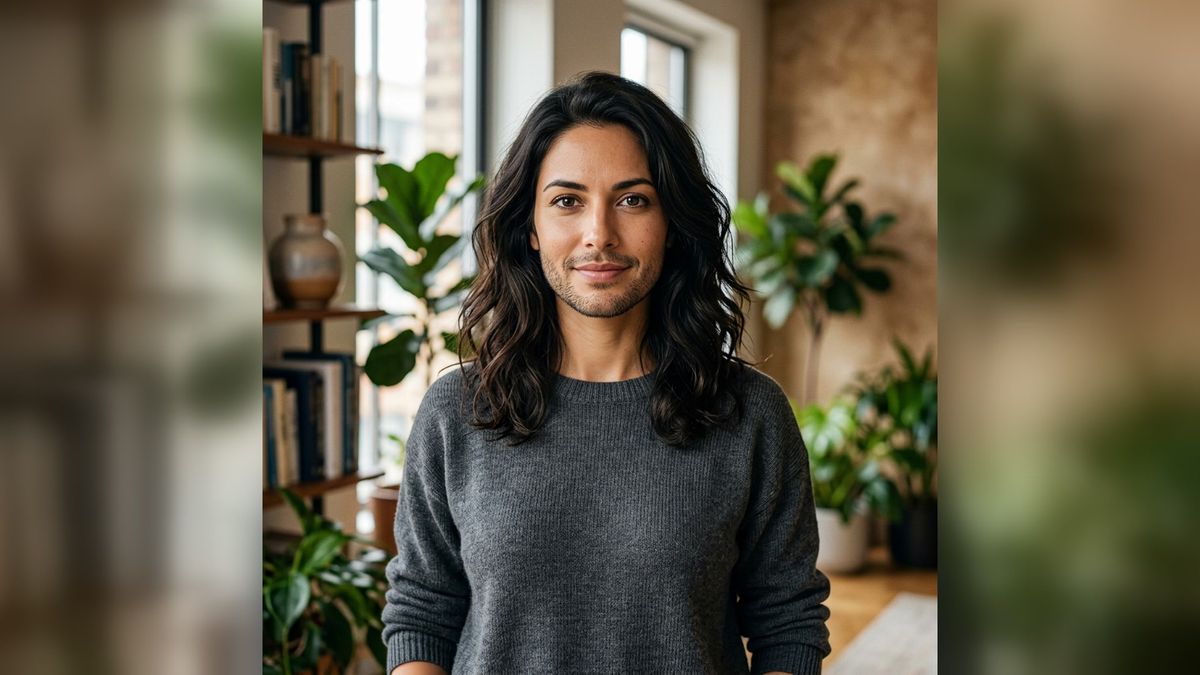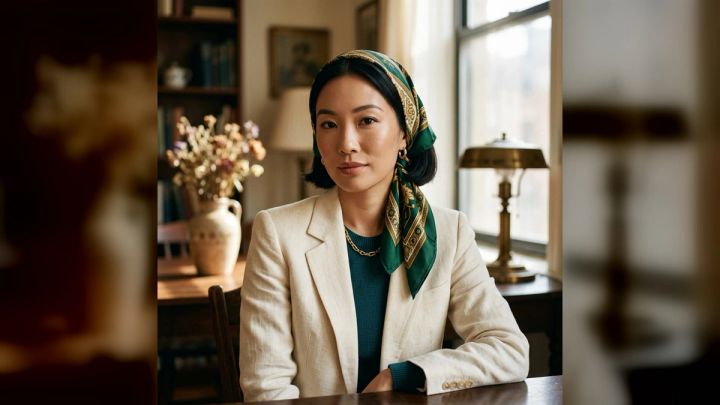
Wondering whether a short boxed beard, heavier stubble, or a fuller shape would suit your face? You no longer have to grow facial hair for weeks just to test the idea. An AI beard generator can create a visual preview from a portrait, giving you a practical reference before you change your grooming routine.
The imageat AI Beard Generator is built for this specific task. You upload one clear portrait, choose a ready-made style, generate the result, and download it. The feature is designed to preview realistic beard lengths and grooming styles while preserving recognizable facial features, so there is no complicated prompt to write.
This guide explains how to get a convincing result, how to compare beard styles fairly, what the preview can and cannot tell you, and how to use the finished image without treating an AI edit as a guarantee.
What is an AI beard generator?
An AI beard generator is a photo-editing workflow that adds or changes facial hair while trying to retain the person's identity, face shape, expression, and the rest of the portrait. Unlike a basic beard sticker or social filter, a generated result can account for lighting, head angle, skin tone, hair color, and the contours around the cheeks, lips, and jaw.
That distinction matters. Facial hair does not look natural simply because it sits in the correct area. A believable edit also needs:
- Hair direction that follows the jaw and upper lip
- Density that changes naturally around the cheeks and chin
- Shadows that match the portrait's lighting
- Clean separation from the mouth, nostrils, and hairline
- A color that feels plausible beside the subject's hair and eyebrows
- Texture that matches the sharpness and grain of the source photo
The imageat pack turns the process into three direct steps: upload a clear portrait, choose a ready-made style, then generate and download. Free signup is available, while generation uses credits.
How to add a beard to a photo with AI

1. Start with a clear portrait
Open the AI beard generator and choose a recent photo where the face is easy to see. A front-facing or slightly turned portrait is usually the most useful for comparing styles.
For the cleanest input, look for:
- Even light across both sides of the face
- A sharp jawline, chin, cheeks, and upper lip
- No hand, scarf, microphone, or large shadow covering the lower face
- A neutral or relaxed expression
- Enough resolution to see individual facial details
- One main subject rather than a crowded group photo
You do not need a formal studio headshot. A well-lit phone portrait can work well. Avoid aggressive beauty filters because they may smooth away the skin and jaw details the generator needs to integrate facial hair naturally.
If your only portrait is soft or low-resolution, improving it first with the AI image upscaler may give you a cleaner starting point. Upscaling cannot recreate every missing detail, but it can make a usable image easier to work with.
2. Choose a ready-made beard style
Select the beard or grooming look you want to preview. Because the pack offers ready-made styles, you can focus on the visual decision rather than engineering a long prompt.
When comparing options, change one variable at a time. Start with length: stubble, short beard, or fuller beard. Then compare shape, such as tighter cheeks versus more volume around the chin. This makes it easier to identify what actually improves the portrait.
Do not assume that the longest or most dramatic option will be the best. The most useful preview is often the one that balances the jaw without hiding the features that make your face recognizable.
3. Generate the result
Run the generation and inspect the entire image, not just the beard. Check whether the eyes, nose, mouth, face shape, and hairstyle still resemble the source portrait. Identity preservation is part of the intended workflow, but every generated image should still receive a careful visual check.
Zoom in around these transition areas:
- The edge of the mustache above the lip
- The corners of the mouth
- The beard-to-skin boundary on both cheeks
- The underside of the jaw
- Sideburns near the ears and hairstyle
- Any area where glasses, jewelry, or clothing crosses the face
Small inconsistencies are easier to spot at full size than in a thumbnail. If an edge looks smeared, asymmetrical, or too sharp, try another generation or use a clearer source portrait.
4. Download and compare
Download the result once it looks consistent. For a fair comparison, place the original and generated image side by side at the same size. You can also create two or three variations and compare them as a set.
Judge each option on the same criteria:
- Does it still look like you?
- Does the shape complement your jaw and cheeks?
- Does the density look plausible?
- Is the facial hair color consistent with the portrait?
- Does the style work in both a small profile thumbnail and a larger image?
If you want a polished profile portrait after choosing a direction, the AI headshot generator offers a separate workflow for professional-looking headshots. Keep the beard preview and professional portrait steps distinct so you can tell which change is affecting the final look.
How to choose a beard style for your face
Face-shape rules are best treated as starting points, not laws. Hair texture, natural growth, haircut, glasses, and personal style all affect the result. An AI preview is useful precisely because it lets you test the combination on your own portrait.
For rounder faces
A little more visual length at the chin and cleaner volume at the sides can create a more defined silhouette. Compare a short boxed style with an option that has slightly more chin length. Avoid judging from an extreme close-up; look at the whole head and shoulders.
For longer faces
Too much extra length below the chin can exaggerate vertical proportions. A shorter, even beard or controlled stubble may feel more balanced. Compare the lower edge of the beard with the width around the cheeks.
For square faces
A square jaw can support several styles. A neat short beard may emphasize the existing angles, while a softer rounded edge can reduce them. The right choice depends on whether you want a sharper or more relaxed look.
For oval faces
Oval faces often accommodate a wide range of lengths and shapes. That flexibility makes details more important: cheek-line height, mustache weight, sideburn transition, and how the beard relates to the haircut.
When you are unsure of your face shape
Skip the label and run a controlled comparison. Generate one stubble look, one short defined beard, and one fuller option from the same source photo. Compare the jaw outline, not an assumed category. A consistent source image gives you more useful evidence than three different selfies with different angles and lighting.
Practical beard-preview ideas
A single result can answer “What would I look like with a beard?” A small, organized set can answer more useful questions.
Stubble versus a short beard
Create one restrained stubble version and one short, shaped version. Stubble may preserve more of the original jawline, while a short beard can add stronger definition. Compare both at profile-picture size, where fine texture is less visible but the silhouette still matters.
Lighter versus fuller density
Keep the approximate length similar and vary only the density. This can show whether a more open, natural texture or a heavier beard better fits the portrait. Avoid making conclusions about real growth patterns: the generated density is a visual concept, not a prediction of how your facial hair will grow.
Beard and haircut combinations
Facial hair is read together with the hair around the forehead, temples, and ears. After testing beard styles, you can separately use the AI hairstyle changer to preview haircut or hair-color ideas. Change one element at a time first, then assess the combination, so you do not lose track of which choice made the portrait work.
Professional profile preview
Use a neutral portrait and choose a neat, controlled beard style to explore a professional look. Check the result at the small size used by work profiles and team pages. If facial hair merges into a dark shirt or background, choose stronger separation in the source photo rather than relying on the generator to fix every lighting problem.
Social-profile experiment
Try a more expressive style on a casual portrait, then crop it as a square avatar. The AI selfie generator can help with a broader set of selfie concepts, while the beard pack remains the direct option when facial hair is the main change you want to test.
How to make AI facial hair look more realistic
The source image has the biggest influence on realism. These practices improve the odds of a clean edit:
- Show the full lower face. The generator needs visible cheeks, chin, jaw, and lips to place hair convincingly.
- Use soft, directional light. Flat darkness hides facial structure, while harsh mixed lighting makes shadows difficult to match.
- Avoid motion blur. Fine beard texture looks out of place when the underlying portrait is smeared.
- Keep the head angle moderate. An extreme side profile can make comparison harder, especially if half the jaw is hidden.
- Use a simple background. A clean setting keeps attention on the face and makes edge problems easier to notice.
- Compare multiple outputs. Generation can vary. Select the result with the best identity and edge consistency, not merely the fullest beard.
- Review at 100 percent. A thumbnail can conceal odd mouth edges, floating hairs, or inconsistent texture.
If a source has a distracting setting, the AI background remover can isolate the subject for other creative workflows. For the beard generation itself, however, begin with the most natural, clear portrait available rather than over-editing the input.
What an AI beard preview can and cannot tell you
An AI result can help you evaluate visual direction: apparent length, outline, density, color, and how facial hair changes the balance of a portrait. It can be useful inspiration for a conversation with a barber or for deciding whether you want to begin growing a beard.
It cannot predict your biological growth pattern, exact coverage, growth speed, hair texture, skin response, or how much maintenance a real style will require. It also does not replace professional grooming, dermatology, or medical advice.
Treat the generated image as a concept, not a promise. If you show it to a barber, describe the elements you like—such as shorter sides, more chin length, or a clean cheek line—while remaining open to an adaptation based on your actual hair growth.
Privacy and responsible use
Use a portrait you own or have permission to edit. The imageat feature page states that uploads are used to create the requested result and are not automatically published to the community gallery. Even so, avoid uploading sensitive images or another person's photo without consent.
When sharing a generated preview, do not present it deceptively in situations where an unedited current appearance is required. A casual style experiment is different from identity verification, official documentation, or a misleading endorsement.
Frequently asked questions
Can I add a beard to a photo online?
Yes. Upload a clear portrait to the imageat AI beard generator, choose a ready-made style, generate the edit, and download the result. No manual layer editing or prompt writing is required for the pack workflow.
Will an AI beard generator change my face?
The feature is designed to preserve recognizable facial features while changing the facial-hair styling. Generative results can still vary, so compare the output with the source and regenerate if the eyes, mouth, jaw, or other identity details have shifted.
What photo works best for a beard preview?
Use a sharp, well-lit portrait with a front-facing or modest three-quarter angle. Keep the jaw, chin, cheeks, and upper lip unobstructed. Avoid heavy filters, motion blur, deep shadow, and very small faces in group photos.
Can I try several beard lengths?
Yes. Comparing multiple ready-made looks is one of the most useful ways to use the feature. Keep the source portrait constant and test shorter, medium, and fuller options so the beard itself is the main variable.
Is an AI beard preview an accurate growth prediction?
No. It is a visual simulation. It does not predict real density, patchiness, texture, color variation, or growth time. Use it for style inspiration rather than biological or medical conclusions.
Are uploaded portraits automatically public?
According to the feature page, uploads are used to make the requested result and are not automatically published to the community gallery.
Can I use the generated image on social media?
The feature page says downloaded results can be used on profiles and social channels, subject to imageat's terms and the rules of the third-party platform.
Try a beard style before growing it
A good beard preview is less about producing the most dramatic transformation and more about making a useful comparison. Start with one clear portrait, test a few controlled variations, inspect identity and edge details, and remember that the output is a visual concept rather than a forecast.
Ready to compare styles? Open the imageat AI Beard Generator, upload a clear portrait, choose a ready-made look, and generate your preview.