AI video generation does not have one honest answer such as “two minutes per clip.” The time you actually wait includes the queue, the model run, audio processing, safety checks, file encoding, delivery, and sometimes a failed attempt that must be generated again. Two identical requests can finish at different times when provider traffic changes.
That makes a permanent chart of exact seconds misleading. A useful timing guide should show what you can measure, which settings change the workload, and how to turn a few real tests into a dependable production estimate. This article does exactly that for the models currently available through the imageat AI video generator, without inventing a guaranteed speed for any model.
The short answer
A short AI video can take longer to generate than its playback duration, and the elapsed time can vary between runs. Model choice matters, but so do output duration, resolution, generation mode, audio, references, queue load, and post-processing. Higher resolution often involves more computation or a separate quality mode, but it does not create a universal multiplier that applies to every provider.
For realistic planning:
- Measure submit-to-ready time, not only the model's processing status.
- Run at least five comparable requests for each model and setting you intend to use.
- Record the median and the slowest normal run, not just the fastest result.
- Add review and retry time before promising a delivery deadline.
- Re-test when a model, provider, or workflow changes.
If you need to estimate spend as well as time, use the companion guide to AI video credits and request-level cost.
What “generation time” should mean
People often start and stop the clock at different points. One person measures the visible “processing” state. Another measures from clicking Generate until the file can be previewed. A developer may record only an API task's execution phase and ignore queue time. Those numbers cannot be compared directly.
Use wall-clock latency for production planning:
wall-clock latency = queue time + model processing + post-processing + delivery delay
Start the timer when the request is accepted. Stop it when the completed video is available to preview or download. If a task fails, record the failure separately rather than quietly removing it from the sample.
Also track time to usable clip:
time to usable clip = total elapsed time for all attempts until one passes review
This second measure is usually more important. A fast model that needs four retries can slow a project more than a slower model that produces a usable result on the first attempt.
Why there is no permanent table of exact seconds
Exact generation times become stale quickly because the model is only one part of the system. Providers can change serving hardware, scheduling, capacity, inference optimizations, safety stages, or encoding pipelines without changing the model name. Demand also rises and falls throughout the day.
A number reported from one account is therefore an observation, not a service guarantee. It may not predict:
- another region or provider;
- a busy queue;
- a different clip duration;
- image-to-video instead of text-to-video;
- audio-enabled output;
- first-and-last-frame or multi-reference input;
- a higher quality mode;
- a retry after moderation or an upstream error.
This is why this guide does not publish fabricated stopwatch values. It gives you a repeatable benchmark that produces real times for your account, settings, and working hours.
Current model and resolution options on imageat

The live imageat inventory currently exposes different combinations of duration, resolution, audio, and reference control. These are input variables for your timing test—not promises about how quickly a job will finish.
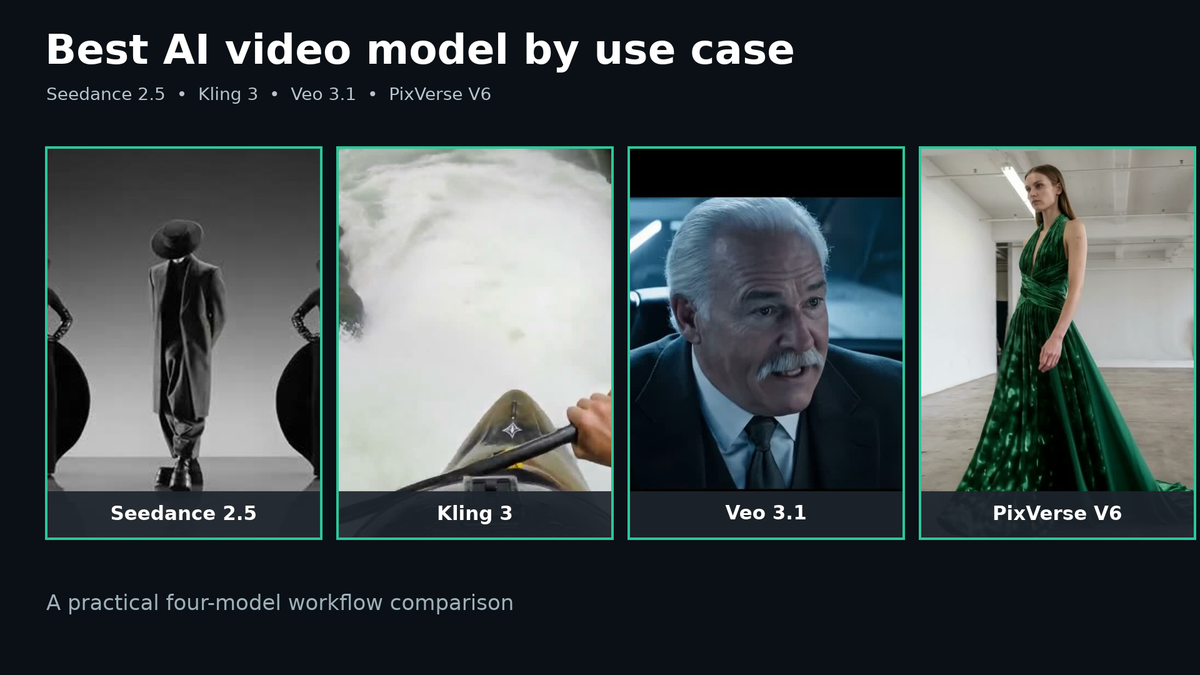
Seedance 2.5
The current Seedance 2.5 workflow lists text-to-video, image-to-video, first-and-last-frame, and Omni Reference modes. It supports 4–30 second clips, 480p or 720p output, multiple aspect ratios, and native audio.
That wide range makes one Seedance timing number especially unhelpful. A short 480p text-only test and a longer 720p reference-led clip with audio are different workloads. Benchmark the exact mode you plan to use.
Kling 3
The current imageat video hub lists Kling 3 for text-to-video and image-to-video, with custom 3–15 second duration, automatic sound generation, and a 1080p Pro mode.
Separate standard and Pro tests in your log. Do not average them together. Also record whether automatic sound was enabled and whether the input was text or an image. For practical motion and prompting advice, see the Kling image-to-video guide.
Veo 3.1
The current imageat workflow lists Veo 3.1 with text-to-video, image-to-video, and first-and-last-frame control; 4–8 second clips; 720p or 1080p output at 24 FPS; and built-in audio.
For a useful comparison, run separate 720p and 1080p groups while holding duration, prompt, aspect ratio, and audio state constant. Do not compare a silent 720p text-to-video test against a 1080p image-to-video clip with audio and attribute the entire difference to resolution.
PixVerse V6
The current PixVerse V6 page lists text and image input, style presets, 720p or 1080p output, optional synchronized audio, and video extension. The broader video hub lists 1–15 second duration and several aspect ratios.
Treat extension as a separate workflow. Extending an existing clip is not equivalent to creating a new one from text or a still image. Optional audio should also be its own benchmark field.
For a broader creative comparison of these models, use the Seedance vs Kling vs Veo vs PixVerse guide. That article focuses on production fit; this one focuses on elapsed-time measurement.
Does 1080p always take longer than 720p?
It is reasonable to expect resolution to affect computational work, but it is not safe to publish one fixed 720p-to-1080p time multiplier. Different systems can generate at the requested resolution, use separate quality paths, or perform an upscale during post-processing. Providers do not necessarily expose those implementation details.
The correct test changes only resolution:
- same model and version;
- same prompt and randomization policy;
- same generation mode;
- same clip duration;
- same aspect ratio;
- same source image or references;
- same audio state;
- similar time window;
- multiple runs per resolution.
Then compare the medians. If 1080p takes longer in your sample, you have evidence for your workflow. If the difference is small, queue variance may be hiding the processing difference. Increase the sample rather than declaring a universal rule.
Resolution also needs a quality decision. A stable 720p clip may be more useful than a distorted 1080p clip. Review motion, faces, hands, product shape, text, and temporal consistency before treating the larger frame as the better result.
The benchmark protocol: get real times in one session
Step 1: define one representative shot
Use a shot you will actually make, not an artificially easy prompt. Keep it narrow enough that all selected models can attempt it.
Example test prompt:
Medium shot of a ceramic coffee cup on a wooden table at sunrise. Steam rises gently while the camera makes one slow five-second push-in. Preserve the cup shape, handle, table edge, and warm window light. End on a stable centered composition.
If testing image-to-video, use the same source image for every compatible run. Check it with the source image checklist before starting; a flawed input can inflate retry time and confuse the comparison.
Step 2: create a test matrix
Choose only settings available to every model if your goal is a direct model comparison. If a unique feature is the reason you want a model, test that feature in a separate group.
A compact matrix might include:
- Model: Seedance 2.5, Kling 3, Veo 3.1, or PixVerse V6
- Mode: text-to-video or image-to-video
- Duration: closest available value to five seconds
- Resolution: 720p
- Ratio: 16:9
- Audio: off, where optional
- Runs: five per model
A resolution test would keep one model fixed and compare five 720p runs with five 1080p runs where both options are available.
Step 3: record the timestamps
For each run, capture:
- request submitted;
- processing started, if visible;
- completed or failed;
- preview available;
- output duration and resolution;
- whether the clip passed review;
- failure or retry reason.
Use a stopwatch if the interface does not expose timestamps. Consistency matters more than precision to the millisecond.
Step 4: calculate useful statistics
Do not publish only the fastest run. Record:
- Median: the middle result after sorting completed times;
- Range: fastest to slowest completed run;
- Failure rate: failed runs divided by all submitted runs;
- First-pass usability: accepted clips divided by all completed clips;
- Time to usable: cumulative waiting time until an accepted result exists.
The median resists one unusual queue spike better than the arithmetic mean. The slowest normal run helps you plan a buffer. Keep outages or clear errors in the log, but label them rather than blending them silently into ordinary completion time.
Step 5: repeat during your real working window
If your team generates every afternoon, a quiet early-morning test may not represent production. Repeat a smaller sample during normal hours. Run model groups close together so a major traffic shift does not unfairly favor one model.
Step 6: date the benchmark
Write down the test date, model label, interface, and provider. Treat the result as a snapshot. Re-test after a model upgrade, a platform change, or a noticeable shift in queue behavior.
A timing worksheet you can copy
Use one row per generation:
Date | Start time | Ready time | Model | Mode | Duration | Resolution | Ratio | Audio | References | Status | Usable? | Retry reason | Notes
Then create a summary:
Model + setting | Runs | Median wall-clock time | Fastest | Slowest | Failures | First-pass usable clips
This format prevents a common reporting mistake: presenting one lucky run as the normal speed. It also makes the result auditable. Someone else can see exactly what was held constant and what changed.
The settings most likely to change elapsed time
Output duration
Longer clips ask the system to produce and maintain more temporal information. Do not assume a ten-second request takes exactly twice as long as a five-second request; model architecture, fixed overhead, and duration tiers can break that relationship. Measure each duration you use frequently.
Resolution and quality mode
Higher dimensions or a Pro mode may use a different computation path. Keep the label exactly as shown in the interface. “1080p,” “Pro,” and “high quality” are not interchangeable terms unless the current product says they are.
Audio
Native or synchronized audio can add generation or post-processing work. Compare audio-on and audio-off requests only when both are valid options for the same model and shot.
Input mode and references
Text-to-video, image-to-video, first-and-last-frame, and multi-reference generation provide different conditioning inputs. More inputs do not translate into a universal time penalty, but they create a different request and deserve a separate row in the benchmark.
Queue conditions
Queue time can dominate a short job. If the system exposes “queued” and “processing” separately, record both. If it does not, wall-clock time remains the most honest user-facing measure.
Safety and post-processing
A completed model run may still need moderation, audio handling, transcoding, storage, or delivery. These stages count when you are waiting for a downloadable result.
Why a faster raw generation may still be slower in production
Creative teams rarely need any completed file; they need an approved shot. Include the work around the model:
- preparing or repairing a source image;
- writing and reviewing a prompt;
- waiting for generation;
- checking every frame;
- rerunning a failed motion or identity result;
- trimming, adding exact text, and editing audio;
- exporting the final deliverable.
Suppose Model A usually completes sooner but preserves the product in only a minority of attempts. Model B takes longer per attempt but passes on the first run more often. Without a real test, neither “faster” claim is useful. Measure approved output per hour, not raw outputs per hour.
The guides to making AI video look real and fixing common AI video prompt mistakes can reduce avoidable retries—the part of the schedule you can often control.
How to estimate a deadline from your results
Use a percentile or a conservative observed value rather than the fastest completion. For a small internal test, the median plus a buffer based on the slower normal runs is more defensible than a guarantee.
For multiple independent shots:
estimated generation window = planned requests × observed planning time per request ÷ safe parallel capacity
Then add:
- expected retries based on your acceptance rate;
- human review time;
- editing and export;
- a contingency for provider errors or queue spikes.
Do not assume unlimited parallel generation. Account limits, provider concurrency, and queue behavior can change. Test the actual number of simultaneous requests you intend to submit.
For a campaign, make a low-risk draft pass first. Use the draft to approve composition and motion before selecting final resolution or quality. The imageat generation workspace lets you keep image and video work in one production flow, while the video editor handles downstream adjustments.
Practical ways to reduce time to a usable clip
Test the motion before the finish quality
When the workflow offers an economical draft setting, use it to answer one question: does the motion work? Move to final settings after the camera path, subject action, and composition are approved. Always confirm the current interface options and credit quote before generating.
Keep one primary action per shot
A request combining a character turn, a product transformation, a camera orbit, particles, dialogue, and a location change is harder to evaluate and more likely to need revision. Split the sequence into shots.
Match the source image to the motion
Give the subject room to move, use clean edges, avoid cropped joints, and do not request an orbit around a product whose hidden surfaces are unknown. Better input preparation reduces wasted attempts.
Preserve important details explicitly
Name the face, wardrobe, product silhouette, label area, lighting direction, and background anchors that must remain stable. Do not rely on a long list of negative instructions to repair an impossible source frame.
Build a reusable benchmark library
Keep one portrait shot, one product shot, and one environment shot as standard internal tests. Re-run them when a new model or resolution launches. This provides a better trend line than unrelated prompts.
Route shots by failure cost, not hype
Use imageat's model comparison and your own benchmark to choose a model. A hero product shot may justify a slower, more controlled workflow. A batch of exploratory social variations may prioritize turnaround. The correct route depends on what happens when the output fails.
Common timing mistakes
Quoting one run as an average
One run is an anecdote. It reveals nothing about variance or failure rate. Use repeated tests.
Comparing unequal requests
A 30-second 720p reference-led clip with audio is not directly comparable to a silent five-second text-to-video request. Normalize what you can and label what you cannot.
Ignoring failures
Deleting failed tasks makes a system appear faster than it is. Keep them in the operational record and calculate time to usable output.
Treating resolution as quality
Resolution describes frame dimensions. It does not guarantee correct anatomy, stable identity, believable physics, or prompt adherence.
Promising provider speed to a client
Queue conditions are outside your control unless a service level explicitly says otherwise. Promise a delivery window built from measured workflow performance, not a model stopwatch claim.
Using old benchmark screenshots
A timing chart without a date, model version, settings, and sample size cannot support a current decision. Archive old results; do not present them as live facts.
Frequently asked questions
How long does an AI video take to generate?
There is no universal duration. The honest number is the wall-clock time observed for a specified model, mode, clip duration, resolution, audio state, provider, and queue window. Run repeated tests and report the median plus the observed range.
Is 1080p slower than 720p for AI video?
It can be, but the size of the difference depends on the model and serving pipeline. Some systems may use distinct quality paths or post-processing. Test both resolutions with every other setting held constant.
Which AI video model is fastest?
A permanent winner cannot be established from one public number. Queue load and implementation change, and “fastest completion” may not mean “fastest usable result.” Benchmark the models available to you with the same representative shot.
Does a longer prompt increase generation time?
Prompt length is usually less important to wall-clock video production than clip duration, resolution, mode, provider load, and retries. The larger risk is a contradictory prompt that creates unusable output and forces another run.
Does image-to-video take longer than text-to-video?
Do not assume a universal ordering. They are different request types, and provider implementations vary. Measure them separately. More importantly, inspect whether the image-to-video result needs fewer creative retries because the starting composition is already defined.
Should I use 720p for drafts and 1080p for finals?
That is a sensible test workflow when both modes are available and the lower-resolution run can reveal the motion or continuity problem you care about. Confirm that switching modes does not materially change behavior, and review the final setting before delivery.
How many runs make a useful benchmark?
Five runs per setting can expose obvious variation, but more observations provide a more stable estimate. Use the same sample size for every model, record failures, and repeat the test over time.
Can I speed up AI video by submitting jobs in parallel?
Parallel work can improve throughput, but it may not reduce each task's latency. Concurrency limits and provider queues can also change the result. Increase parallelism gradually and record both completion time and error rate.
The practical conclusion
The real answer to “How long does AI video generation take?” is not a universal number. It is a dated, reproducible measurement of your exact request. Model and resolution matter, but so do duration, mode, audio, references, queue load, post-processing, and the number of attempts needed to reach an approved shot.
Use the imageat AI video generator to run the same representative brief across the models and settings you are considering. Record submit-to-ready time, preserve failures, calculate the median, and plan around time to usable output. That gives you a production estimate you can defend—and a much stronger basis for choosing a model than an undated “generated in seconds” claim.