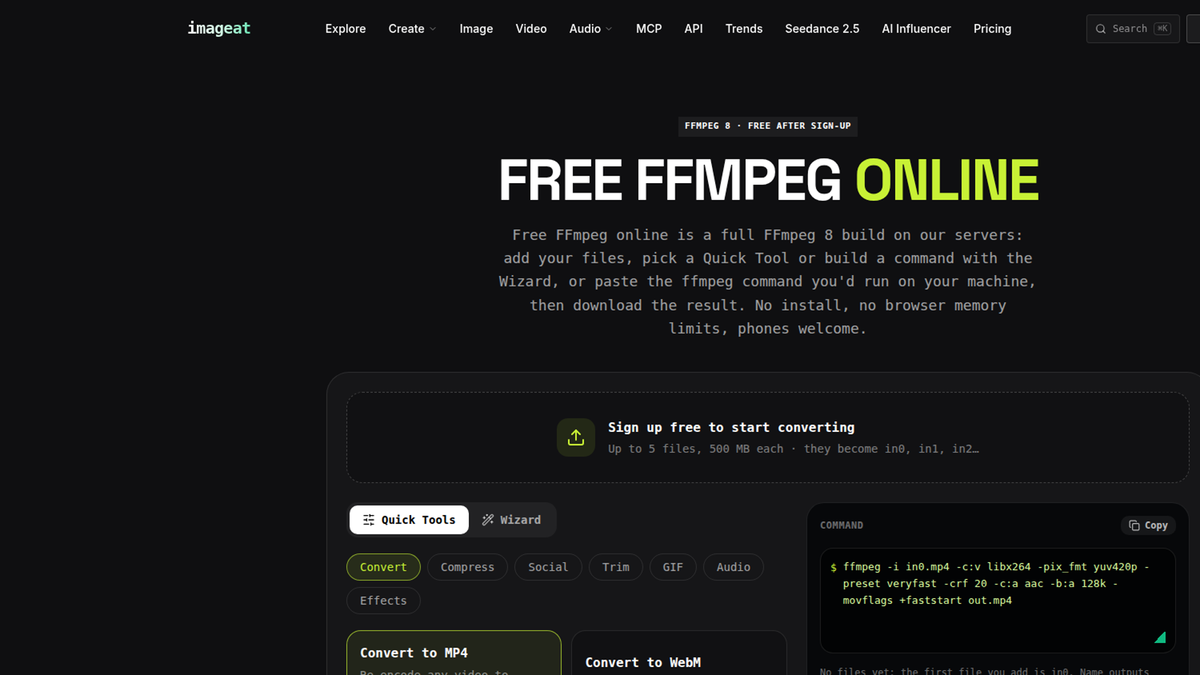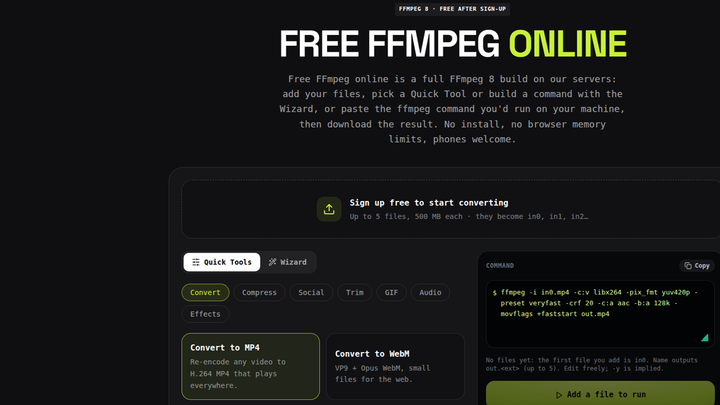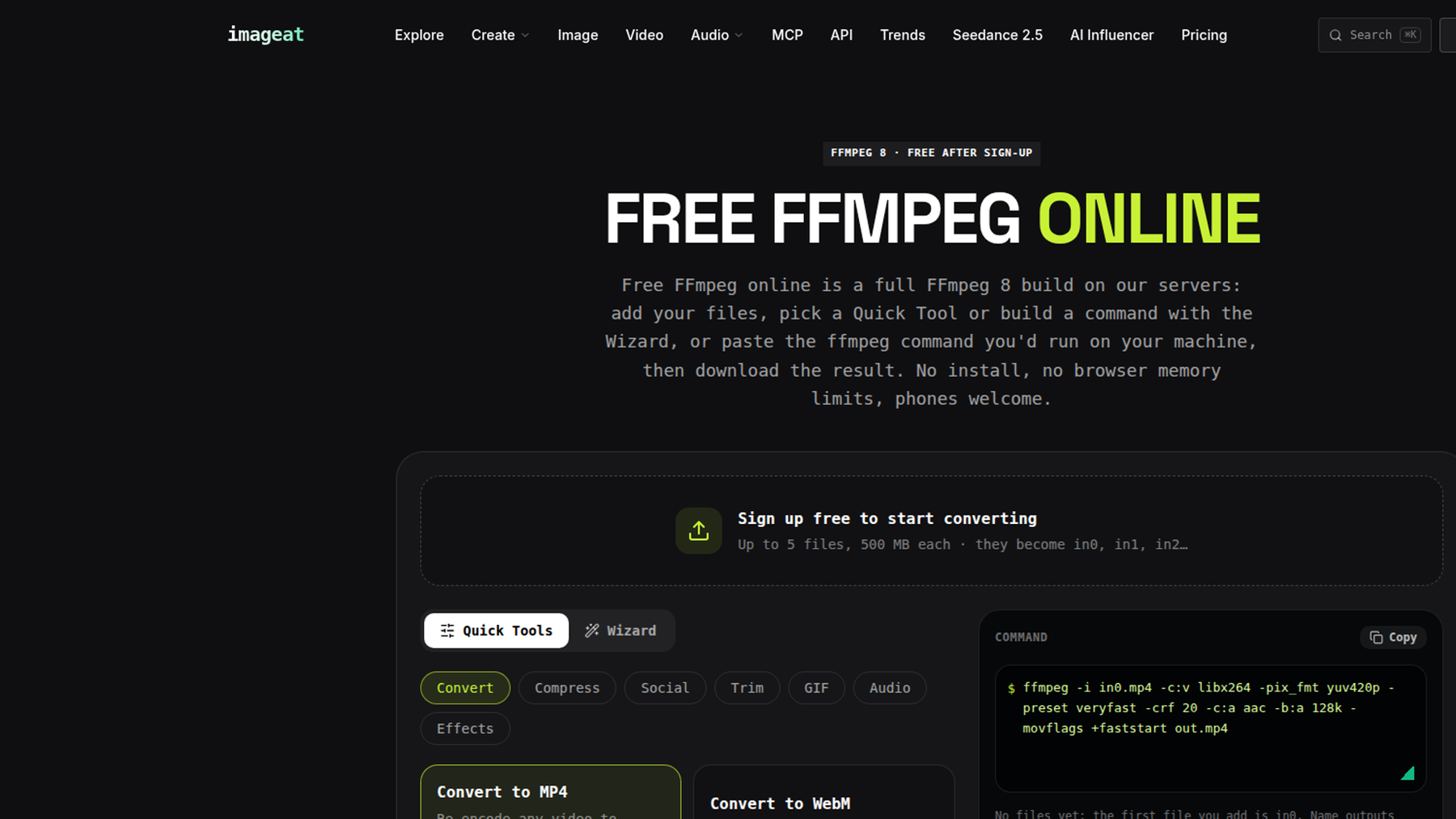
You can use FFmpeg without installing it by uploading your media to imageat FFmpeg Online, selecting a Quick Tool or building a command with the Wizard, and running the job on imageat's servers. It is free after sign-up within the free-account limits, works from desktop and mobile browsers, and lets you download the generated output when processing finishes.
What is FFmpeg?
FFmpeg is a command-line media toolkit. It can convert video and audio, change codecs and containers, resize footage, compress files, trim clips, extract sound, burn subtitles, make GIFs, capture frames, combine streams, and much more.
Its flexibility comes from commands composed of inputs, options, filters, and outputs. That is useful when you know the result you need, but the command-line interface creates two separate hurdles: installing a compatible build and choosing the correct flags.
An FFmpeg command generator removes much of the second hurdle. A server-based FFmpeg tool removes the first one as well.
Why installing FFmpeg can be painful
On Windows, downloading FFmpeg is only part of the job. You may also need to unpack a build, find the executable, add its folder to the system PATH, restart a terminal, and troubleshoot quoting or permission issues.
On macOS, installation is often easier for people who already use a package manager. For everyone else, the process still introduces terminal setup, security prompts, architecture questions, and updates. A command that works in one shell may also need different quoting in another.
Phones and tablets are more restrictive. They do not provide the normal desktop workflow for installing a command-line binary, and mobile operating systems limit background work, storage access, and memory. Even if an app embeds FFmpeg, moving files in and out can be awkward.
Using FFmpeg online avoids local installation and PATH configuration. You still control the media operation, but a remote machine runs it.
Browser WebAssembly versus server-based FFmpeg
Not every online tool processes media the same way. Some run a WebAssembly build of FFmpeg inside your browser. That can keep processing local, but the browser must load the runtime and hold input, working data, and output in device memory. Large files may exceed browser memory limits, and long encodes can be slow or unstable when a phone heats up, locks, or moves the tab into the background.
A server-based tool uploads the inputs and runs a native FFmpeg build remotely. Performance depends less on your phone or laptop, and processing does not compete directly with a browser tab for CPU and memory. The trade-off is that files must be uploaded and downloaded, so connection speed matters and account limits still apply.
imageat uses the server-based approach with FFmpeg 8. The current free tier is not unlimited or anonymous: it is free after sign-up and allows up to five input files, each up to 500 MB. Free accounts receive 20 jobs or 30 processing minutes per day, and videos can be up to 10 minutes long. The live page says jobs run in an isolated sandbox, uploaded files are kept in private storage, and free-account files are deleted automatically after 24 hours.
How to run FFmpeg online with imageat
1. Add the input files
Open the FFmpeg Online page and sign in or create a free account. Add the files required for the job.
imageat renames uploads by their order while retaining each extension. The first MP4 becomes in0.mp4; a subtitle file added second becomes in1.srt. With another video or audio file, the second input could instead be in1.mp3 or in1.mp4.
That naming rule matters because the command must refer to the server-side input names, not the original filenames on your device.
2. Choose a Quick Tool or use the Wizard
Quick Tools are presets for common jobs. The live interface groups them under Convert, Compress, Social, Trim, GIF, Audio, and Effects. Examples include MP4, WebM, MKV, MOV, MP3, WAV, M4A, and OGG conversion.
For more control, open the Wizard. This is the built-in FFmpeg command generator. Choose the output container, video codec, resolution, frame rate, quality setting (CRF), and audio options. The matching command is written live in the command panel, so you can inspect or copy it before running anything.
CRF controls quality for codecs such as H.264: lower values generally preserve more detail and create larger files, while higher values generally reduce size and quality. Resolution controls frame dimensions; it is separate from codec and container. For example, MP4 is a container, while H.264 is a video codec that can be stored in it.
You can also start from a Quick Tool and edit its command, or type a valid command yourself.
3. Check the output name
Name output files with an out prefix, such as out.mp4, out-small.mp4, or out.jpg. The interface supports up to five outputs from one command and states that overwrite mode is implied.
The server blocks remote URLs, absolute paths, filter scripts, and streaming outputs such as HLS. Use only uploaded inputs and supported output names.
4. Generate, run, and download
Review the generated command, select Run, and wait for server processing to complete. Then download every output written by the command. If the result is not right, adjust the Wizard settings or command and run a new job; each run counts toward the applicable account limits.
Eight useful FFmpeg online commands
The following commands use imageat's input and output naming. Add the required files in the order shown, then paste the command into the command panel. All eight were also executed successfully against short test media with FFmpeg 8.0.1; actual processing time and output size depend on your source.
| Task | Required uploads | Command |
|---|---|---|
| Convert to compatible H.264 MP4 | First file: video as in0.mp4 | ffmpeg -i in0.mp4 -c:v libx264 -pix_fmt yuv420p -preset veryfast -crf 20 -c:a aac -b:a 128k -movflags +faststart out.mp4 |
| Resize to 720p and compress | First file: video as in0.mp4 | ffmpeg -i in0.mp4 -vf "scale=-2:720" -c:v libx264 -preset veryfast -crf 28 -c:a aac -b:a 96k out-small.mp4 |
| Trim a two-second clip starting at one second | First file: video as in0.mp4 | ffmpeg -ss 00:00:01 -i in0.mp4 -t 00:00:02 -c:v libx264 -c:a aac out.mp4 |
| Extract audio as MP3 | First file: video as in0.mp4 | ffmpeg -i in0.mp4 -vn -c:a libmp3lame -q:a 2 out.mp3 |
| Burn subtitles into the picture | First: in0.mp4; second: in1.srt | ffmpeg -i in0.mp4 -vf "subtitles=in1.srt" -c:v libx264 -crf 20 -c:a copy out.mp4 |
| Create a smooth, palette-based GIF | First file: video as in0.mp4 | ffmpeg -i in0.mp4 -filter_complex "[0:v]fps=12,scale=480:-1:flags=lanczos,split[v0][v1];[v0]palettegen[p];[v1][p]paletteuse" -loop 0 out.gif |
| Replace a video's audio track | First: in0.mp4; second: in1.mp3 | ffmpeg -i in0.mp4 -i in1.mp3 -map 0:v:0 -map 1:a:0 -c:v copy -c:a aac -shortest out.mp4 |
| Save a thumbnail from the two-second mark | First file: video as in0.mp4 | ffmpeg -ss 00:00:02 -i in0.mp4 -frames:v 1 -q:v 2 out.jpg |
The 720p command preserves aspect ratio by calculating the width automatically. It can upscale a smaller source, so choose a lower target height in the Wizard if upscaling is not wanted. The audio-replacement command copies the video without re-encoding it, converts the new audio to AAC, and ends at the shorter stream.
Practical tips for reliable results
Keep input order consistent. If you remove and re-add files, recheck every input reference before running the job.
Use a Quick Tool for standard conversions and the Wizard when you need explicit control over codec, resolution, frame rate, CRF, or audio. Editing a generated command is usually safer than building a complex filter from memory.
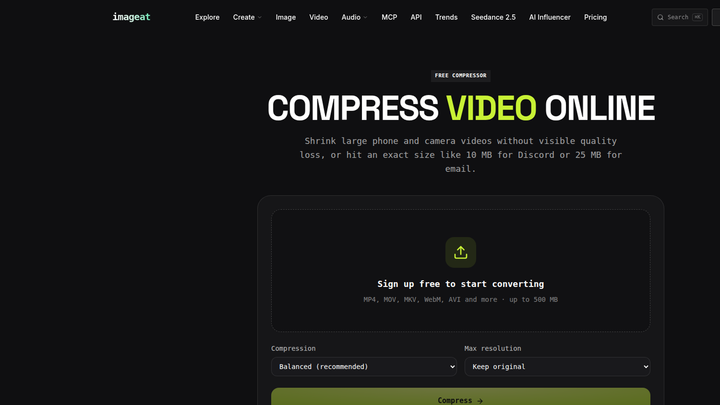
For compression, change one major variable at a time. Start with CRF, then reduce resolution or frame rate only if needed. A very high CRF may produce a smaller file but can introduce visible artifacts.
On a phone, keep the browser available until the upload completes. Server processing avoids device-level encoding pressure, but it cannot remove upload time or mobile connection interruptions.
If you need larger limits, longer source videos, or priority queueing, review imageat pricing. Developers automating repeated jobs can evaluate the FFmpeg API rather than manually uploading files.
Frequently asked questions
Is free FFmpeg online unlimited?
No. imageat is free after sign-up, not unlimited or anonymous. Free accounts currently receive 20 jobs or 30 processing minutes per day, with files up to 500 MB and videos up to 10 minutes.
Do I need to know FFmpeg commands?
No. Quick Tools cover common tasks, and the Wizard generates a command from your container, codec, resolution, frame-rate, CRF, and audio selections. You can still edit the generated command when needed.
Can I use FFmpeg online on a phone?
Yes. Because imageat processes jobs on its servers, the phone does not perform the encode itself. You still need enough connectivity and local storage to upload the source and download the result.
How should I name inputs and outputs?
Inputs become in0, in1, and so on in upload order, while retaining their extensions. Outputs must use an out prefix, such as out.mp4 or out-small.mp4.
Are my uploaded files permanent?
No. The live page says uploads use private storage and are processed in an isolated sandbox. Files from free accounts are automatically deleted after 24 hours; paid-plan retention is longer.
Try imageat FFmpeg Online free after sign-up: upload your files, generate a command, run it, and download the result.
)