If an iPhone MOV video will not play, the usual problem is not the .mov extension itself: the device or app may not support the video codec inside the file, often HEVC. Convert MOV to MP4 by remuxing when the existing streams are compatible, or re-encode HEVC to H.264 when broader playback support is required.
Why iPhone videos sometimes will not play
An iPhone can record efficient, high-quality video, but the resulting file may use technology that an older computer, TV, browser, messaging app, or editing program cannot decode. The symptom can be an error message, a black screen, video without audio, or a file that refuses to import.
Two details determine compatibility:
- Container: The file structure, commonly MOV or MP4, that holds video, audio, subtitles, and metadata.
- Codec: The method used to compress and decode each stream, such as HEVC/H.265 for video, H.264/AVC for video, or AAC for audio.
Changing the container does not automatically change the codec. A .mov file can contain H.264 or HEVC, and an .mp4 file can also contain H.264 or HEVC. Renaming in0.mov to out.mp4 only changes the filename; it does not create a valid MP4 container or make an unsupported codec playable.
For the broadest practical compatibility, MP4 containing H.264 video and AAC audio is usually the safest target. If the original MOV already contains compatible H.264 and AAC streams, a fast, lossless remux may be all you need. If it contains HEVC and the destination cannot decode HEVC, you must perform an HEVC to H.264 conversion.
Check what is inside the MOV file
Install FFmpeg through your operating system's package manager, then inspect the file with ffprobe, which is included with FFmpeg:
bash
ffprobe -v error -show_entries stream=index,codec_type,codec_name,profile,pix_fmt -of default=noprint_wrappers=1 "in0.mov"
Look for a video stream with codec_name=h264 or codec_name=hevc. Also check the audio stream. codec_name=aac is an ideal result for an MP4 intended for wide playback.
You can get a compact summary with:
bash
ffprobe -v error -show_entries stream=codec_type,codec_name -of csv=p=0 "in0.mov"
Do not decide from the extension alone. Stream inspection tells you whether a container change is enough or whether the video must be decoded and encoded again.
Option 1: Remux MOV to MP4 without losing quality
Remuxing copies the existing compressed video and audio streams into a new container. It does not decode or recompress them, so there is no generation loss. It is also much faster than encoding and normally preserves the original resolution, frame rate, and stream quality exactly.
Use this command when the MOV already contains streams suitable for MP4 and supported by the target player:
bash
ffmpeg -i "in0.mov" -map 0:v:0 -map 0:a? -c copy -movflags +faststart "out.mp4"
The options mean:
-map 0:v:0selects the first video stream.-map 0:a?includes audio if present; the question mark prevents failure when there is no audio.-c copycopies streams without re-encoding.-movflags +faststartmoves MP4 playback metadata near the beginning, which helps web playback start sooner.
This is the correct method to convert MOV to MP4 without losing quality when codec compatibility is already satisfactory. It is lossless because the encoded media streams are copied byte for byte, although some container metadata may be represented differently.
Remuxing cannot solve a codec problem. If the source video is HEVC and the old player does not support HEVC, putting that same HEVC stream in MP4 will still leave it unsupported. A remux can also fail if the MOV contains a stream that the MP4 muxer cannot accept.
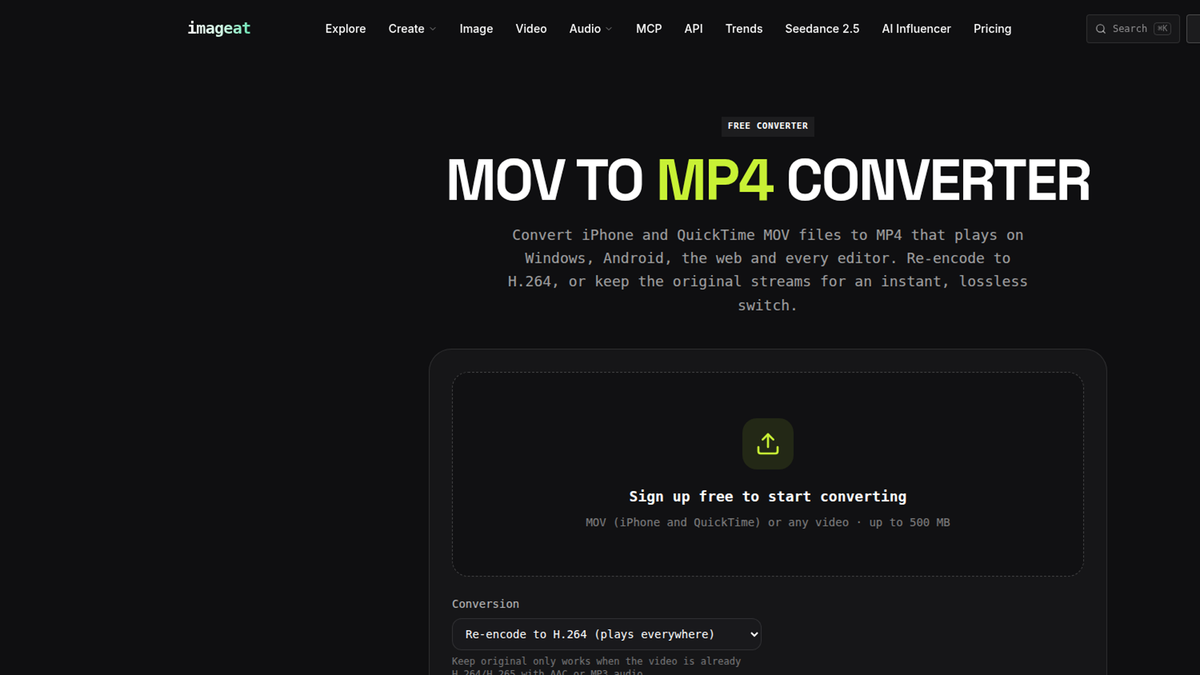
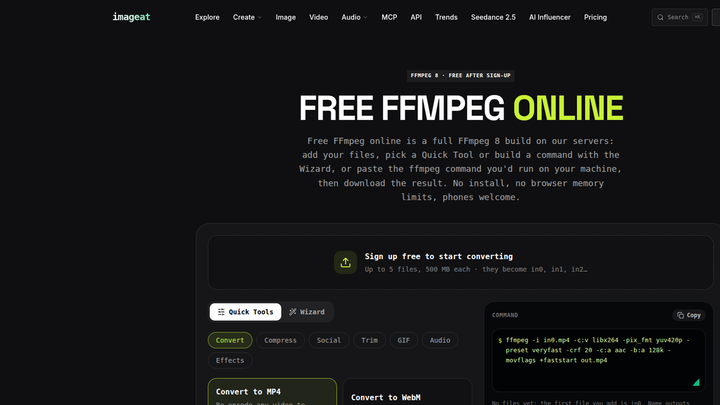
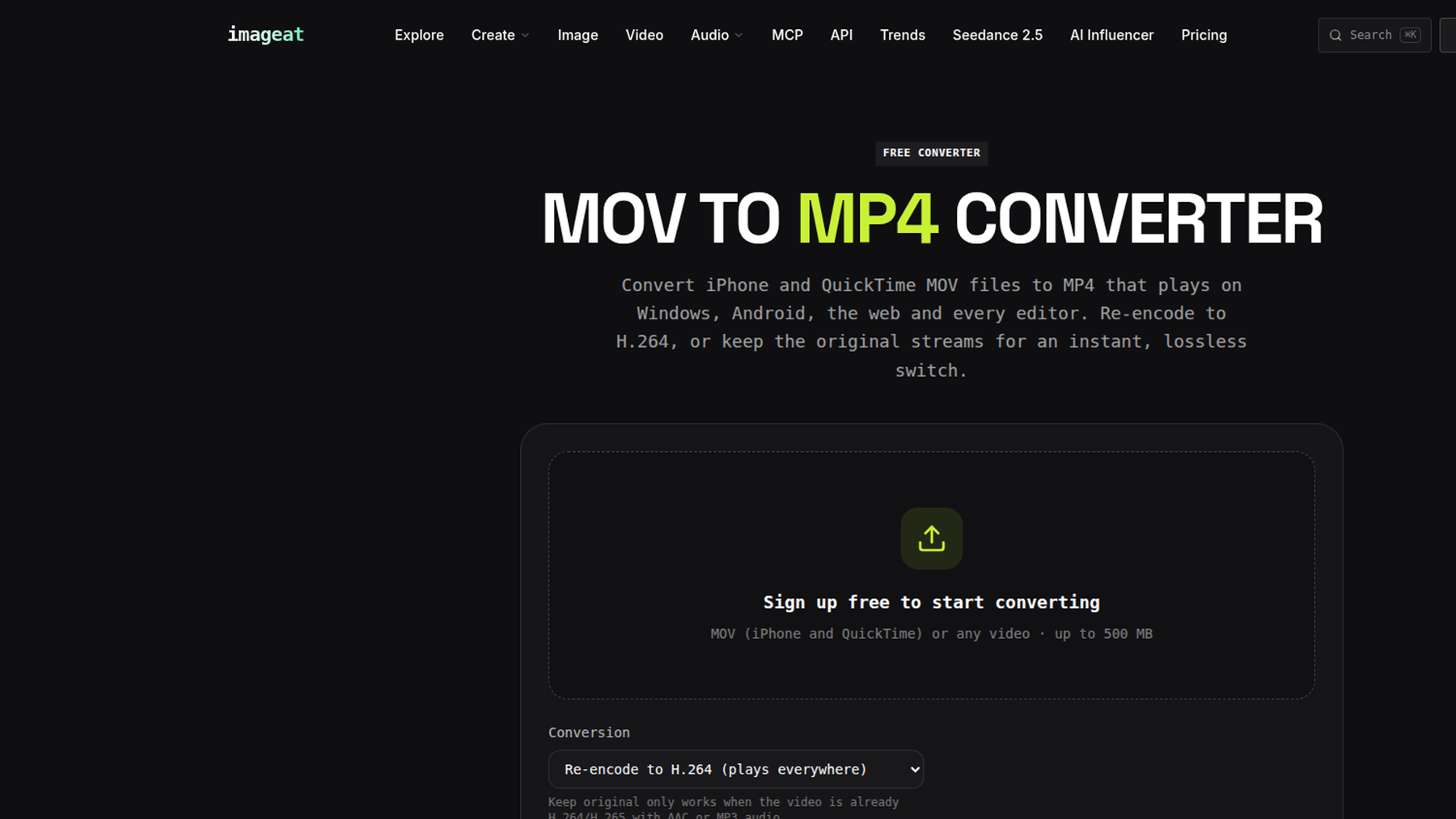
For a simple browser workflow, use the imageat MOV to MP4 tool. For command-level control without a local setup, imageat FFmpeg online provides a web-based FFmpeg workflow.
Option 2: Convert HEVC to H.264 for compatibility
When inspection shows codec_name=hevc and the receiving device or software cannot decode it, re-encode the video as H.264. This HEVC to H264 conversion changes the codec rather than merely changing the container. The following command creates H.264 video, converts audio to AAC, preserves the source dimensions by default, and produces a widely usable MP4:
bash
ffmpeg -i "in0.mov" -map 0:v:0 -map 0:a? -c:v libx264 -preset medium -crf 18 -pix_fmt yuv420p -c:a aac -b:a 192k -movflags +faststart "out.mp4"
Key settings:
-c:v libx264encodes the video as H.264.-preset mediumbalances encoding time and compression efficiency. A slower preset can reduce file size at similar quality; it does not inherently increase the chosen CRF quality.-crf 18targets high visual quality. Lower values retain more detail and produce larger files; higher values reduce size and quality.-pix_fmt yuv420pavoids less-supported pixel formats on older players.-c:a aac -b:a 192kcreates broadly supported AAC audio.
A normal H.264 re-encode is technically lossy, even when the result looks indistinguishable in ordinary viewing. Do not describe it as lossless. Encoding cannot restore detail already removed by the iPhone's original compression, and every lossy generation can discard additional information.
If preserving quality matters more than file size, retain the original MOV as an archive and create the MP4 as a delivery copy. Avoid repeated conversions: always generate new versions from the original recording rather than from an already converted MP4.
Handle rotation correctly
iPhone footage may store orientation as metadata instead of physically rotating every frame. FFmpeg normally applies autorotation during re-encoding. Check the output before deleting anything, especially with portrait footage.
During stream copy, rotation metadata behavior can vary with the streams and player. Test the remuxed MP4 in the actual destination app. If orientation is wrong, re-encoding is a reliable opportunity to bake the displayed orientation into the output.
Keep frame rate and resolution
Neither example forces a new resolution or frame rate. The remux preserves the compressed stream exactly, while the re-encode uses the decoded source dimensions and timing unless you add filters or output-rate options.
Avoid adding -r 30 unless you intentionally want a constant 30 fps output. Forcing a rate can duplicate or drop frames. Likewise, do not add a scale filter unless the destination has a resolution limit.
Choose the right method
Use remuxing when:
ffprobereports H.264 video and compatible audio such as AAC.- The target accepts the codecs but rejects MOV files.
- You want maximum speed and no video or audio generation loss.
Use re-encoding when:
- The source is HEVC and the target supports H.264 but not HEVC.
- The video uses a pixel format or profile the target cannot display.
- You need to reduce dimensions, bitrate, or file size.
- A platform gives a codec-specific import or playback error.
If you do not know the destination requirements, H.264 video with AAC audio in MP4 is the conservative choice. If quality preservation is the top priority and the destination supports the source codecs, prefer -c copy.
Verify the finished MP4
A successful FFmpeg exit is useful, but verify the actual output before sharing or deleting the source. First inspect its streams:
bash
ffprobe -v error -show_entries format=format_name,duration:stream=codec_type,codec_name,width,height,pix_fmt -of default=noprint_wrappers=1 "out.mp4"
For the re-encoded command, expect H.264 video, usually reported as codec_name=h264, and AAC audio when the source had audio. Confirm the width and height match your intention.
Then decode the entire file without creating another output:
bash
ffmpeg -v error -i "out.mp4" -f null -
No output usually means FFmpeg found no decoding errors. Finally, play the file from beginning to end in the device, browser, editor, or app where it must work. Check picture orientation, audio synchronization, duration, and the final seconds of the recording.
Keep the original until the converted copy has passed these checks and any upload or transfer is complete.
Common mistakes to avoid
Renaming MOV to MP4
An extension rename is not conversion. It can make file detection less reliable because the extension claims one container while the bytes still use another.
Assuming every MP4 will play
MP4 is a container, not a guarantee. An MP4 holding HEVC can fail on a system that accepts MP4 files but only decodes H.264 video.
Calling every conversion lossless
Stream copying with -c copy is lossless for the media streams. A typical libx264 conversion is lossy, regardless of how good it looks. Clear wording helps you choose the right method and preserve originals appropriately.
Overwriting the source
Write to a distinct output filename. FFmpeg normally refuses to overwrite unless instructed, but a separate filename also makes comparison and recovery straightforward.
FAQ
Why does my iPhone save video as MOV?
MOV is a container that works well in Apple's recording and media workflows. The extension does not reveal whether the video inside is HEVC or H.264, so inspect the stream before choosing a conversion method.
Can I convert an iPhone video to MP4 without losing quality?
Yes, if its video and audio streams are compatible with MP4 and the destination supports those codecs. Use an FFmpeg remux with -c copy. If you must change HEVC to H.264, the standard re-encode is technically lossy, though a suitable CRF can retain high visual quality.
Why does an MP4 still fail after I convert it?
A remux may have copied an unsupported HEVC stream into MP4. The player may also reject the audio codec, H.264 profile, pixel format, resolution, or frame rate. Inspect the output with ffprobe and compare it with the destination's documented requirements.
Is HEVC better than H.264?
HEVC can provide efficient compression, while H.264 generally offers broader support across older hardware and software. The right choice depends on whether storage efficiency or compatibility is more important for the specific destination.
What CRF should I use for H.264?
-crf 18 is a practical high-quality starting point for libx264, not a universal requirement. Use a lower value for more retained quality and a larger file, or a higher value for a smaller file and more visible loss. Judge a short sample containing motion and fine detail before processing important footage.
Does MOV to MP4 conversion remove metadata?
It can. Core media timing and common tags may carry over, but container-specific metadata, location data, creation dates, auxiliary tracks, or editing information may not. If metadata is important, inspect both files and preserve the original MOV as the authoritative copy.
Convert your iPhone video now with the imageat MOV to MP4 tool.