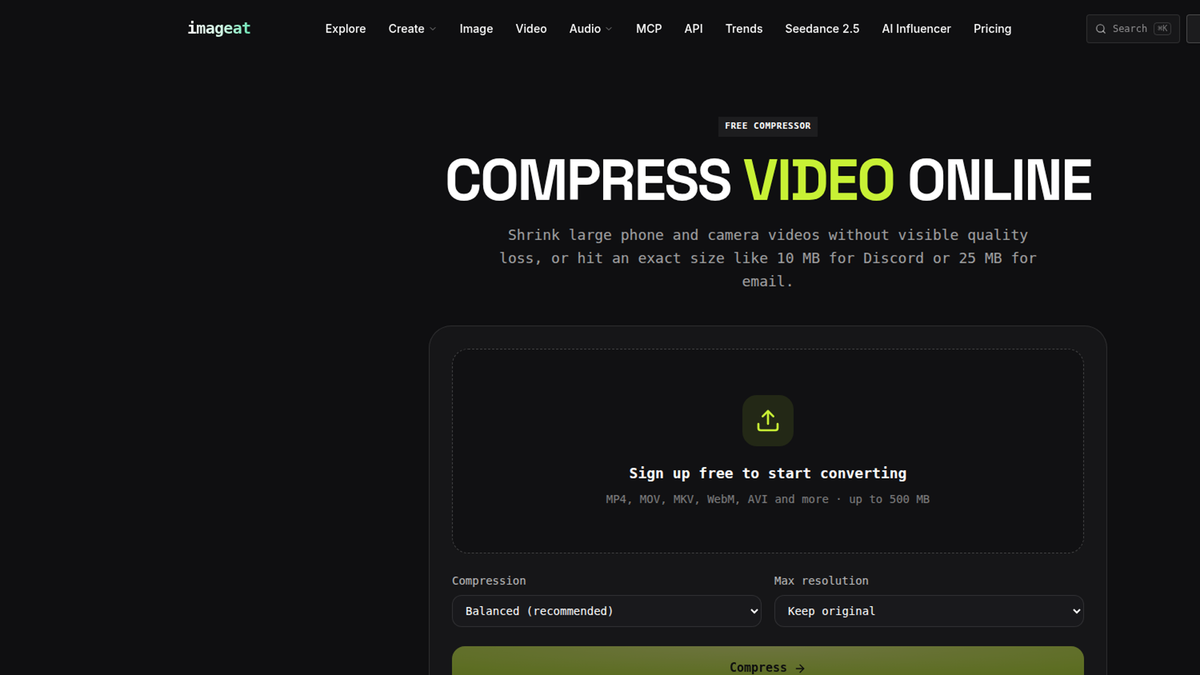
To compress a video for Discord under 10 MB, set a 9.5 MB target, reduce the resolution to 720p or 480p, and encode the video at a bitrate calculated from its duration. The quickest free route is imageat’s Discord preset; for exact control, use the FFmpeg commands below.
What is the Discord file size limit?
The current baseline upload limit for free Discord users is 10 MB. Paid-plan allowances and limits in some servers can vary, so check the upload screen or current Discord account details if you have access to a higher cap.
For a free-account upload, treat 10 MB as a ceiling rather than a target. A 9.5 MB target leaves room for container overhead, rounding, and differences between MB and MiB.
Discord’s file limits determine whether an attachment can be accepted for upload. They also vary by account or server context. You do not need to infer a technical reason for the cap: the useful fact is that a file above the allowance is rejected, while a file below it can be attached.
If your video is too big for Discord, its duration, video bitrate, audio bitrate, resolution, frame rate, or a combination of these is producing more data than the upload allowance permits.
Fastest method: use imageat’s Discord size option
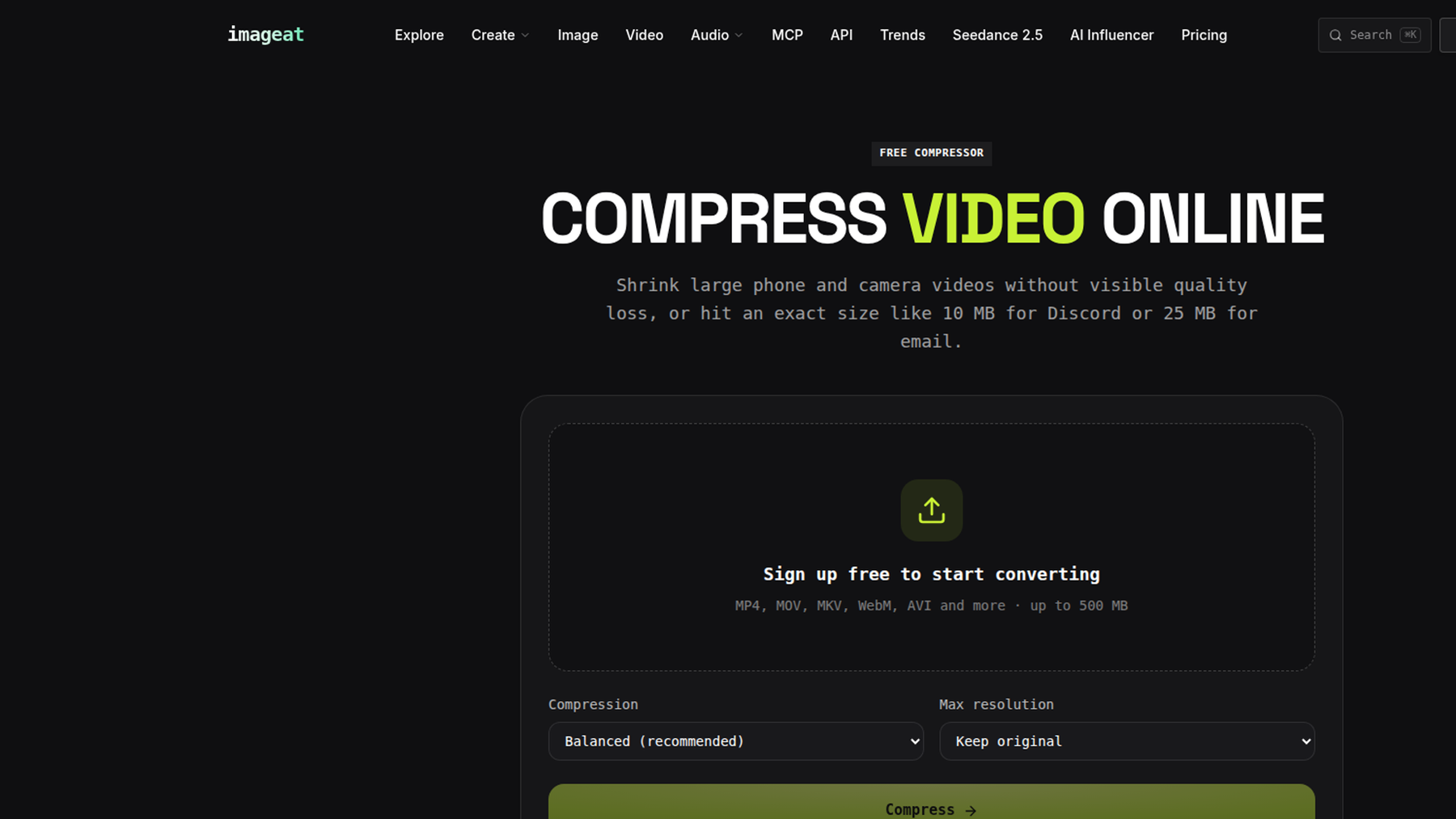
For a no-command-line workflow, open the imageat video compressor and choose the Under 10 MB (Discord) option.
- Upload your source video.
- Select Under 10 MB (Discord).
- Start compression.
- Download the MP4 and confirm that it is below 10 MB.
- Upload the result to Discord.
Preview the result before sending it, especially if the source contains small text, game HUD elements, or rapid movement.
If the output needs to be smaller or clearer, shorten the clip first. Removing even a few seconds gives the encoder more bits for every remaining second and often preserves quality better than lowering resolution again.
Calculate the bitrate for a Discord 10 MB video
File size is mainly determined by duration and total bitrate. Resolution affects how efficiently those bits can represent the picture, but it does not by itself guarantee a particular file size.
Use this formula to estimate the available video bitrate:
text
video bitrate (kbps) = (target size in MB × 8,000 ÷ duration in seconds) − audio bitrate (kbps)
The formula uses decimal megabytes and provides a straightforward working estimate. The target should be below the actual upload cap to leave room for MP4 container overhead and rounding.
Worked example: a 60-second video
Suppose the clip is 60 seconds long. Use a 9.5 MB safety target and 128 kbps AAC audio:
text
(9.5 × 8,000 ÷ 60) − 128
= 1,266.67 − 128
= 1,138.67 kbps
Round the video bitrate to 1,139 kbps. The combined nominal bitrate is then about 1,267 kbps, with the difference between 9.5 MB and Discord’s 10 MB baseline providing room for overhead.
For other durations, recalculate rather than reusing 1,139 kbps. Longer clips receive less bitrate at the same target size and may need 480p.
Compress a video for Discord with FFmpeg
FFmpeg gives you direct control over bitrate, dimensions, frame rate, codec, and audio. The two-pass method below is appropriate when file size matters because it analyzes the clip first, then allocates the target bitrate more intelligently during the final encode.
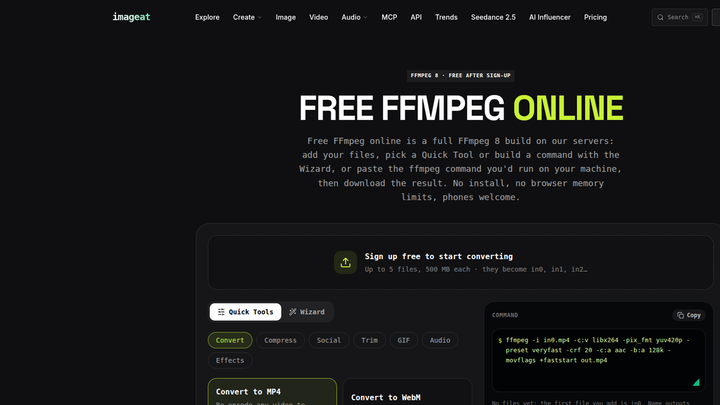
If you do not want to install anything locally, imageat also provides FFmpeg online for browser-based processing.
Check the duration first
Run this command in the folder containing the video:
bash
ffprobe -v error -show_entries format=duration -of default=noprint_wrappers=1:nokey=1 in0.mp4
Replace in0.mp4 with the real file name. The result is the duration in seconds. Put that number into the formula above, then replace 1139k in both encoding passes with your calculated video bitrate.
Exact two-pass command for the 60-second example
On Linux or macOS, copy and run:
bash
ffmpeg -y -i in0.mp4 -vf "scale=-2:720:force_original_aspect_ratio=decrease,fps=30" -c:v libx264 -b:v 1139k -preset medium -pass 1 -an -f null /dev/null && \
ffmpeg -y -i in0.mp4 -vf "scale=-2:720:force_original_aspect_ratio=decrease,fps=30" -c:v libx264 -b:v 1139k -preset medium -pass 2 -c:a aac -b:a 128k -ac 2 -movflags +faststart out-small.mp4
On Windows Command Prompt, use NUL instead of /dev/null and put the commands on one line:
bat
ffmpeg -y -i in0.mp4 -vf "scale=-2:720:force_original_aspect_ratio=decrease,fps=30" -c:v libx264 -b:v 1139k -preset medium -pass 1 -an -f null NUL && ffmpeg -y -i in0.mp4 -vf "scale=-2:720:force_original_aspect_ratio=decrease,fps=30" -c:v libx264 -b:v 1139k -preset medium -pass 2 -c:a aac -b:a 128k -ac 2 -movflags +faststart out-small.mp4
These commands produce H.264 video with AAC audio in MP4. They preserve aspect ratio, cap height at 720 pixels without enlarging smaller video, and reduce frame rate to 30 fps.
The first pass intentionally creates no playable output. The second pass creates out-small.mp4. FFmpeg also writes small two-pass log files in the working directory; they can be deleted after a successful encode.
Verify the finished file size
On Linux or macOS:
bash
ls -lh out-small.mp4
For an exact byte count:
bash
wc -c < out-small.mp4
Keep the result below 10,000,000 bytes for a conservative decimal 10 MB check. If it is larger, lower the video bitrate slightly—for example, from 1139k to 1080k in both passes—and encode again.
Should you use 720p or 480p?
Choose resolution based on the bitrate available after accounting for duration and audio.
Use 720p when
- The clip is short enough to receive a healthy video bitrate.
- It contains interface text, subtitles, or details that must remain readable.
- The source is 720p or higher.
- Motion is moderate rather than constant and chaotic.
For many short clips, 720p is a good first attempt. Do not upscale a 480p source to 720p; upscaling adds pixels but cannot restore missing detail.
Use 480p when
- The clip is long and the calculated bitrate is low.
- The 720p result looks blocky or smeared during movement.
- Readability at small dimensions is acceptable.
- Getting below the Discord file size limit matters more than fine detail.
To make the FFmpeg command output 480p, change this section in both passes:
text
scale=-2:720:force_original_aspect_ratio=decrease
to:
text
scale=-2:480:force_original_aspect_ratio=decrease
At the same bitrate, 480p gives each pixel more data and can look cleaner than an over-compressed 720p export. Resolution is not a quality score; the best setting is the one that matches the available bitrate.
Ways to improve quality while staying under 10 MB
Trim before compressing
Cut dead air, loading screens, repeated moments, and unnecessary intros. A shorter duration directly increases the bitrate available per second at the same 9.5 MB target.
Keep audio proportional to the content
Use 128 kbps AAC for music, mixed content, or clips where sound quality matters. For speech-only recordings, 96 kbps AAC is often a reasonable starting point. If you change audio to 96 kbps, use -b:a 96k and subtract 96—not 128—in the formula.
Do not remove audio unless the clip genuinely does not need it. The first FFmpeg pass uses -an by design, but the second pass includes AAC audio.
Reduce excessive frame rate
A 60 fps source is harder to compress than 30 fps because it contains twice as many frames per second. For most chat clips, fps=30 is a practical compromise. Keep 60 fps only when smooth motion is essential, then expect to shorten the clip, lower resolution, or accept more compression artifacts.
Start from the best source available
Repeated exports accumulate damage. Compress the original recording instead of downloading an already compressed copy and encoding it again. Avoid converting to another lossy format before the final MP4.
Prefer bitrate targeting over guesswork
A quality-based setting such as CRF can produce excellent results, but it cannot promise a specific final size because complexity varies by video. When the requirement is “under 10 MB,” calculated average bitrate and two-pass encoding are more predictable.
Common reasons a video is still too big for Discord
- The wrong duration was used. Calculate with the exact clip length after trimming, not the original recording length.
- The bitrate was entered as Mbps instead of kbps. For the example, use
1139k, not1139M. - Audio was not included in the calculation. Video and audio both consume the size budget.
- The export target was exactly 10 MB. Use 9.5 MB to allow for overhead and rounding.
- The second pass used different filters or bitrates. Both passes must use the same video filter chain and target video bitrate.
- Extra streams were retained by another workflow. Multiple audio tracks, subtitles, attachments, or metadata can add size.
FAQ
How do I compress a video for Discord for free?
Use imageat’s Under 10 MB (Discord) option for a quick browser workflow, or use the free FFmpeg two-pass command in this guide. In either case, target about 9.5 MB rather than exactly 10 MB.
Why does Discord say my video is too large?
The attachment exceeds the upload allowance available for that account or server context. For the current free baseline, keep the complete file below 10 MB. Paid or server-specific limits can vary.
What bitrate should I use for a Discord 10 MB video?
It depends on duration and audio bitrate. Calculate (9.5 × 8,000 ÷ seconds) − audio kbps for a safe target. For a 60-second clip with 128 kbps audio, the result is about 1,139 kbps video.
Is 720p small enough for Discord?
Not automatically. File size is driven mainly by duration and total bitrate. 720p can fit under 10 MB when encoded at the right bitrate, but 480p may look better when a long clip leaves too little bitrate for 720p.
Why did my export exceed the calculated size?
The estimate does not perfectly predict MP4 overhead, encoder behavior, or size-unit differences. Use a 9.5 MB target, verify the actual output, and lower the video bitrate slightly if necessary.
Can I compress a Discord video without losing quality?
Any meaningful lossy recompression can remove some information. You can minimize visible loss by trimming first, starting from the original, choosing an appropriate resolution, using two-pass encoding, and avoiding repeated exports.
Compress your clip with imageat’s Under 10 MB (Discord) option and send it without the file-size error.
)