This FFmpeg cheat sheet gives you 25 copy-pasteable commands for everyday video and audio work. Use these FFmpeg examples to convert, compress, cut, resize, caption, and reformat media without digging through a long manual.
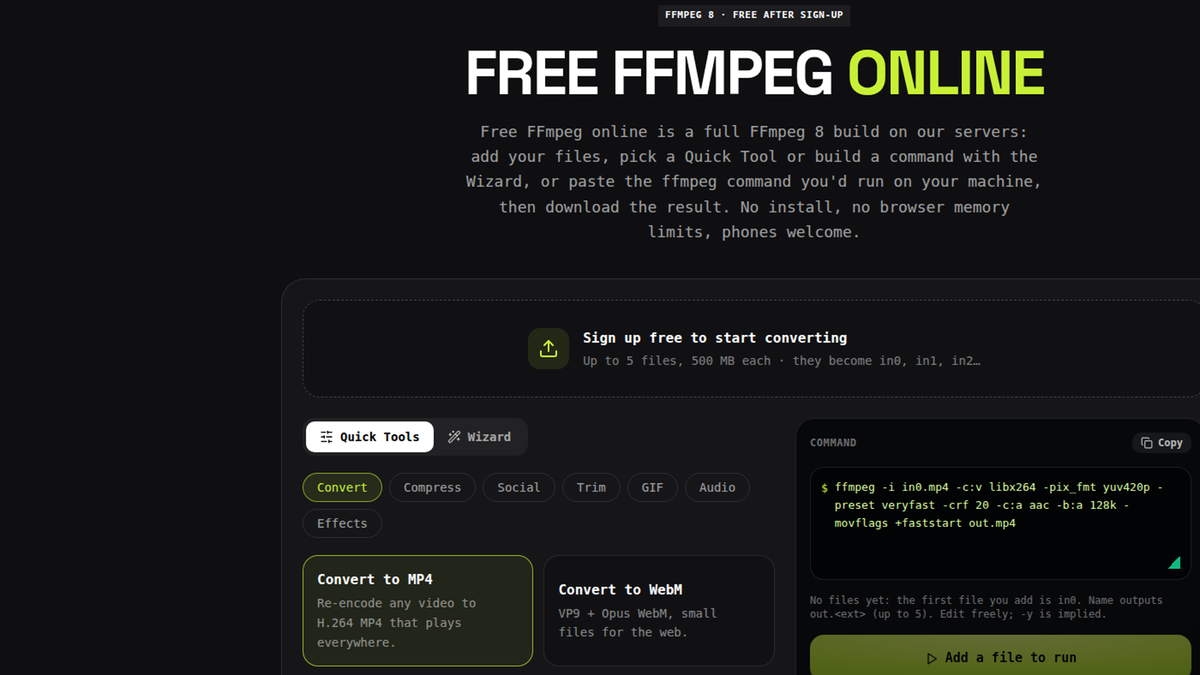
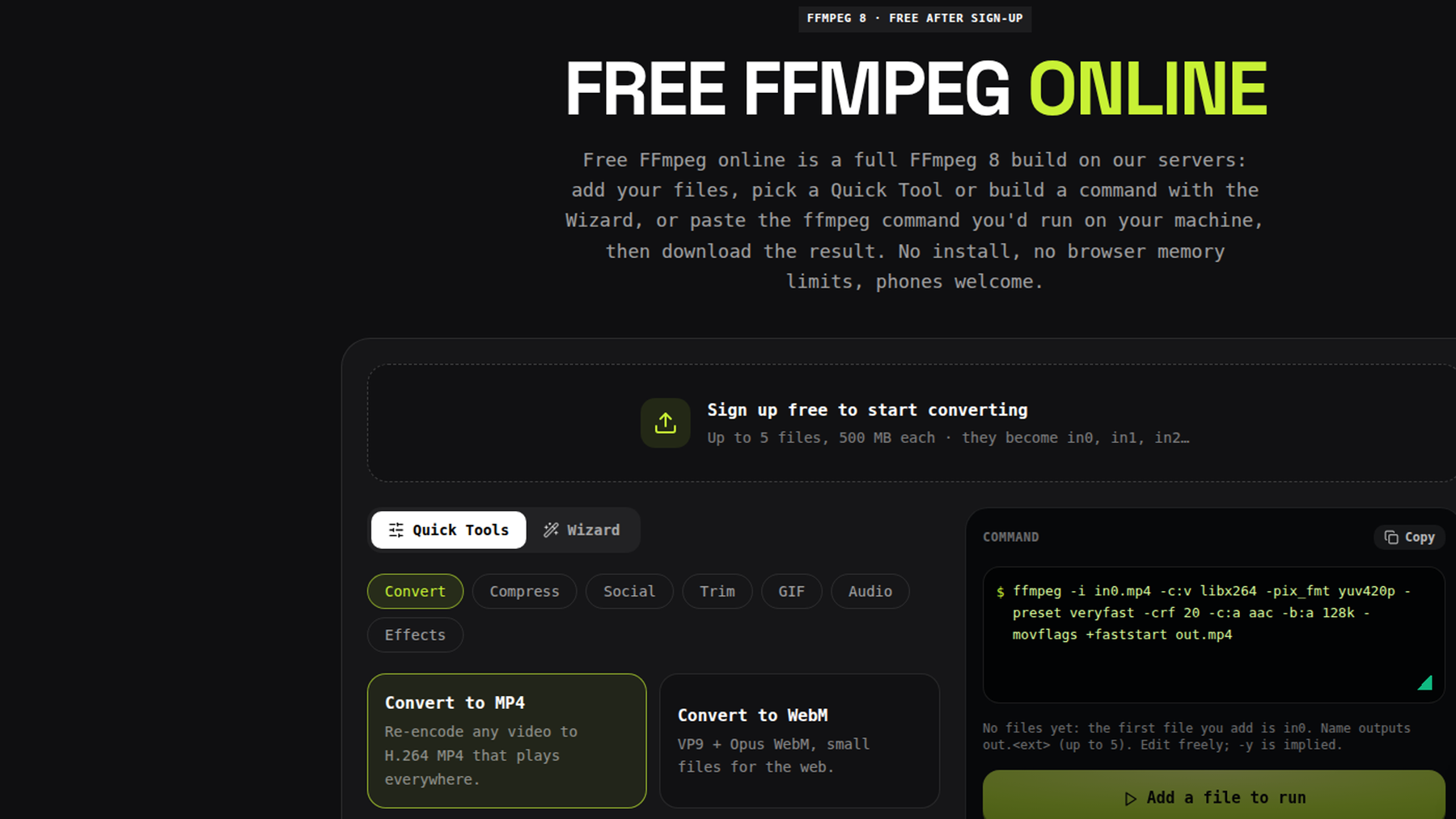
Every command below can run free after sign-up in imageat's online FFmpeg tool. Upload the named input file, paste the command, adjust values when needed, and download the result; no local installation is required.
Before you run these FFmpeg commands
Replace example names such as in0.mp4 with your filename when running locally. Output names identify what each command creates.
Time values use HH:MM:SS or seconds. Dimensions use width:height; a value of -2 asks FFmpeg to calculate an even dimension while preserving aspect ratio. Quoted filter expressions should remain quoted, especially in shells that treat commas, semicolons, or parentheses specially.
These commands favor compatible H.264 video, AAC audio, and practical defaults. Test a short section first, and retain the original until you check the output.
Convert video and audio formats
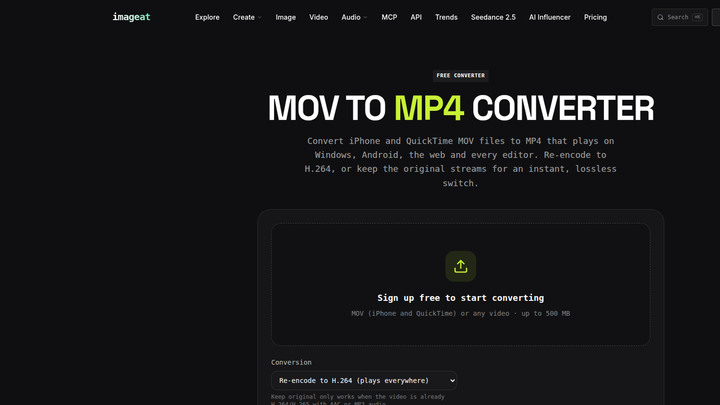
1. Convert MOV to MP4
bash
ffmpeg -i in0.mov -c:v libx264 -c:a aac -movflags +faststart out.mp4
Converts a MOV file to a web-friendly MP4 and moves playback metadata to the front for faster streaming startup.
2. Convert MKV to MP4 without re-encoding
bash
ffmpeg -i in0.mkv -c copy -movflags +faststart out.mp4
Changes the container quickly while copying compatible video and audio streams without quality loss.
3. Convert MP4 to WebM
bash
ffmpeg -i in0.mp4 -c:v libvpx-vp9 -crf 32 -b:v 0 -c:a libopus out.webm
Creates a VP9 WebM with Opus audio, using constant-quality encoding instead of a fixed video bitrate.
4. Convert WAV to MP3
bash
ffmpeg -i in0.wav -c:a libmp3lame -q:a 2 out.mp3
Turns uncompressed WAV audio into a high-quality variable-bitrate MP3 suitable for everyday playback.
Compress video
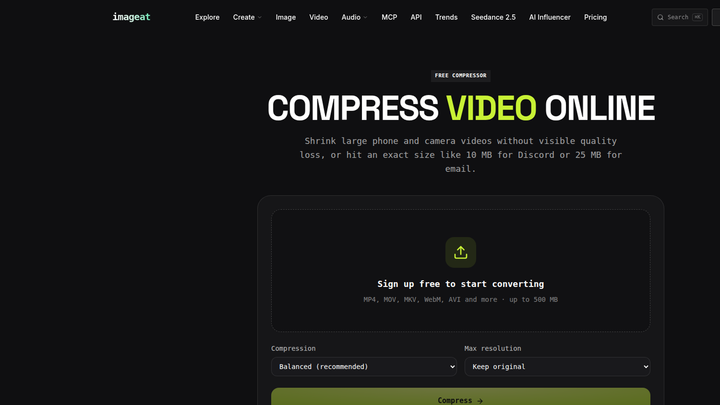
With x264, a higher CRF makes a smaller, lower-quality file, while a slower preset can improve compression efficiency. Avoid repeated lossy encoding.
5. Compress an MP4 with H.264
bash
ffmpeg -i in0.mp4 -c:v libx264 -crf 23 -preset medium -c:a aac -b:a 128k -movflags +faststart out-small.mp4
Re-encodes video at a practical CRF and limits audio to 128 kb/s for a smaller general-purpose MP4.
6. Compress to a target video bitrate
bash
ffmpeg -i in0.mp4 -c:v libx264 -b:v 1500k -maxrate 1500k -bufsize 3000k -c:a aac -b:a 128k out-small.mp4
Constrains video around 1.5 Mb/s when delivery requirements matter more than constant visual quality.
Trim and cut clips
Stream copying is fast but may cut at a nearby keyframe; re-encoding gives more precise boundaries.
7. Cut a clip quickly without re-encoding
bash
ffmpeg -ss 00:00:10 -i in0.mp4 -t 00:00:20 -c copy out.mp4
Copies a 20-second section starting at ten seconds, making this ideal when keyframe-level precision is acceptable.
8. Trim a clip with accurate re-encoding
bash
ffmpeg -i in0.mp4 -ss 00:00:10 -t 00:00:20 -c:v libx264 -c:a aac out.mp4
Re-encodes a precise 20-second segment that begins ten seconds into the source.
Resize and crop video
Scaling changes output dimensions, while cropping removes pixels. Preserve the aspect ratio unless you intentionally need a fixed frame.
9. Resize to 720p width
bash
ffmpeg -i in0.mp4 -vf "scale=1280:-2" -c:v libx264 -crf 23 -c:a copy out.mp4
Sets the width to 1280 pixels and calculates an even height while copying the original audio.
10. Fit inside a 1080p frame with padding
bash
ffmpeg -i in0.mp4 -vf "scale=1920:1080:force_original_aspect_ratio=decrease,pad=1920:1080:(ow-iw)/2:(oh-ih)/2" -c:v libx264 -c:a aac out.mp4
Fits the entire picture within 1920×1080 and adds centered padding instead of stretching or cropping.
11. Center-crop to square
bash
ffmpeg -i in0.mp4 -vf "crop='min(iw,ih)':'min(iw,ih)'" -c:v libx264 -c:a aac out.mp4
Removes equal outer areas from the longer dimension to produce a centered 1:1 frame.
Create GIFs
A palette improves GIF color, while a modest frame rate controls file growth.
12. Create an optimized GIF
bash
ffmpeg -i in0.mp4 -filter_complex "fps=12,scale=640:-1:flags=lanczos,split[s0][s1];[s0]palettegen[p];[s1][p]paletteuse" -loop 0 out.gif
Builds and applies a color palette, scales to 640 pixels wide, and loops the resulting GIF continuously.
13. Create a GIF from a selected segment
bash
ffmpeg -ss 00:00:05 -t 00:00:04 -i in0.mp4 -filter_complex "fps=10,scale=480:-1:flags=lanczos,split[a][b];[a]palettegen[p];[b][p]paletteuse" -loop 0 out.gif
Turns four seconds beginning at the five-second mark into a compact, continuously looping 480-pixel-wide GIF.
Edit audio
Audio filters require re-encoding. AAC works well in MP4, while MP3 is useful for standalone audio distribution.
14. Extract audio as MP3
bash
ffmpeg -i in0.mp4 -vn -c:a libmp3lame -q:a 2 out.mp3
Discards the video stream and saves the soundtrack as a high-quality variable-bitrate MP3.
15. Extract the original audio stream
bash
ffmpeg -i in0.mp4 -vn -c:a copy out.m4a
Copies compatible AAC audio into an M4A container without changing its encoded quality.
16. Normalize loudness
bash
ffmpeg -i in0.mp4 -af "loudnorm=I=-16:LRA=11:TP=-1.5" -c:v copy -c:a aac -b:a 192k out.mp4
Targets -16 LUFS integrated loudness, an 11 LU loudness range, and a -1.5 dB true-peak ceiling.
17. Increase volume by 3 dB
bash
ffmpeg -i in0.mp4 -af "volume=3dB" -c:v copy -c:a aac out.mp4
Raises audio gain by 3 dB while copying the video stream unchanged; check for clipping afterward.
Burn subtitles into video
Burned-in captions cannot be switched off. Ensure timestamps match and the SRT uses UTF-8 text.
18. Burn an SRT subtitle file into MP4
bash
ffmpeg -i in0.mp4 -vf "subtitles=in1.srt" -c:v libx264 -crf 20 -c:a copy out.mp4
Renders SRT captions into every video frame while copying the existing audio stream.
Change playback speed
Video speed uses presentation timestamps. Audio speed uses atempo, whose selected factor here stays within the filter's supported range.
19. Make video and audio 2× faster
bash
ffmpeg -i in0.mp4 -filter_complex "[0:v]setpts=0.5*PTS[v];[0:a]atempo=2.0[a]" -map "[v]" -map "[a]" -c:v libx264 -c:a aac out.mp4
Halves video timestamps and doubles audio tempo to create synchronized double-speed playback.
20. Make video and audio half-speed
bash
ffmpeg -i in0.mp4 -filter_complex "[0:v]setpts=2.0*PTS[v];[0:a]atempo=0.5[a]" -map "[v]" -map "[a]" -c:v libx264 -c:a aac out.mp4
Doubles video timestamps and halves audio tempo for synchronized slow playback without lowering pitch.
Rotate and flip video
These filters transform pixels rather than relying on inconsistently supported rotation metadata.
21. Rotate 90 degrees clockwise
bash
ffmpeg -i in0.mp4 -vf "transpose=1" -c:v libx264 -c:a copy out.mp4
Rotates each frame 90 degrees clockwise and copies the source audio without re-encoding it.
22. Flip video horizontally
bash
ffmpeg -i in0.mp4 -vf "hflip" -c:v libx264 -c:a copy out.mp4
Mirrors the picture from left to right while leaving the audio stream unchanged.
Generate thumbnails
The -frames:v 1 option stops after FFmpeg writes the selected image.
23. Capture a thumbnail at a specific time
bash
ffmpeg -ss 00:00:05 -i in0.mp4 -frames:v 1 -q:v 2 out.jpg
Seeks to five seconds and exports one high-quality JPEG frame as a thumbnail.
24. Create a 4×4 thumbnail contact sheet
bash
ffmpeg -i in0.mp4 -vf "fps=1/10,scale=320:-2,tile=4x4" -frames:v 1 out.jpg
Samples one frame every ten seconds and arranges the first 16 samples in a single 4×4 image.
Make a vertical social video
A blurred background preserves the full horizontal picture in a 9:16 canvas without empty bars. The foreground remains sharp and centered.
25. Create 9:16 video with a blurred background
bash
ffmpeg -i in0.mp4 -filter_complex "[0:v]scale=1080:1920:force_original_aspect_ratio=increase,crop=1080:1920,boxblur=20:10[bg];[0:v]scale=1080:1920:force_original_aspect_ratio=decrease[fg];[bg][fg]overlay=(W-w)/2:(H-h)/2[v]" -map "[v]" -map 0:a? -c:v libx264 -crf 23 -c:a aac -shortest out.mp4
Fills a 1080×1920 canvas with blurred source video and overlays a sharp, aspect-correct foreground.
A practical FFmpeg workflow
Use -c copy for compatible container changes and rough cuts; filters, resizing, burned captions, and codec changes require encoding. Then check synchronization, captions, orientation, dimensions, and playback in the target app. For compression, reduce CRF or raise bitrate when quality is too low; reverse that adjustment when the file is too large. You can test the command in the imageat FFmpeg runner free after sign-up.
FAQ
What is the most useful FFmpeg command structure?
Most jobs use an input, output options, and an output filename. Keep codec or filter options before the output.
Does FFmpeg reduce quality?
Stream copying preserves encoded quality. Lossy encoding can remove information, so choose an appropriate CRF, bitrate, and resolution and avoid repeated conversions.
What is the difference between -t and an end timestamp?
The -t option sets output duration. For example, starting at ten seconds with a duration of 20 seconds ends around 30 seconds. This cheat sheet uses duration because it makes the intended clip length explicit.
Why does -c copy sometimes fail?
The target container may not support the source codec, subtitle type, profile, or other stream details. Filters also cannot run while copying the affected stream. Re-encode into a compatible codec when direct remuxing is unavailable.
How do I choose CRF for H.264?
Start near 23, inspect the output, then adjust. Lower values retain more quality and usually produce larger files; higher values reduce size and usually reduce quality. Content and viewing conditions matter, so there is no single ideal setting.
Can I run these commands without installing FFmpeg?
Yes. Every command in this FFmpeg cheat sheet can run free after sign-up at imageat's online FFmpeg page. Upload the required input media and any companion file, such as an SRT, then paste the matching command.
Ready to process a file? Run an FFmpeg command free after sign-up with imageat.
)